

Read Your Credit Balance and Usage
Use Billing & Usage to answer four questions: how many credits remain and how many you have used, which subscriptions your organization holds, which categories used credits during a period, and which credit movements appear in your history. The same routine works when planning work or investigating an unexpected balance.
Start with the right organization
Select the organization you want to check, open Settings, then
Billing & Usage under Administration. It opens inside Settings, with
the Settings menu beside it, and its address ends in /settings/billing. Check the selected organization
before comparing figures with a purchase or another teammate's report.
The entry appears for everyone who can view the organization's billing, not only its owners and
administrators. Changing spend controls needs permission to manage billing; without it, saving
shows a message saying so.
Ask your organization's administrator for billing access if a billing
section reports that you do not have permission.
Organization roles and permissions
explains how access is managed.
Check what is available now
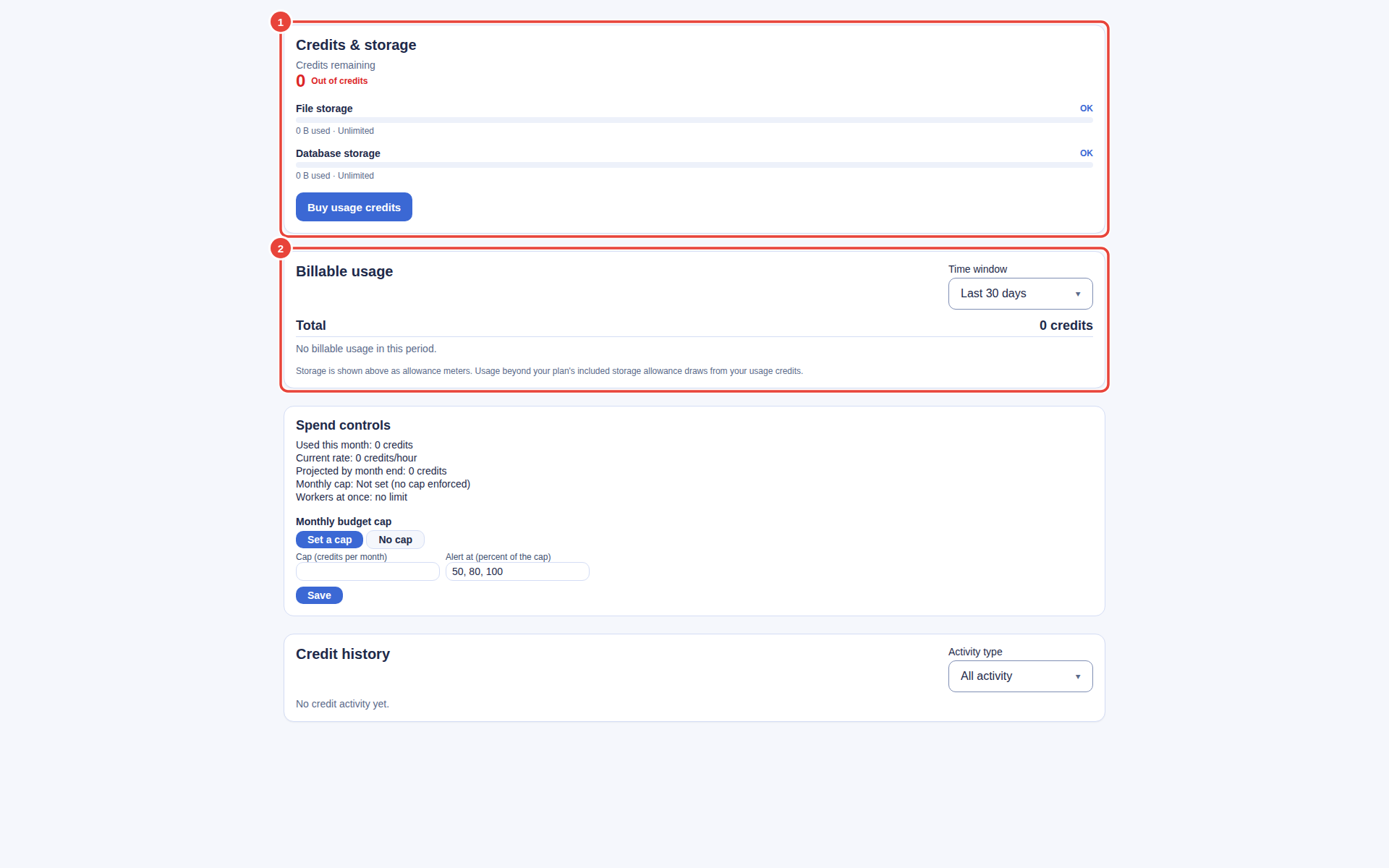
In Credits & storage, read Credits remaining. This is the balance view. The card also shows Running low or Out of credits when applicable. Under it, the Credits used meter shows the credits your organization has used and the credits remaining, with the share used. It reads the same balance as Credit history, so the remaining figure matches the newest running balance there. An organization with unlimited credits shows Unlimited instead of a share. The file and database storage meters describe storage separately; their amounts are not credit balances. See Storage for those meters.
Buy usage credits opens Personal Organizations at this organization's Universal Usage Credits packages, so you can choose one straight away; Buy Usage Credits walks through the purchase. Follow Universal Usage Credits for purchase guidance and consult current package prices. Check the payment result and the selected organization when investigating a purchase that you expected to change the balance.
Manage your organization's subscriptions
Owners of the organization see Subscriptions: the plan, then each add-on, your credits package included. Each row shows whether it is active, in a trial, needs a payment, or is ending, and the date it renews, ends or is paid through.
- Select Manage on the row you want to change.
- To stop a recurring plan, choose Downgrade to Free; it ends at the end of the period you have paid for. To stop an add-on, choose Cancel add-on.
- If a plan or add-on is already ending and you want to continue it, choose Keep my plan or Keep add-on.
- If the action cannot be completed, the dialog says why, for example when members must be removed before a downgrade.
A prepaid term cannot be cancelled early; the dialog shows when it ends. In Personal Organizations, Manage subscriptions on an organization's card opens this list for that organization. Plans and credit packages are still bought in Personal Organizations.
Find what used credits
- Locate Billable usage.
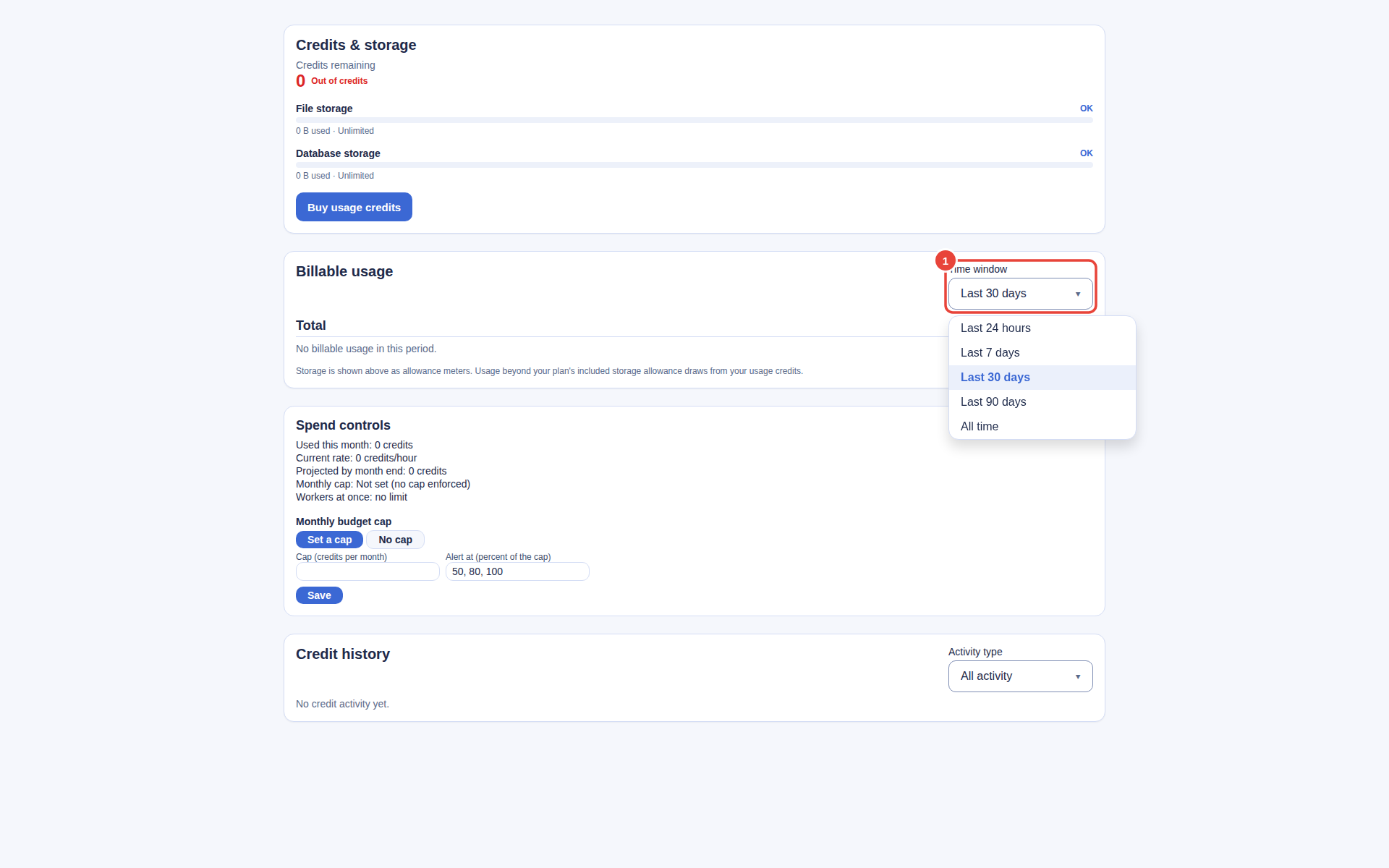
- Open Time window. Choose Last 24 hours, Last 7 days, Last 30 days, Last 90 days, or All time.
- Read Total, then compare the credit amount and event count for each category shown.
- Keep the same organization and time window when comparing readings with a teammate.
The time window changes the usage breakdown. It does not change Credits remaining or filter Credit history. An event count tells you how many recorded events contributed to a category, not how many credits each event cost. No billable usage in this period. is an empty result for that window, not a statement that the organization has no credits.
Investigate a credit movement
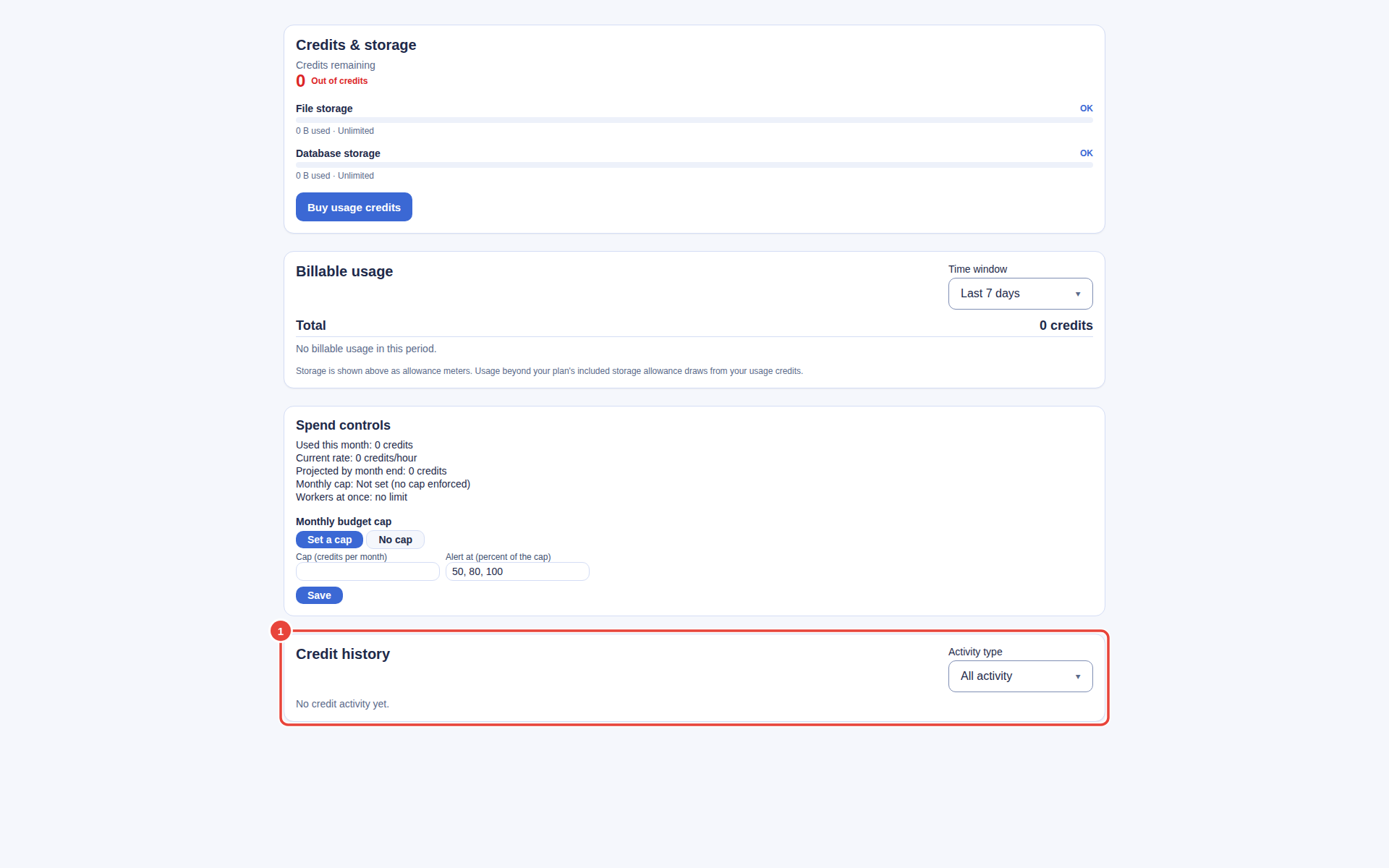
Scroll to Credit history. Each row shows a date, description, signed credit amount and the balance recorded after that movement. A plus amount adds credits; a minus amount removes them. The newest movements appear first.
- Read the description beside the amount you want to investigate.
- Use Activity type to narrow the history to one kind of movement, or select All activity to restore the full list.
- Choose Load more when it appears to read older entries.
- Compare the movement's date and description with your payment or usage records. Keep the surrounding rows when reporting a discrepancy.
Usage and balance answer different questions. A usage total covers its selected period; the balance reflects credit movements such as additions and deductions. A filtered activity list shows only that type of movement. Do not subtract a usage-window total from a purchase amount and assume the result must equal the current balance without checking the relevant history.
A credit balance and a spending limit answer different questions. The Spend controls card holds your monthly budget cap, budget alerts and per-worker limits; see Spending Caps and Payment Methods.
When a number is missing or unexpected
A loading indicator or an error is not a zero balance. The balance, usage and history sections load separately, so one can report an error while another still shows information. Reload the page and check the affected section again. No credit activity yet. means the current activity selection returned no rows.
If the discrepancy remains, collect the organization, the time you checked, the selected time window and activity type, and the relevant credit-history dates and amounts. Include the payment reference when a purchase is involved. Share those details through Backbuild Helpdesk; leave passwords, authentication codes and payment-card details out of the report.
For publishers: customer usage
An eligible publisher's owner or administrator can also see Customer usage (this period) when customer usage is available. It lists aggregate counts and a per-customer breakdown. These counts are separate from the credit balance and the Billable usage total. See SaaS Builder for managing your product.
Questions you may have
Where do I find what remains, rather than what I spent?
Read Credits remaining in Credits & storage. Billable usage shows
consumption over the selected time window.
Why does changing the time window leave my balance unchanged?
That selector filters Billable usage. The balance is a separate reading,
and Credit history has its own Activity type filter.
Does an empty history mean my purchase failed?
An empty selection is not a payment-status check. Confirm the organization,
restore All activity, and check the payment result before drawing that conclusion.
Can I use the displayed balance as my spending limit?
Read the balance as available credits. Review your organization's configured
controls separately in
Spending Caps and Payment Methods.