

Merging Split Trips Back Together in Backbuild Miles
Splitting a drive is a judgement, and judgements get revised. You cut a round into three jobs and then realise the first two were the same client, or you split by habit on a day that turned out to be one continuous run. If the segments are still sitting unfiled in your inbox, undoing the split is the answer. Once you have filed them they are real trips on real books, and putting them back together is a different operation with different rules. This page covers that one: where the control lives, why segments have to be side by side, what blocks a merge and how to clear it. After it you will be able to recombine a split you have already filed without losing a mile of it.
Merging Versus Undoing a Split
After this section you will know which of the two you need.
These are two different controls in two different places, and which one you get depends entirely on whether the segments have been classified:
- Undo split lives in your Trip inbox and applies while every segment is still an unfiled draft. It restores the original drive exactly as it was. Splitting a Trip Into Several Jobs covers it.
- Merge segments lives in your Trips list and applies after the segments have been classified. It builds one trip out of several, which is a different thing from putting a drive back the way it was.
The reason for the split is not stubbornness. A classified segment has been filed to an organization, and depending on your setup it may already have reached your accounting records. Silently withdrawing it would change books that have already been written, so the app makes the recombination an explicit, visible action rather than an undo.
Finding the Control
After this section you will be able to locate the merge affordance on a split you have filed.
Open Trips. A drive you split appears there as its segments, and the first of them carries a line reading how many segments the split produced, with Merge segments beside it. Tapping that opens the panel on the spot.
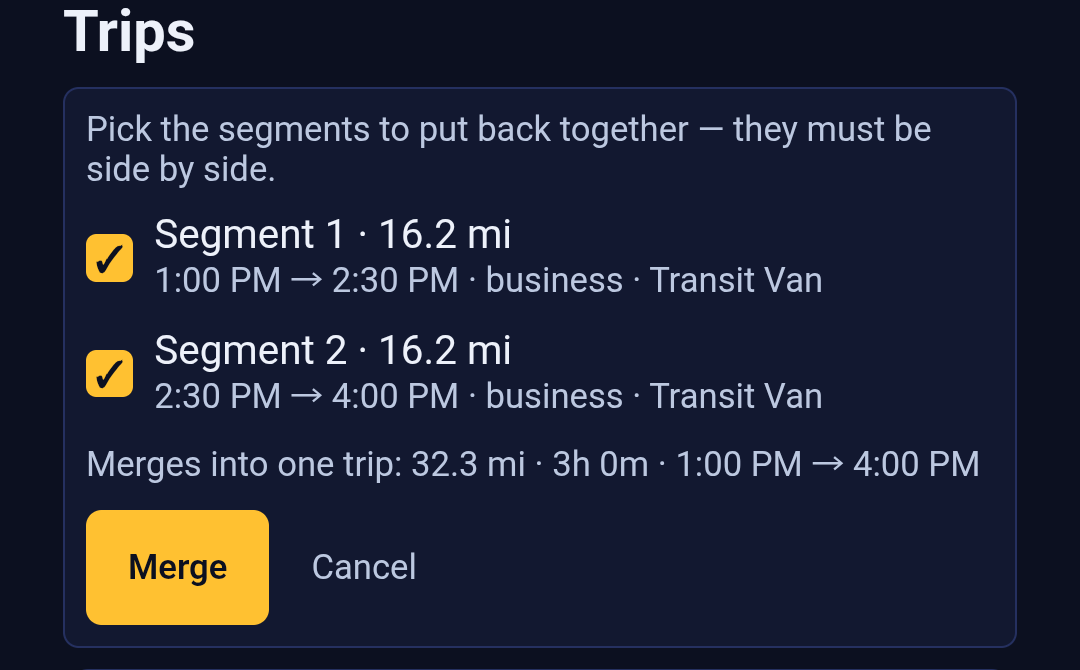
The panel lists every segment of that split with its distance, its times, its classification and its vehicle, and starts with all of them ticked, because recombining the whole split is the common case. Untick any you want to leave alone.
Why Segments Must Be Side by Side
After this section you will understand the one selection rule and how to work within it.
A merged trip is a single stretch of driving with one start and one end, so the segments that make it have to be adjacent. You can merge the first and second of three, or the second and third, but not the first and third: there is a piece of driving in the middle that belongs to neither, and the result would claim time and distance you did not put in it.
If your selection skips a segment, the panel says so and names the one that is missing, rather than refusing without explanation. Tick it, or untick one of the outer two, and the preview returns.
The preview is worth reading before you commit. It states the distance, the duration and the times of the trip you are about to create, and those figures are the sum of what you selected. As with splitting, no mileage is lost in the operation.
What Blocks a Merge, and How to Clear It
After this section you will be able to act on any refusal instead of guessing at it.
The panel never says only that a merge failed, because the things that block one need opposite responses. It names the segment and the reason:
- A segment is locked as reported. You marked it filed so it could not be changed. Unlock it first, which Reviewing a Trip covers, then merge.
- A segment has already been posted to your Finances records. The mileage has left this app and become an accounting entry. Reconcile that entry in Backbuild Finances first; merging before you do would leave your books describing a trip that no longer exists.
- The segments have different classifications. One trip has one classification, so give them the same one before merging. If they genuinely belong to different categories, they should stay separate: that is what the split was for.
- The segments are attributed to different vehicles. Same reasoning. Set them to the same vehicle, or leave them apart.
The last two are worth a pause rather than a reflex. If you are about to give two segments the same classification purely so they will merge, ask whether the split was right in the first place. Merging is for correcting a cut that should not have happened, not for flattening a distinction your records need.
What You Get Afterwards
After this section you will know what changed and what to check.
You get one trip covering the whole selected stretch, carrying the combined distance and duration, keeping the classification and vehicle the segments shared. The segments you merged are withdrawn from your list; the trip that remains is the one to review, tag or report from.
If you tap Merge twice, or a connection hiccup makes you wonder whether the first one landed, the app tells you the segments were already merged rather than merging anything a second time. Your mileage is not doubled by a retry.
Worth checking once afterwards: the surviving trip's classification and vehicle are the ones you meant, and its distance matches what the preview promised. Reports and Exports is where those figures land.
Common Questions
Can I merge trips that were never split?
No. Merging recombines the segments of one split, so the app needs to know they came from the same drive. Two unrelated trips stay two trips.
Does merging lose any mileage?
No. The merged trip carries the total of the segments you selected, and the preview shows you that total before you commit.
I split a drive and have not classified it yet. Do I need this?
No, and undoing the split is the better tool: it restores the original drive intact, stops included. Splitting a Trip Into Several Jobs covers it.
Why can I not merge the first and third segments?
Because a trip is one continuous stretch, and the second segment sits between them. Include it, or merge a pair that is already side by side.
A segment says it has been posted to Finances. What do I do?
Reconcile that mileage entry in Backbuild Finances first, then come back. The order matters: the accounting record refers to the trip, so the trip should not change underneath it.
Can I split the merged trip again?
Splitting applies to a drive waiting in your inbox rather than to a filed trip, so return it to your inbox first. Reviewing a Trip covers that.
What To Read Next
- Splitting a Trip Into Several Jobs for the operation this one reverses, and for undoing a split before you file it.
- Reviewing a Trip to unlock a reported segment or change its classification and vehicle.
- Working Your Trips List for the list this control lives in.
- Reports and Exports for the figures a merge changes.