

Images, Tables, Math, and Citations
A real document is more than paragraphs. This guide teaches the objects you add to one: images, tables, live equations, the structural references that make a long document navigable, and citations with a bibliography that builds itself. After it you will be able to paste a screenshot straight into the page, typeset an equation without memorizing commands, cross-reference a figure that renumbers itself, and cite a source in the style your field expects. This is the guide the academic and technical-writing reader will test first, so it is precise about what ships today.
Images
After this section you will get an image onto the page the fastest way available. Insert an image several ways: upload a file, pull one from Backbuild Photos, add one by URL, or capture from a camera or the screen. The one that saves the most time day to day: paste or drag a screenshot straight into the document and it lands inline where your caret is. Resize it by dragging its handles.
Images you add are stored as real files in your workspace, not embedded as bloated inline data, so a document heavy with screenshots stays responsive and the images are reused rather than duplicated. Image and attachment storage draws on your plan's file-storage allowance; see File vs Database Storage.
Can I paste or drag a screenshot inline? Yes. Copy a screenshot and paste it, or drag an image file onto the page, and it is inserted at the caret as a real image you can resize and position. There is no upload dialog to click through for the common case.
Tables
After this section you will build and manage tables, and turn text into a table. Insert a table and set its rows and columns, then format cell borders, sizing, shading, and alignment. If you already have tab- or comma-separated text, convert it to a table in place rather than rebuilding it, and convert a table back to text when you need to. Tables are the right tool for data that must stay aligned in every export, including where tab stops would not survive a round-trip.
Live Math and the Equation Builder
After this section you will typeset mathematics without a markup wall in front of you. Insert an inline equation to sit within a line of text, or a display equation to stand on its own line. Equations render live as you build them. A symbol and structure palette gives you fractions, roots, integrals, sums, matrices, and Greek and mathematical symbols, and a visual equation builder lets you assemble an expression by structure rather than by remembering commands, so a co-author who does not write LaTeX can still add a formula.
Math is first-class: equations render correctly in the editor, in print, and in the LaTeX download for a journal or preprint; Word, OpenDocument, HTML, and Markdown exports receive each equation as its LaTeX source text. This is the non-negotiable requirement for scientific writing, and it is met, not approximated.
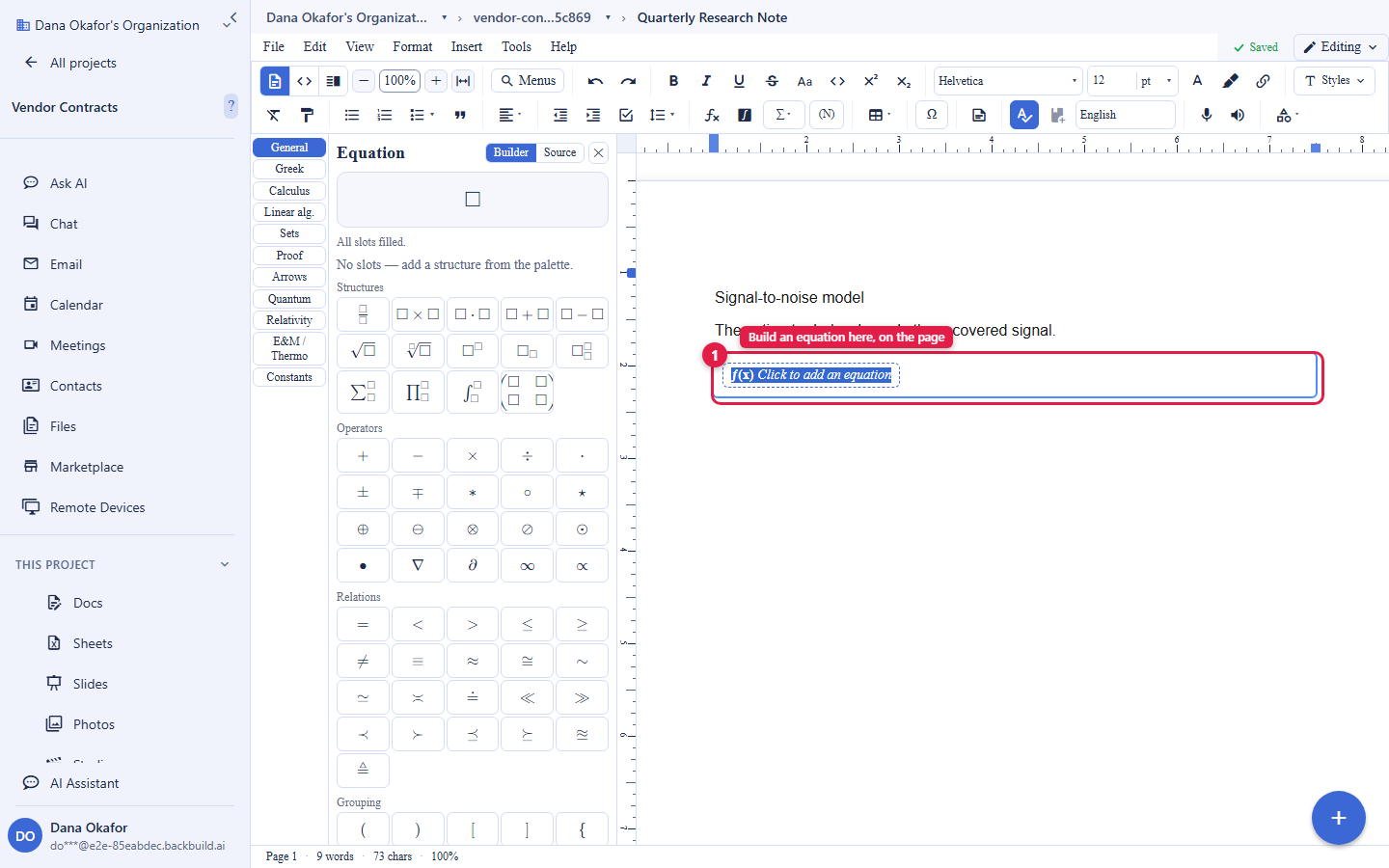
Does the math render correctly and survive export? Yes, in a printed PDF and in the LaTeX download: an equation you see on screen is the equation your reader gets. Word, OpenDocument, HTML, and Markdown exports carry each equation as its LaTeX source text instead, so a reader of those files needs a math renderer to see it typeset.
Links, Special Characters, and Icons
After this section you will add the small inline objects a document needs. Insert a hyperlink on selected text, a special character or symbol that is not on your keyboard, an icon, a horizontal rule to divide sections, and a signature line for a document that will be signed. These live in the Insert menu alongside the larger objects.
Shapes, Drawings, and Charts
After this section you will know the illustration objects available in a document. Add shapes and drawing objects, a chart, and figures with captions. These render in the document and print with it; how each export format carries them is in Importing and Exporting. (The standalone Backbuild Diagrams and Whiteboards apps are separate and are coming soon; this section is about the illustration objects inside a document today.)
Structural References: Captions, Contents, Footnotes, Cross-References
After this section you will make a long document navigable and self-maintaining. These are the objects that turn a manuscript into a finished document:
- Captions label figures and tables and number them automatically.
- A table of contents builds from your headings and updates as they change.
- Footnotes and endnotes attach notes at the foot of the page or the end of the document, renumbering themselves as you add and remove them.
- Cross-references link to a figure, table, section, or equation by its number, and update when that number changes, so "see Figure 3" never points at the wrong figure after an edit.
- A back-of-book index lets you mark entries and build the index, and a table of authorities supports legal citation lists.
Automatic numbering is the point: you insert and reorder freely, and the numbers, the contents, and the cross-references keep themselves correct, in the editor, in print, and in the LaTeX download.
Can I cross-reference figures, equations, and sections and have them auto-number? Yes. Captions and cross-references number automatically and renumber when you add, remove, or reorder content, and the numbering survives printing and the LaTeX download. Insert a cross-reference to a figure or section and it stays pointed at the right target as the document changes.
Citations and the Bibliography
After this section you will cite sources and get a bibliography without formatting it by hand. Choose Insert, Citation, type the author and the year, and the citation is inserted at the caret. Insert a Bibliography from the same menu and it lists every source you cited, rebuilding itself as citations are added or removed. Six styles are built in: the author-year styles APA, MLA, and Chicago, and the numeric styles IEEE, Vancouver, and Nature, which number citations in the order they are first cited. Format, Citation style moves the document to the next style each time you select it, and every citation and the bibliography follow it.
Be clear about the boundary so you can plan your workflow. Backbuild Docs does not yet keep a reference library: it does not import a BibTeX (.bib) library, look sources up by DOI, or sync with a reference manager such as Zotero or Mendeley, and a citation carries only the author and year you type, so a bibliography entry lists the author and year (in MLA, the author alone) rather than the title and publication details. The Insert menu lists Citation from library and Import references (.bib), but the reference library behind them is not available yet. Those are tracked as requested features, and this documentation is kept current as they ship. If your submission needs full reference entries or a live reference-manager link today, plan to complete the reference list by hand, because Backbuild Docs does not do that yet, and this guide says so rather than implying otherwise.
Which citation styles are supported? Six: the author-year styles APA, MLA, and Chicago, and the numeric styles IEEE, Vancouver, and Nature. Format, Citation style moves the document to the next one each time you select it.
Can I import my .bib file or sync my Zotero or Mendeley library? Not yet. BibTeX import, DOI lookup, and Zotero and Mendeley sync are not available today, even though the Insert menu lists Citation from library and Import references (.bib). You type each citation's author and year as you cite, and the bibliography builds from those citations.
References to Other Backbuild Surfaces
After this section you will embed a live, read-only reference to content that lives elsewhere in your workspace. From the Insert menu you can add a read-only reference to a spreadsheet or a slide, so a document can point at live content in Backbuild Sheets or Backbuild Slides without copying it in. These references respect the same access controls as the source; a reader sees them only if they are allowed to see the underlying content.
You can also insert a reference to a formally verified result, so a paper can point at a machine-checked proof. The proof reference itself is a read-only block in the document; the proof system that produces the verified result comes with Backbuild Science, the research and publishing edition, or Backbuild Prove, and is described in The Proof System.
Where to Go Next
- Importing and Exporting: how images, tables, math, and citations travel into each export format.
- Writing, Formatting, and Page Layout: styles, page layout, and the ruler.
- The Backbuild Docs Editor in Backbuild Science: the same editor from the research and publishing angle, including LaTeX authoring.