

Teaching Backbuild Miles to Suggest Classifications
Classifying trips one at a time is the tax-time chore that makes people give up on mileage logs. Most of your driving is predictable: you work certain hours, you visit certain places, and the same drive means the same thing every week. This screen is where you tell the app that, so it arrives at your inbox with a proposal already made and a reason attached. This page covers the two kinds of rule, which one wins when they disagree, why a rule never files anything by itself, and the odometer reminders that share the screen. After it you will be able to clear an inbox in a fraction of the taps.
Rules Propose, You Decide
After this section you will know exactly how much authority a rule has.
This is the most important thing on the screen and it is stated at the top of it: a rule proposes a classification for a captured trip in your inbox. It never sets one on its own. You see the proposal, you see the reason it was made, and you choose whether to accept it.
That is a deliberate limit rather than a missing feature. A mileage claim is yours to stand behind, and a system that quietly classified your driving would be asking you to sign for decisions you never saw. Rules take the typing out of the job; they do not take the judgement out of it.
Open Classification rules from the app menu. The screen has three sections: work hours, named locations, and odometer reminders.
Work Hours: the Weakest Signal
After this section you will be able to describe your working week to the app.
Each day of the week has a switch. Turn one on and it takes a start and an end time, entered as a twenty-four hour clock (09:00, 17:30). A trip that happens inside one of those windows leans business.
It leans, and that is all. Work hours are deliberately the weakest of the signals, because being in the van at eleven on a Tuesday is genuinely weak evidence about what the driving was for: the school run and the client visit fall in the same window. Treat this as the rule that catches the ordinary case, not the one you rely on.
A day left switched off is not a claim that you never work then. It simply contributes nothing, and trips on that day are proposed on other grounds or not at all.
Named Locations: the Strongest Signal
After this section you will be able to name the places that decide what a drive was for.
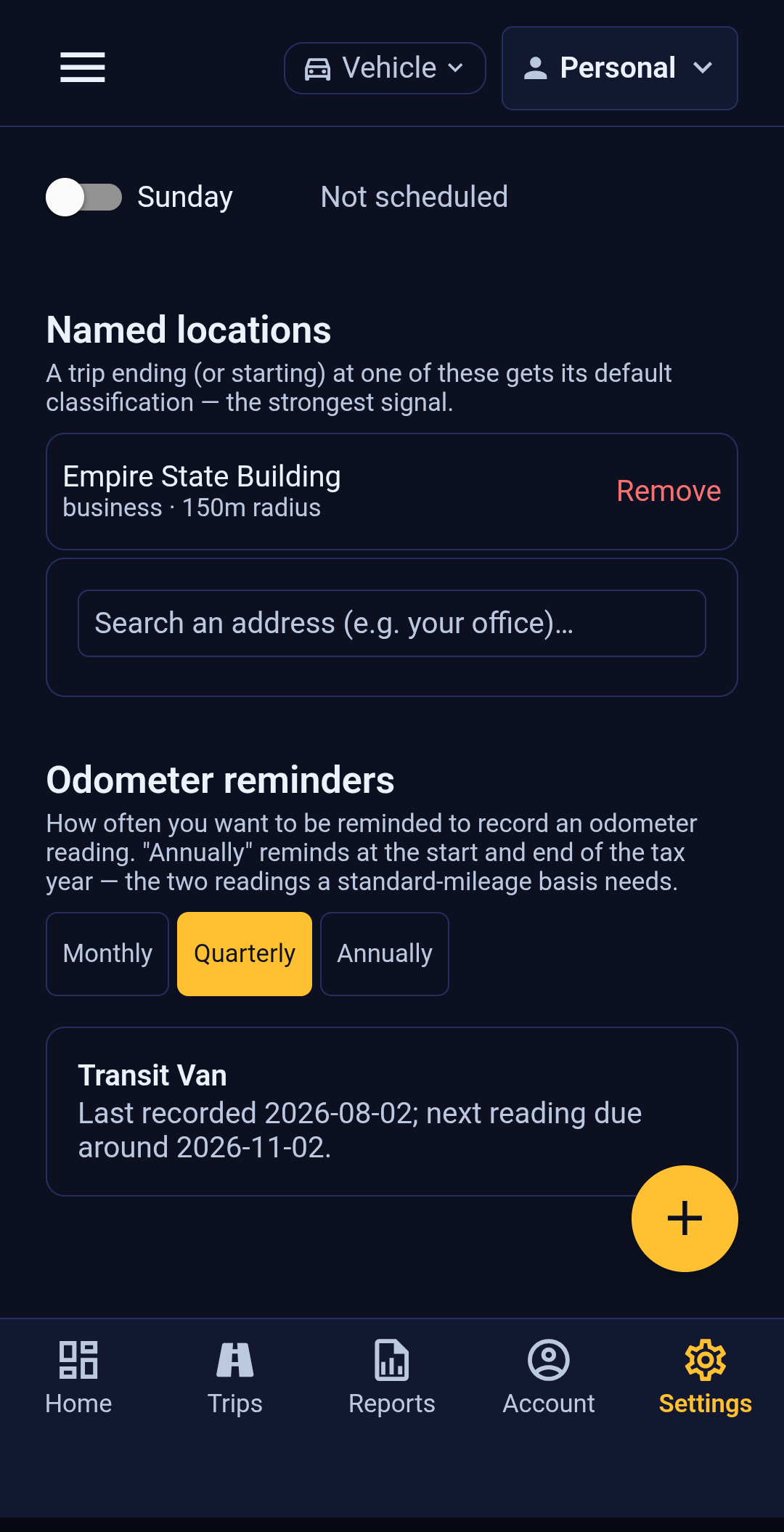
A named location is an address you give a name, a radius and a default classification. A trip that ends, or starts, within that radius gets that classification proposed. This is the strongest signal on the screen, because where a drive went is much better evidence than when it happened.
To add one, search for the address, pick it from the results, then give it:
- A name you will recognise later in a proposal reason: Home, Office, Acme Corp HQ.
- A match radius in metres. The default of 150 suits a building. Widen it for a depot or a site with a large yard; keep it tight in a dense street where the next address along means something different.
- A default classification: business, commuting or personal.
The pairing worth setting up first is your home and your usual place of work. Home as personal and the office as commuting will account for a large share of an ordinary week on its own, and it is the pair whose misclassification costs the most at tax time.
If the address search finds nothing, the app says so and suggests trying a street and a town. If it cannot reach the lookup at all, it says that instead, which is a different problem with a different fix: check your connection rather than your spelling. A blank result would have made those two look identical.
The Third Signal, Which You Do Not Configure
After this section you will know why a proposal can appear for a drive that matches neither of your rules.
Between named locations and work hours sits a signal with no settings: the app notices when you have classified the same route the same way several times, and proposes what you chose before. Its reason says so plainly, naming how many similar trips it is drawing on, so you can judge whether the pattern is real.
Nothing here needs setting up. It is worth knowing about for two reasons: it explains proposals your own rules did not produce, and it means the first few weeks of classifying by hand are not wasted effort. They are what the third signal is made of.
Where These Rules Live
After this section you will know what happens to your rules when you change phone or hand one over.
Your rules are stored on this phone, for your account. They are not shared with the organizations you drive for, and another person signing in on the same handset does not inherit them. The reason is directly practical: a named location is usually your home address, and a departing driver's home address should not be left sitting on a phone for whoever holds it next.
The consequence to plan for is that a new phone starts with no rules on it. They take a few minutes to re-enter, and it is worth doing before a working week rather than during one.
Odometer Reminders
After this section you will be able to choose a reminder cadence and record a reading when one is due.
The same screen carries your odometer reminder setting, because it is the other thing that stops being a chore once it is scheduled. Choose Monthly, Quarterly or Annually.
Annually is the one to understand: it reminds you at the start and the end of the tax year, which are the two readings a standard-mileage basis actually needs. Monthly and quarterly give you a denser record, which is worth having if your driving is contested or if you want to catch a discrepancy early rather than a year late.
Under the cadence, each of your active vehicles gets a card. Disposed vehicles are left out, so a vehicle you no longer own stops asking for readings. When a reading is due, or when a vehicle has never had one, the card says so and offers Record. A vehicle with no reading at all is worth clearing straight away: the starting mileage is the number every later figure is measured from, and it cannot be reconstructed after the fact.
Readings recorded here join the vehicle's history, which Your Vehicles covers.
Common Questions
What happens when two rules disagree?
The strongest applicable signal is the one you are shown. A named location beats a familiar route, and both beat work hours, because where a drive went is better evidence than how often you drive it, and both are better evidence than what time it happened. Whichever wins, you see its reason and can override it.
Will a rule classify a trip without me?
No. Rules only ever propose. Every trip still needs your acceptance, and the proposal arrives with the reason it was made.
My office and my client are on the same street. Which one matches?
Whichever the drive ends inside, so tighten the radius on both until they no longer overlap. A 150 metre radius on two addresses fifty metres apart cannot tell them apart, and neither can the app.
Do the organizations I drive for see my named locations?
No. They stay on your phone and are not shared with anyone. They shape what the app suggests to you and nothing else.
Why does a day with no work hours still produce trips?
Because tracking records driving regardless of your schedule. Work hours only affect what the app suggests about a drive, never whether it is captured. Setting Up Automatic Tracking covers what controls capture.
I record my odometer myself. Can I turn the reminders off?
Not at the moment. Every vehicle has a reminder cadence, and the choices are Monthly, Quarterly, and Annually (start and end of year). There is no setting that switches reminders off entirely.
Annually is the lightest of the three, and it is also the one aligned to what a standard-mileage claim needs, so it is the closest thing to staying out of your way if you already keep your own readings.
What To Read Next
- Clearing Your Trip Inbox to see the proposals these rules produce and accept or override them.
- Your Vehicles for the odometer history a recorded reading joins.
- Reviewing a Trip to change a classification after a trip has been filed.
- Reports and Exports for the figures your classifications feed.