

Recurring Events, Guests, and Reminders
This guide covers the three things that turn a calendar entry into a working meeting: making it repeat on the right schedule, inviting the right people, and setting a reminder. After this page you will build a recurring series with confidence, know exactly what a later edit will change, and know exactly what your guests receive.
Building a Recurring Series
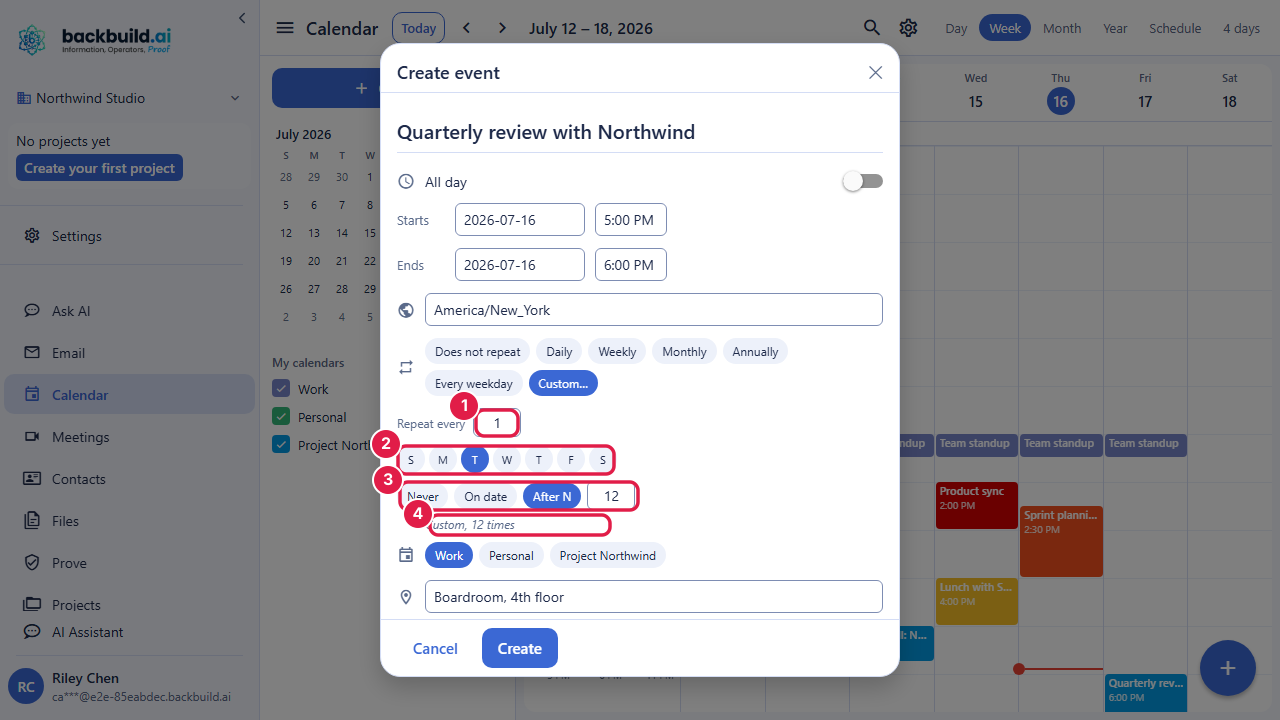
After this section you will create a repeating event on any schedule. In the event editor, open the Repeat field. The presets cover the common cases directly:
- Does not repeat (a one-time event).
- Daily, Weekly, Monthly, and Annually.
- Every weekday (Monday through Friday).
- Custom, which opens a builder.
The Custom builder lets you set the interval (for example, every 2 weeks), choose the weekdays a weekly series lands on with a row of day chips, and set when the series ends: never, on a specific date, or after a number of occurrences. As you build the pattern, a plain-language summary reads it back to you (for example, "Every 2 weeks on Tuesday and Thursday, 10 times"), so you can confirm the rule before you save.
Editing One Event or the Whole Series
After this section you will never change more (or less) than you meant to. When you save a change to, or delete, an event that is part of a recurring series, Backbuild Calendar asks the question every calendar user knows, and applies your change to exactly the scope you pick:
- This event: only the one occurrence you opened. Use this to move a single standup to a different hour without touching the rest.
- This and following events: this occurrence and every later one, leaving past occurrences as they were. Use this when a meeting moves permanently starting next week.
- All events: the entire series, past and future. Use this to rename a recurring meeting or change its length everywhere.
Because a single occurrence can be changed on its own, a series can carry exceptions (a holiday skip, a one-week time change) without breaking the underlying rule. An exception keeps its own visibility too: set one occurrence to Private and only that occurrence is hidden, as a busy block, from people who are not allowed its details, while the rest of the series shows as before. See Keeping a Private Event Private.
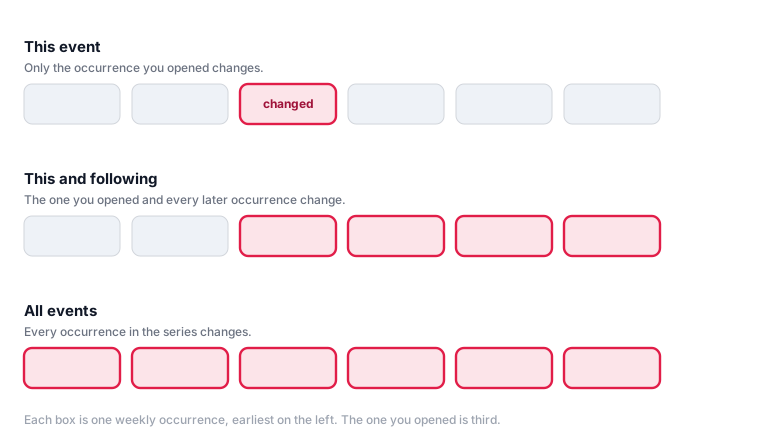
When I edit a recurring meeting, does it change just this one or the whole series? You choose every time. Saving or deleting an occurrence prompts This event, This and following events, or All events, so the same meeting can be nudged once or rescheduled forever with the same few clicks.
Inviting Guests
After this section you will invite people and know what they receive. In the Guests field, add attendees by email, separated by commas, semicolons, or spaces; they are listed on the event. To email them an invitation, choose Add Backbuild Meet before you create the event. When you create an event that has a Backbuild meeting and guests, each guest is emailed a standards-based invitation with a calendar attachment, so the event lands correctly in whatever calendar they use. The invitation is sent from your Backbuild Mail mailbox through your organization's Resend account as transactional mail, so it needs a mailbox you can send from on a domain that routes All outbound or Transactional mail to Resend (see Outbound Routing and Allowances).
- No meeting, no email: an event without a Backbuild meeting lists its guests but sends them nothing.
- Guests added later: adding a guest when you edit an existing event does not send an invitation.
- Replies: replying from the event, and seeing guests' replies on it, are not available yet. A reply a guest sends from their own calendar arrives in your mailbox as an email and is not recorded on the event.
Do guests get a real invite, and where do I see their RSVP? Guests get an emailed invitation when you create an event with a Backbuild meeting. Their replies are not shown on the event yet; a reply sent from their own calendar reaches your mailbox as an email.
Reminders
After this section you will know what a reminder does today. On the event editor, choose a reminder: 5, 10, 15, 30, or 60 minutes, or 1 day before, or none. The choice is saved with the event, but reminder notifications are not delivered yet, so no notification fires before the event.
My reminders are not showing up. What should I check? Nothing on your device: reminder notifications are not delivered yet. The reminder you set is saved with the event. Until notifications arrive, keep an eye on the Schedule view for what is coming.
Recurring Events Across Time Zones
A recurring event is anchored to a time zone, so it stays locked to that local time for its owner even across a daylight saving change. Attendees in other zones see it shift by an hour when their zone and the anchor zone cross a daylight saving boundary at different dates, which is expected behavior, not a bug. When a recurring meeting spans zones, state the anchor zone so everyone reads it the same way. The mechanics of per-event zones and multi-zone display are in Settings and Time Zones.