

Choosing a Budget Container
A smaller hourly rate is useful only if the container can do your work. Start with the sizes and run locations your organization offers, compare their memory and processing power, and choose the smallest option that comfortably fits the task. Stopping a workspace when you have finished with it keeps you from paying for it afterward.
Start with the choices your team permits
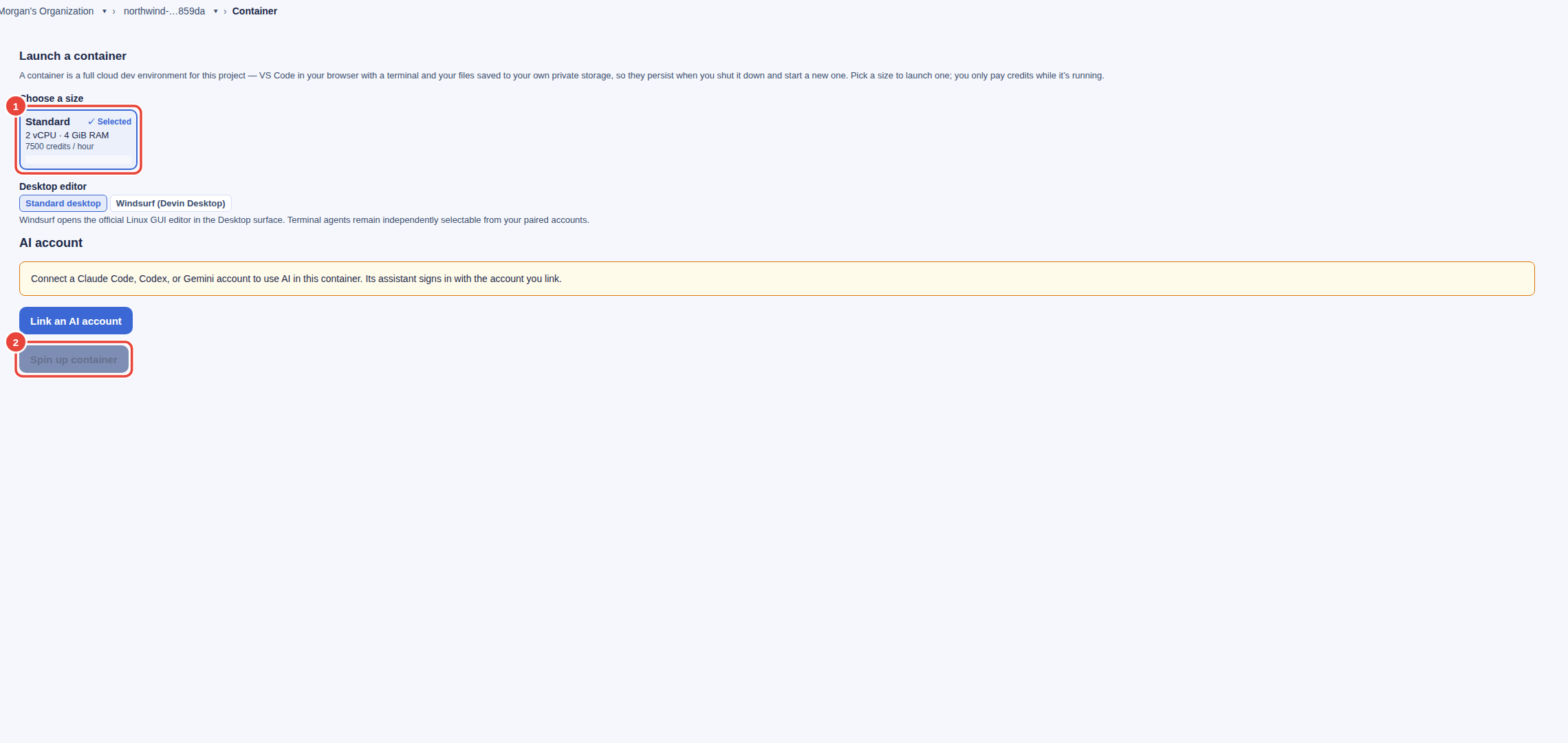
Open your project and choose AI Container in its sidebar. The Launch a container card shows the sizes available to your organization. Budget work uses this same launch screen. There is no separate budget workspace to set up.
Ask your administrator which offered run location your team uses for budget work. A name such as Standard identifies a size, not a promise that every location has the same price or capacity. Read the complete card, including its location and region, before selecting it.
If no sizes appear, ask an administrator to check the organization's allowed run locations and sizes in Settings, then Container Operations. If AI Container is missing from the project sidebar, ask them to check whether containers are enabled for the organization and that project. Those controls are in the container policy guide.
Read the rate and resources together
Every size card shows its vCPU, RAM, credits per hour, and run location with region. Compare all four. A terminal and light editing need fewer resources than a large build or several applications running together. Start with the smallest suitable card; you can choose a larger size for a later session.
| Check | Decision to make |
|---|---|
| vCPU | Choose enough processing power for the task. More cores do not help work that cannot use them. |
| RAM | Leave room for the editor, your tools, and the workload. A cheaper size that runs out of memory is a poor fit. |
| Credits per hour | Use the rate displayed on the card. Available offers and rates can differ between locations and organizations. |
| Location and region | Choose an option your team permits for this work and its data-location requirements. |
Select the complete size card you intend to use. The same size name can appear in more than one location. Your selection includes that location and region; do not choose from the name alone.
Check the AI account before launching
Under AI account, choose a linked coding-agent account your organization allows. If none is linked, choose Link an AI account and complete the sign-in. An organization can require a particular account; if that account is unavailable, an administrator needs to correct the choice before you can launch.
Keep the two costs distinct: usage credits pay for the running container, while the coding agent signs in with the account you selected. Choosing an inexpensive container does not change that account's subscription or usage terms. For the desktop-editor choice and the full launch sequence, follow Launching a Container.
Keep the running cost in view
Once a container is running, leaving the browser tab does not shut it down. An idle running container still uses compute. Check Your containers on the project screen, or open Settings, then Current Containers, to find sessions you have left running. Projected usage is an estimate; use your organization's usage records to review finalized charges.
Save important work in the project's home folder and commit changes to your repository as you go. When finished, close the container using its session controls. Saved files and a running process are different: ending a session does not preserve a program that is still running. The session and billing guide explains Terminate, Graceful close, what is saved, and how to leave work running deliberately.
When a choice or launch is unavailable
| What you see | What to do |
|---|---|
| No available sizes | Ask an administrator to check allowed locations and sizes. An unavailable offer is not a size you can launch by guessing its name. |
| A size-loading error | Check your connection, reload the screen, and read the error. An error is different from an empty list of permitted choices. |
| Link an AI account, or an unavailable required account | Complete the offered account-linking flow, or ask an administrator to update the required account. Container credits do not replace this sign-in. |
| A credit refusal | Check your organization's available usage credits. Ask the person who manages billing to resolve the balance before starting another session. |
| Startup is taking longer than expected | Read the session status before starting another container. A second launch can create another paid session. Use the launch guide to distinguish a slow start from a failed session. |
| A stop action is refused | Check whether the container belongs to a Virtual Worker. Managing a worker's container can require a role that manages the organization's containers. |
Common questions
Is the lowest hourly rate always the cheapest choice?
Compare the resources your task needs as well as the rate. A size that cannot complete the work wastes time. Run a representative task, review its resource needs and duration, then choose the size for the next session.
Does closing a tab stop container charges?
No. Close the container through its session controls when you are finished. Disconnecting lets work continue and the container remains running.
Where can I check the current price?
Read the credits-per-hour figure on the size card offered to your organization. Use pricing and the usage credit guide for the credit model. This guide does not fix one rate for every budget location or size.
Continue with your task
- Launch a container: choose the desktop editor and account, then follow startup.
- Use the terminal, VS Code, and desktop: connect to the workspace after it is ready.
- Manage sessions and credits: save work, close sessions, and review running usage.
- Use agents and the public API: automate the same container lifecycle.
- Backbuild Virtual Workers: assign work to an autonomous worker under your team's controls.