

Joining a Meeting and the Lobby
This guide teaches the everyday work of getting into a meeting and being seen and heard correctly the first time: opening the meeting, checking your camera and audio in the pre-join lobby, choosing the right devices, waiting for the host to admit you, and taking part with reactions and a raised hand. After this page you will join fast and never be the person on mute or on the wrong microphone.
Opening the Meeting
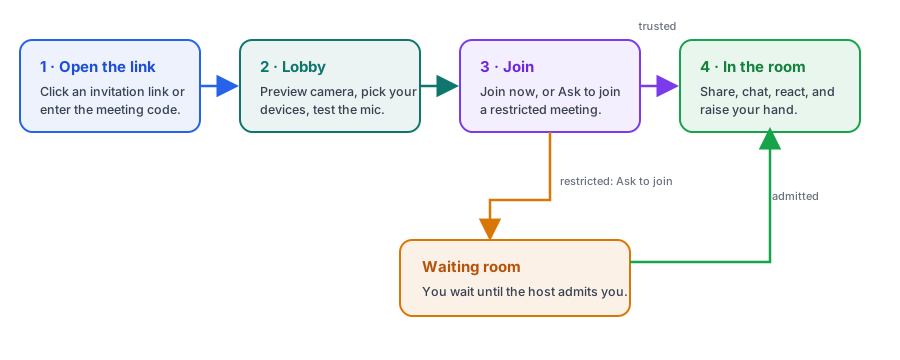
After this section you will know every way into a meeting. You join meetings of the organization you belong to, signed in to Backbuild. A meeting reaches you in one of four ways, and every one opens the same lobby in your browser, with nothing to install.
- From the Meetings hub. Open Backbuild Meetings from the workspace sidebar, below Backbuild Calendar, and select the meeting in Your meetings.
- From an email invitation. Press Join with Backbuild Meet in the message. If you are not signed in, Backbuild asks you to sign in first and then opens the meeting.
- From a calendar event. Open the event and press its Join with Backbuild Meet button.
- From a code. Type the meeting code into the Join field on the Meetings hub and press Join.
Do I need a Backbuild account to join? Yes. A meeting admits the members of the organization that hosts it, so you join signed in, as a member of that organization. Someone outside the organization cannot join by link yet; the host can add them to the organization as a member first.
The Pre-Join Lobby
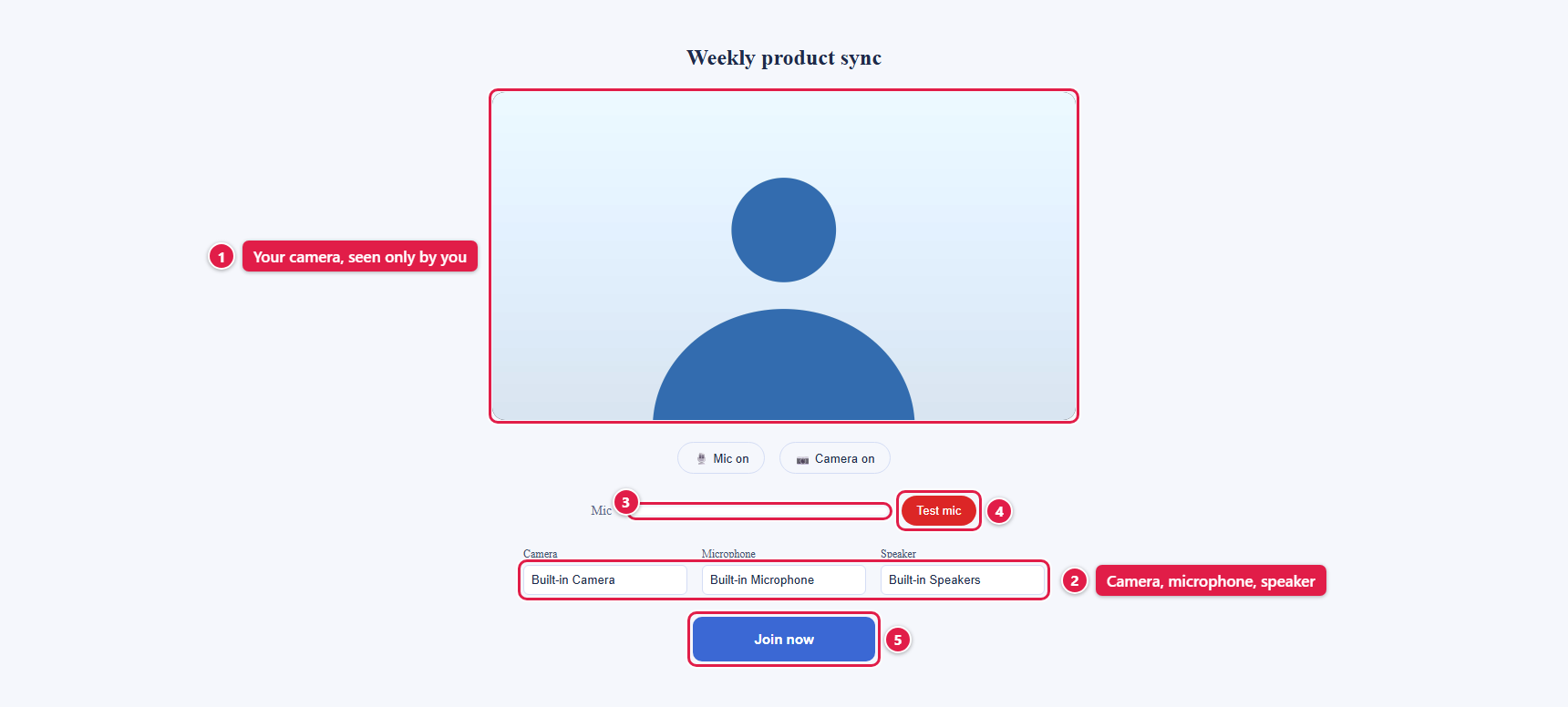
After this section you will confirm you look and sound right before anyone sees you. Before you enter, Backbuild Meetings shows a lobby only you can see. This is the most useful habit for a good call: you fix a dark camera or the wrong microphone here, not live in front of the room.
- Camera preview. A live preview of your own camera, so you can check framing and lighting.
- Mic and Camera switches. Turn either off before you join to enter muted or with video off.
- Device pickers. Separate lists for your camera, your microphone, and your speaker.
- A level meter. A bar that moves as you speak, so you can see the microphone is picking you up.
- Test mic. Records about three seconds and plays them back, so you hear yourself as the room will.
Choosing the Right Microphone, Camera, and Speaker
After this section you will fix wrong-device audio in seconds. Most "no one can hear me" and "it is playing through the wrong speaker" problems are a device choice, not a broken meeting. Open the Microphone, Camera, or Speaker list in the lobby and pick the device you want, then talk and watch the level meter move to confirm the microphone is live. If you plug in a headset after joining, leave and rejoin to pick it in the lobby.
No Camera or Microphone? You Can Still Join
A computer with no camera and no microphone, or a browser that refused the permission, does not keep you out. You join anyway: you enter without sending audio or video, and the room shows a notice that no camera or microphone was found. You still see and hear everyone else, and you take part with chat, reactions, and a raised hand.
My camera is black or the meter does not move. Your browser needs permission to use the camera and microphone. Allow it when the browser asks, then reopen the meeting so the lobby lists the devices. The lobby is where you confirm all of this before you join.
Waiting to Be Admitted
After this section you will know what happens when you press Join now. The host of the meeting goes straight in. Everyone else, including teammates the host invited, waits at the door: your screen says Asking to join, and the host sees your name with Admit and Deny. Keep the page open. The moment the host admits you, you enter the room, with nothing to refresh and nothing to retry. If the host declines, the screen says so, and you can ask again later.
How long will I wait? Until the host decides. The host sees your request the moment you make it; how that looks for the host is in The Waiting Room and Moderation.
The screen says the meeting is locked. The host has locked the room, so no one new can enter until they unlock it. Ask the host, then join again.
Do I pay anything to join? No. Meetings run on the host organization's usage credits, and attendees never pay. If that organization is out of credits, joining is refused and the screen says why.
Taking Part: Reactions and Raised Hands
After this section you will contribute without talking over anyone. Once you are in, the control bar gives you quiet ways to take part. Press React and pick an emoji to show agreement or applause without unmuting; it appears over the video for a few seconds and disappears on its own. Press Raise hand to signal you want to speak; a hand appears on your tile and in the People panel so the host can bring you in at a natural break. Press Lower hand when you are done.
Frequently Asked Questions
Is the meeting recorded? No. Backbuild Meetings does not record or transcribe meetings yet. Keep notes in the meeting chat or on the whiteboard.
Why can others not hear or see me? First check the Mute and Stop video controls on the control bar in case you joined muted or with video off, then confirm the right devices are chosen. If your connection never reaches the others, the network may be blocking direct connections; try another network, and keep using chat in the meantime.
Can I join from my phone? There are no Backbuild mobile apps yet, so a phone joins through its web browser, as for the rest of Backbuild. Screen sharing needs a computer: phone browsers do not let a web page share the screen.