

Pairing Your Vehicle in Backbuild Miles
If you drive more than one vehicle, every trip has to end up against the right one, and doing that by hand after the fact is the part people give up on. Pairing solves it: tell Backbuild Miles which Bluetooth device belongs to which vehicle once, and from then on your car announcing itself to your phone is enough. This page teaches you how to pair a vehicle, how to tell two similar-looking devices apart, how to move a device from one vehicle to another without losing track of what changed, and what to do when the screen tells you it cannot see your car.
What Pairing Actually Does
After this section you will know what you get from pairing and why it is worth two minutes.
When you start your car, the stereo connects to your phone. That connection is the most reliable signal available for the question Backbuild Miles has to answer at the start of every drive: which vehicle is this? Location can tell that a drive has begun, and motion can tell that you are travelling in a vehicle, but neither can tell a van from a sedan. The Bluetooth connection can, and it arrives before the wheels turn.
Pairing gives you two things. The vehicle is selected for you, so the trip is attributed correctly without you remembering to switch vehicles in the header. And the app treats a confirmed car as evidence that a drive is starting, so short first legs that might otherwise be discarded are kept.
You only need to do this once per vehicle. The pairing is remembered on the phone and keeps working while the app is closed, which matters because the drives worth capturing are the ones you never open the app for.
Before You Start
After this section your phone will be in a state where pairing can work.
Backbuild Miles lists the Bluetooth devices your phone is already paired with at the Android level. It does not scan for new ones, because scanning would spend battery rediscovering what Android already knows. So there are two prerequisites:
- Your car is paired with your phone in Android's own Bluetooth settings. If you have ever taken a call or played music through the car, this is already done. If not, do it in Android Settings first, then come back. The screen refreshes when you return to the app.
- Bluetooth is switched on, and Backbuild Miles has the Nearby devices permission. These are different things and the screen tells you which one is missing, so you are never sent to the wrong setting.
You also need at least one vehicle in your registry. If you have none, the screen offers a link to add one; see Your Vehicles in Backbuild Miles.
Pairing a Vehicle
After this section you will have a vehicle linked to your car and be able to confirm it took effect.
Open the menu and choose Pair a vehicle. You get one card per vehicle you currently drive, each showing whether it is paired.
Tap Choose device on the vehicle you want to link, and pick your car's stereo from the list. The card updates immediately to read Paired with and the device name, and a Unpair action appears beside it.
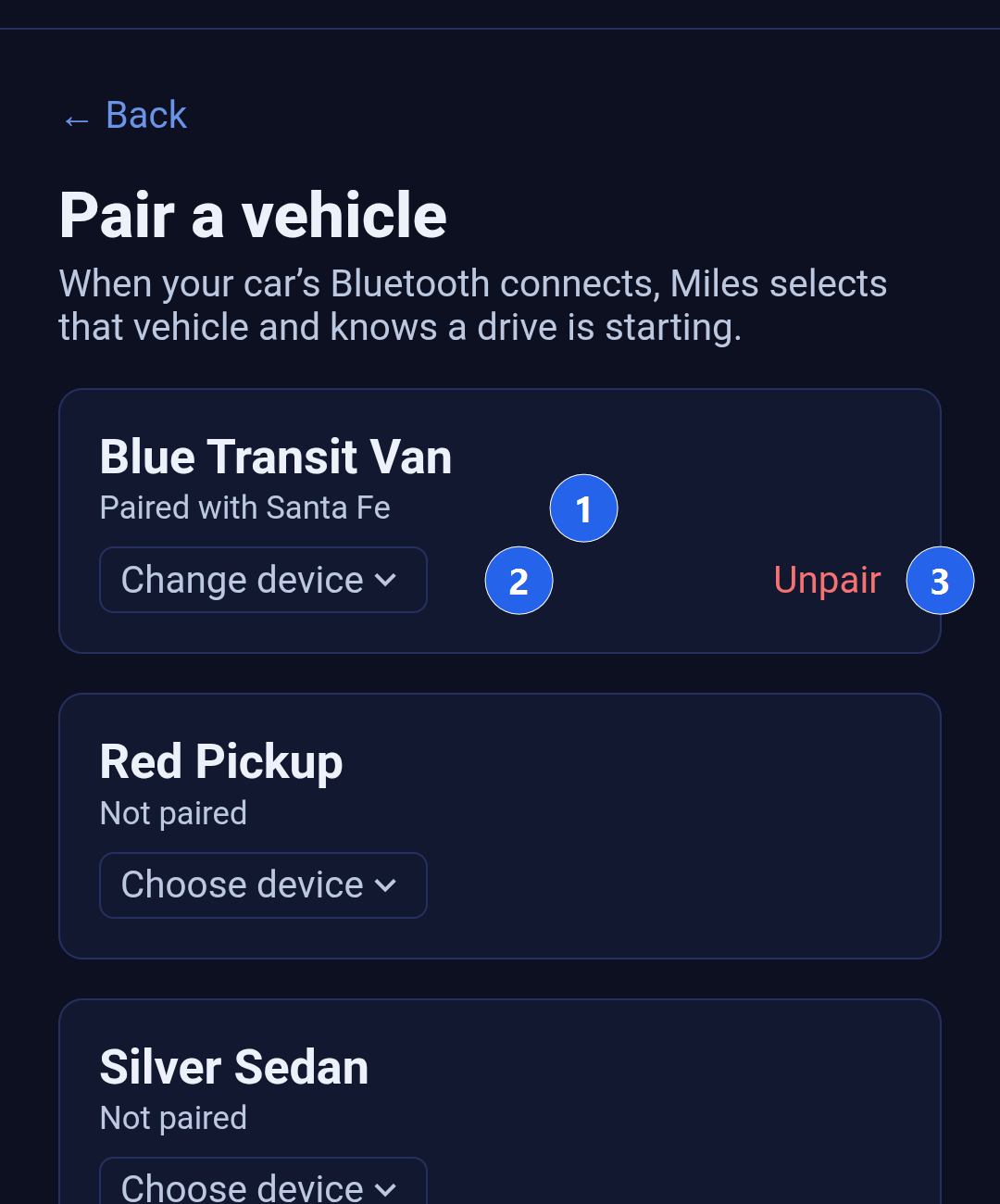
That is the whole setup. The next time you start that car, Backbuild Miles selects the vehicle on its own, and the vehicle name appears in the picker at the top of the screen.
Choosing the Right Device
Car stereos usually announce themselves with a recognisable name, such as Uconnect, HandsFreeLink, or the model of the car. Your phone is probably also paired with headphones, a watch, or a laptop, and those appear in the same list because Backbuild Miles cannot know which of them is a car. Pick the one that is your vehicle.
Bluetooth names are not unique. If you own several of the same headphones, or two cars of the same model, you will see the same name more than once. When that happens the list adds each device's hardware address in brackets so you can tell them apart, and an entry already linked to one of your other vehicles says so in the row.
Devices that share a name are listed with the hardware address that tells them apart, so two identical headsets are distinguishable. A device already linked to another vehicle says so on its row, before you choose it.
Changing and Removing a Pairing
After this section you will be able to move a device between vehicles and undo a pairing, knowing what each action costs you.
A Bluetooth device belongs to one vehicle at a time. That is deliberate: if the same stereo could match two vehicles, the app would have no way to choose between them.
So when you pick a device that is already linked to another vehicle, Backbuild Miles asks first. It names the vehicle that currently holds the device, tells you that vehicle will no longer be selected automatically, and waits for you to confirm with Move or back out with Cancel. Nothing changes until you choose.
Change device swaps one vehicle's device for another, which is what you want after replacing a head unit. Unpair removes the link entirely and the card returns to Not paired. Neither is destructive: unpairing removes only the link between a vehicle and a device, so your vehicle, its trips and its recorded costs are untouched, and you can pair it again at any time.
When Your Car Is Not in the List
After this section you will be able to diagnose an empty device list yourself.
An empty list always comes with the reason, in place of the chooser, so you are never left guessing:
- Bluetooth is turned off. Switch it on in Android's settings or quick panel. Backbuild Miles will not switch the radio on for you, because that is a system setting and your decision.
- Nearby devices permission is missing. The screen explains what the permission is for and offers a button that raises the Android prompt. Allow it, and the list fills in without restarting the app.
- Your phone has no paired devices. Pair the car in Android's Bluetooth settings first, then return.
Without the Nearby devices permission, Backbuild Miles keeps recording every mile exactly as before. The only thing it loses is the ability to name the car for you, so trips arrive unattributed and you pick the vehicle yourself.
Retired Vehicles
After this section you will know why a vehicle you expected is not on the screen.
A vehicle you have disposed of is not offered for pairing, and the screen says how many are being left out. Pairing one would attribute real miles to a vehicle you no longer own, which would then flow into the mileage log you file. If a retired vehicle still holds an old pairing, it stays on the screen so you can remove it.
Common Questions
Do I have to open the app for this to work?
No. Once a vehicle is paired, the recognition happens in the background, which is the point: the drives most worth capturing are the ones where nobody thinks to open an app.
Does this drain my battery?
No. Backbuild Miles does not scan for Bluetooth devices. It reacts to the connection your phone and car were going to make anyway.
What if I am connected to headphones as well as the car?
That is normal and it is handled. Other devices connecting and disconnecting do not disturb the vehicle Backbuild Miles has identified; only your car's own device does.
What happens on a drive in a vehicle I have not paired?
The trip is still recorded in full. It simply arrives without a vehicle attached, and you choose the vehicle when you classify it. See Working Your Trips List.
Can I pair the same car to two vehicles?
No, and the app will tell you so rather than doing it quietly. A device belongs to one vehicle so that the choice is never ambiguous.
Does pairing here change my phone's Bluetooth settings?
No. This screen only records which of your existing Bluetooth devices means which vehicle. Your phone's own Bluetooth pairings are untouched.
Where to Go Next
- Your Vehicles in Backbuild Miles: register a vehicle, record what it costs to run, and retire it cleanly.
- Working Your Trips List: classify drives and correct the vehicle on a trip.
- Getting Around Backbuild Miles: the menu, the vehicle picker and the entity picker.