

Getting Around Backbuild Miles
Backbuild Miles records your drives in the background and turns them into a mileage log you can hand to an accountant. This page teaches you the parts of the app that are on screen no matter where you are: the menu, the two pickers at the top, the five tabs at the bottom, the round button in the corner, and the banner that appears when your phone is about to stop recording. After this page you will be able to reach every screen in the app, tell at a glance which car and which set of books a drive is going to, and start or stop a drive from anywhere.
One Account, and Where Your Miles End Up
After this section you will know what the app is part of and where a classified drive actually goes.
The email and password you use for Backbuild Miles are your Backbuild account. The same sign-in gets you into the Backbuild platform in a web browser and into the Backbuild apps for phone, tablet and desktop: there is no separate Miles account to create and nothing to link up.
That matters because of where your driving ends up. Whenever these pages talk about the books, they mean your accounting records in Backbuild Finances, the accounting area of that same platform. Each entity you keep (your own name, a company, a side business) has its own separate set of books there.
So when you classify a drive to an entity, Miles writes it into that entity's mileage records in Backbuild Finances. Receipts behave the same way: a receipt you photograph and attach to a vehicle expense is filed as a document against that entity's expense record. The phone is where you capture and classify; Finances is where the result is kept.
You can then work with any of it from the platform itself: review the mileage log, edit or add expenses, reconcile against a bank account, run the reports and prepare for tax. Nothing you do in Miles is trapped in the phone app. Choosing the entity in the top bar is the choice of whose books a drive is written into, which is why it is worth getting right before you classify.
The Bar Across the Top
After this section you will be able to reach every screen, choose the car you are driving, and choose whose books the drive belongs to. The top bar carries three controls and it is the same on every screen.
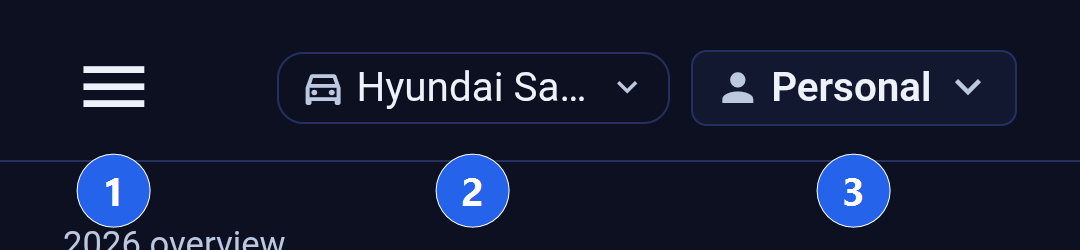
1. The menu
Tap the three lines on the left and a sheet slides up listing every screen in the app, with a line under each one telling you what it is for. Tap an entry to go there. Tap anywhere above the sheet, or use your phone's back gesture, to close it and stay exactly where you were.
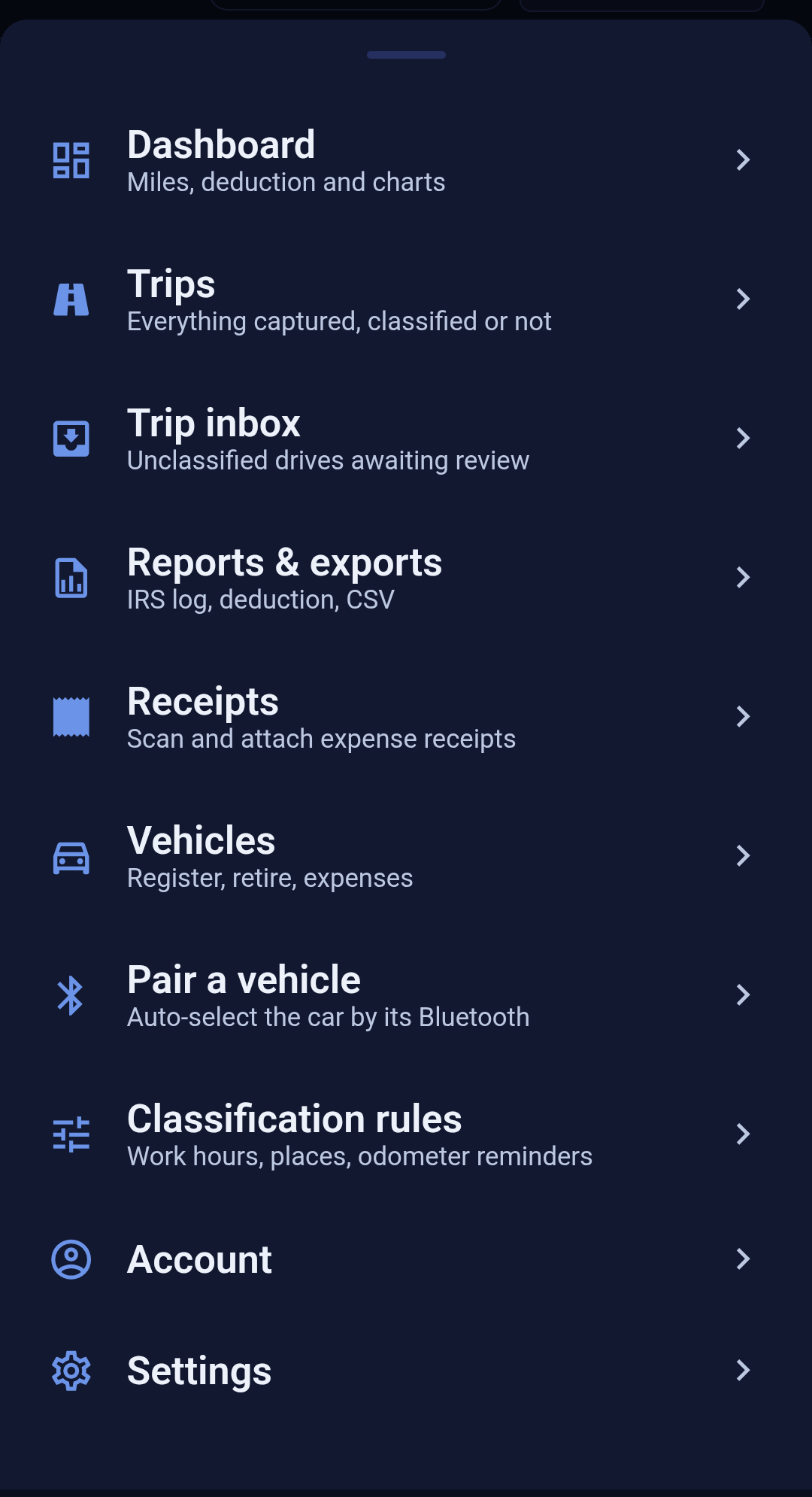
The eleven destinations are:
- Dashboard. Your miles, your estimated deduction, and the charts for the year.
- Trips. Everything the app has captured, classified or not.
- Trip inbox. Drives that are waiting for you to say what they were for.
- Reports and exports. The mileage log, the deduction summary, and the spreadsheet exports.
- Receipts. Scan a receipt with the camera and attach it to an expense.
- Vehicles. Register a car, retire one, and record its running costs.
- Pair a vehicle. Link a car's Bluetooth so the app knows which one you got into.
- Known locations. The places you drive to and from, drawn on every map and used to anchor your drives. See Known Locations.
- Classification rules. Working hours and named places that classify drives for you, and your odometer reminders.
- Account. Your profile and sign-in.
- Settings. Units, tracking, the map tile cache, and the rest of the app's options.
Below them, Open a ticket reports a problem to support without leaving the app, and Documentation opens these pages in your browser.
2. The vehicle picker
The middle control names the car the app will attribute your next drive to. Tap it to choose a different one, to open Bluetooth pairing, or to jump to your vehicle list. Which car you were in changes what a drive is worth, so it is worth a glance before you set off rather than a reconstruction weeks later.
When you have paired a car's Bluetooth, the app selects that car by itself as soon as the stereo connects, and the picker turns blue with a Bluetooth icon to tell you it decided rather than you. Choosing a car by hand overrides that until the connection changes, which is what you want in a loaner or a borrowed vehicle. If you have not registered a car yet the control reads Add vehicle and takes you straight to the screen that fixes that.
3. The entity picker
The control on the right names the entity the drive belongs to. An entity is a set of books: your personal life is one, and each business, contract, or gig you keep separate is another. Miles keeps a separate mileage log and a separate deduction for each, so a delivery shift and a weekend errand never end up in the same total.
Tap it to switch. The list shows every entity you belong to with a tick beside the one you are in, and a New Entity action at the bottom that creates one and moves you into it. The app changes entity only once the switch has actually gone through, so the name in the bar always matches the figures on the screen below it. Tap anywhere outside the list to close it.
The Bar Across the Bottom
After this section you will be able to move between the five main screens and start or stop a drive from any of them.
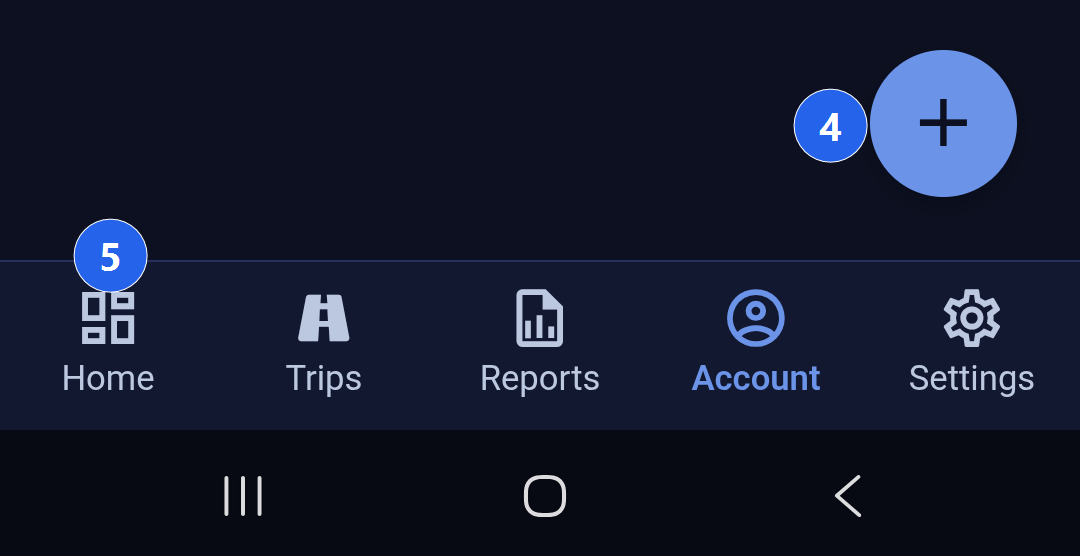
4. The quick-action button
The round button in the corner is the fastest route to the things you do while you are moving, and it is on every screen. Tap it and it opens into a short stack of actions:
- Start Trip opens the live map, with your speed, your heading, and the running value of the drive. Recording itself is automatic: the app begins as soon as the phone is genuinely moving, so there is no button you can forget to press.
- Pair Vehicle opens Bluetooth pairing.
- Add Vehicle opens your vehicle list.
- Switch Org appears when you keep more than one entity, and moves you between them without going back to the top bar.
While a drive is being recorded the button turns red and offers Live Map and Stop Trip instead. Stopping ends the drive there and then rather than waiting for the app to decide you have arrived, which is useful when you have parked but are not leaving the car.
5. The five tabs
Home is your dashboard, Trips is the log, Reports is where you export, Account is your profile, and Settings is everything else. The tab you are on is highlighted, and it stays highlighted when you open a screen that belongs to it: opening your trip inbox keeps Trips lit, opening your vehicles keeps Account lit, and opening receipts keeps Reports lit. The bar never pretends you are somewhere you are not.
The Tracking-Health Banner
After this section you will know what to do when the app warns you that drives are about to go missing. A mileage tracker that quietly stops tracking is worse than one that never started, because you only find out when the deduction is missing. So Miles checks the settings it depends on every time you open it, and every time you come back to it, and says so in a banner across the top when something is wrong.
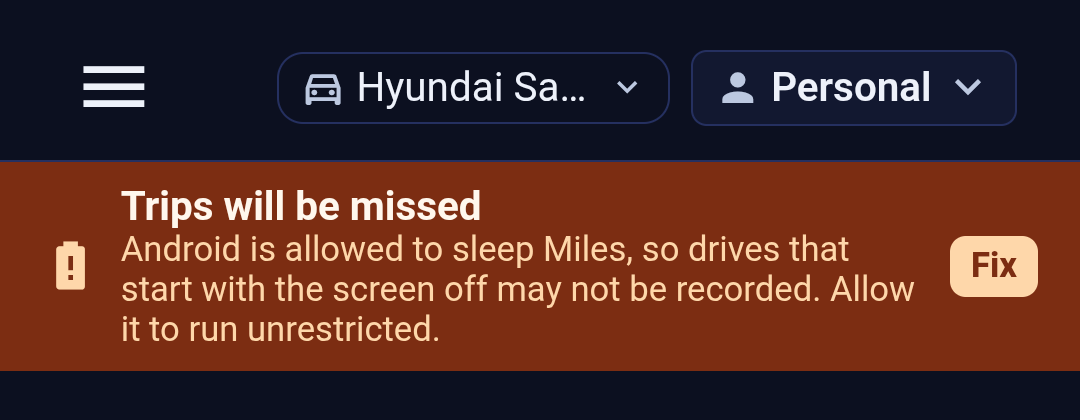
There are two warnings, and they are different problems with different fixes:
- Trips will be missed. Your phone is allowed to put Miles to sleep, so a drive that starts with the screen off may not be recorded. Tap Fix and set the app to run unrestricted.
- Miles will be paused when unused. Your phone pauses apps you have not opened in a while and takes back the permissions you granted them. A mileage tracker is exactly the app that looks unused, because it does its job without being opened. Tap Fix and turn off pausing the app when unused.
The banner does not have a dismiss button, on purpose: it is warning you about data you will not get back. It clears itself the moment you return to the app with the setting fixed, with no restart needed. These settings are not permanent once granted, either. Phones revoke them on their own during a battery sweep, or when you restore to a new handset, which is why the check runs on every launch rather than once during setup.
When You Are Signed Out
After this section you will know what happens to a drive that is recorded while you are not signed in. Recording does not depend on your session. If your sign-in lapses mid-drive, the phone keeps capturing and the drive is saved on the device. The sign-in screen tells you so, gives you a count of what is waiting, and offers a Live map button so you can still watch and stop the drive in progress. Everything held on the phone uploads on its own once you sign back in. Nothing is lost, only delayed.
Common Questions
How do I get back after opening something from the menu?
Your phone's back gesture returns you to the screen you opened the menu from. If the menu is open, back closes the menu and leaves you where you were.
The car in the top bar is wrong. Does that matter?
Yes. The vehicle decides what a drive is worth, so correct it before you drive where you can. If you notice afterwards you can still change the vehicle on the drive itself from your trip log.
Why does the entity picker say Personal?
Personal is the name Miles gives your own default entity, the one you get without doing anything. Everything you record goes there until you create a second entity and switch to it.
Do I have to press anything to record a drive?
No. Miles detects a drive from movement and records it in the background. The quick-action button is there so you can watch a drive on the live map, or end one early, not to switch recording on.
Why can I not see one of the screens in the menu?
Every destination is in the menu, so if something looks missing you are most likely looking at the tab bar rather than the menu. The tab bar carries five screens; the menu carries all ten. Scroll the menu sheet if your phone's screen is short enough to cut the list off.