

Your Account and Organizations in Backbuild Miles
The Account tab answers one question before all the others: whose account is this, and where are my trips going right now? If you drive for more than one organization, that second half decides which set of books each drive lands in, and getting it wrong is the kind of mistake you find out about at tax time. This page covers what the screen tells you, how to switch between the organizations you drive for, and how to sign out on a phone you are handing over. After it you will be able to confirm at a glance that your drives are being logged where you meant them to go.
What This Screen Tells You
After this section you will be able to read your identity card and know what each row does.
Open Account from the bar at the bottom of the app. The card at the top names the account you are signed in as and, underneath it, the organization you are currently working in. Below that are four rows: Vehicles, Settings, Switch organization, and Sign out.
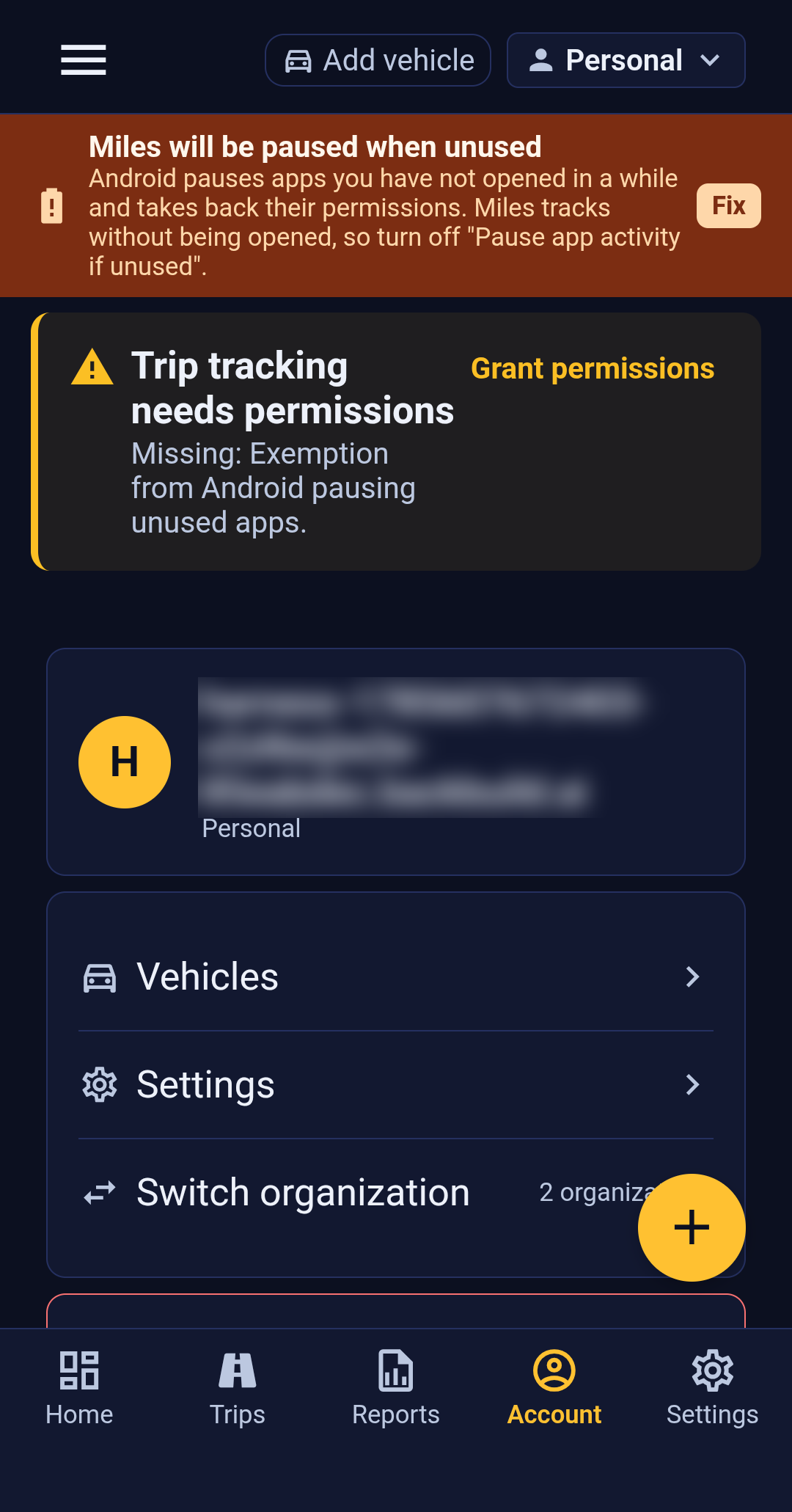
That top card is worth a second of attention whenever you sit down to review a week of driving. It is the only place in the app that states both facts together, and a phone that has been used by more than one person, or an account that belongs to more than one organization, is exactly where an assumption goes wrong quietly.
Vehicles opens the vehicle registry, covered in Your Vehicles. Settings opens the mileage settings, covered in Your Mileage Settings.
Switching Between Organizations
After this section you will be able to move between the organizations you drive for, and you will know exactly what that changes.
The Switch organization row shows how many you belong to. Tapping it opens the list on the same screen rather than taking you somewhere else. Your current organization is marked and cannot be chosen again; tap any other one and the app moves you there.
A few things follow from that switch, and they are the reason to be deliberate about it:
- New trips are offered to the organization you are in. Switching does not move drives you have already recorded and does not reclassify anything historic.
- Vehicles belong to the organization, so the vehicle list you see is that organization's registry.
- Your personal organization is always there, listed as Personal. Anything you do not assign to a business organization stays in it, and it is where your driving lives when none of it is somebody else's business.
The app switches your session first and only then moves you, so if a switch cannot be completed you stay where you were rather than landing somewhere with a half-changed session. If a switch does not go through, the safest next step is to confirm the organization named on the card before you record anything you care about.
Your trip inbox is the one thing that does not follow the switch, and deliberately so. It is yours rather than any organization's, so it holds drives from all of them until you file each one: Clearing Your Trip Inbox covers working through it.
Signing Out
After this section you will know what signing out does, what it does not do, and when to use it.
Sign out is the last row, and it takes effect with a single tap. There is no confirmation step, so treat it as a live control rather than one you press to see what happens.
What it does: it ends this phone's session, so the app stops syncing and you are returned to the sign-in screen. What it does not do: it does not stop anything on your other devices, and it does not delete the mileage history already recorded on your account, which is waiting for you the next time you sign in.
On a phone you are giving away, selling or returning, signing out is not the last step. Sign out, then remove the app, and if the device is leaving your hands for good, reset it. That is true of any app holding a location history, and it is the honest advice rather than the reassuring one.
If you have lost the phone rather than handed it over, the thing to do is change your password from another device, which ends sessions that used the old one. Signing In and Your Account covers that, along with two-factor authentication and recovery codes.
Where the Rest of Your Account Lives
After this section you will know where to go for the account controls this screen does not carry.
The Account tab in Backbuild Miles is deliberately narrow: it is about which account and which organization, on the phone, while you are driving. Changing your password, setting up or replacing a two-factor method, storing recovery codes and managing the account itself are covered in Signing In and Your Account, and the broader account and organization controls live in your Backbuild account rather than in this app.
For your driving records specifically, the exports you are most likely to want are already in the app: Reports and Exports produces your annual mileage, the deduction it earns and a substantiation log you can hand to an accountant.
Common Questions
Which organization will my next drive go to?
The one named on the card at the top of this screen. If you drive for several, check it before a working day rather than after one.
I switched organizations. Did my earlier trips move?
No. Switching changes where new drives are offered; it does not touch anything already recorded. To move a drive that went to the wrong place, open the trip itself, which Reviewing a Trip covers.
Can the organization I drive for see this screen, or my routes?
No. Your routes are visible only to you, and assigning a trip sends its mileage to that organization's records rather than the path you drove. Setting Up Automatic Tracking explains exactly what is recorded and what is shared.
Why does the app show Personal when I work for a company?
Personal is your own organization, and it is where driving lives until you assign it elsewhere. If your employer's organization is not in the list, you have not been added to it yet; somebody who administers it needs to invite you.
Does signing out stop my drives being recorded?
Signing out ends the session on this phone. If you want to stop recording without signing out, the master switch is in Your Mileage Settings, and it is the control to use if what you want is a break from tracking rather than a way out of the account.
What To Read Next
- Setting Up Automatic Tracking if drives are not being recorded.
- Your Mileage Settings for the default organization new trips go to.
- Your Vehicles for the registry behind the Vehicles row.
- Signing In and Your Account for passwords, two-factor authentication and recovery codes.