

The Backbuild Browser Extension
The Backbuild browser extension connects your everyday browser to your Backbuild account. It connects the account you are already signed in to in the web app, keeps your vault locked and unlocked together with the app, lets an AI agent work on the sites you allow while you watch (with a one-click stop), gives your own agent one-time setup instructions instead of a key, and can register the browser as a second factor. It installs once and carries one fixed, verifiable identity, so you always know what is holding your sessions.
After reading this page you will be able to: connect an account from a signed-in Backbuild tab; keep the extension and the web app's vault in step; allow AI control on a site, know exactly what an agent can reach there, and stop it; connect your own agent with one-time setup instructions; register the browser as a second factor; and, as an administrator, roll the extension out and revoke what it holds.
Availability
The Backbuild extension is a single cross-browser build. It is coming to the Chrome Web Store (for Chrome, Edge, Brave, Opera, and other Chromium browsers), to Firefox Add-ons, and to the App Store as a Safari web extension. There is one published identity, named Backbuild, for every browser and every environment.
Backbuild is in Early Adopter Alpha, and the public browser-store listings are coming soon (they are marked Coming Soon on the download page). The vault itself is available today inside the Backbuild web app and the Windows and macOS desktop apps, and the extension already powers the browser inside Backbuild's on-demand containers. This page describes what the extension does in this release, so you are ready the day it lands in your browser. If you need early access, ask through the contact page.
What this release does, and what is still to come
- In this release: connecting accounts from a signed-in Backbuild tab, locking and unlocking the vault together with the web app, supervised AI browser control on the sites you allow (for an agent working through Backbuild and for a local agent you pair), Copy Agent Setup Instructions, the local agent gateway settings, and registering the browser as a second factor.
- Still to come: filling and saving logins on websites, showing one-time codes beside logins, generating passwords and browsing entries from the popup, importing from other password managers, and signing in from the extension itself. Until then, use your vault in the Backbuild web app or desktop app (see Password and Secrets Vault), and sign in through the web app.
One install, one identity
You install the extension once and it serves your whole Backbuild account. Its name, icon, and identity never change between visits or between environments, which is what lets you confirm at a glance that the extension holding your sessions is the genuine Backbuild build and not a look-alike. Its own interface (the product name, the toolbar icon and its AI badge, and the AI-control card) is fixed Backbuild chrome: no organization's branding or theme changes it, and no web page can read, restyle, cover, or click it.
You will meet two surfaces:
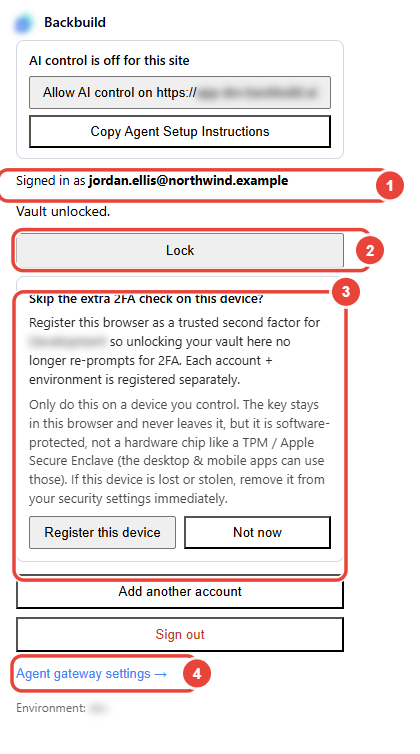
- The toolbar popup, opened from the extension's icon: the account you are acting as, the vault's lock state with Unlock and Lock, the offer to register the browser as a second factor, the AI-control card for the tab you are on, and a link to the agent gateway settings.
- The Agent Gateway page (the extension's options page): what a local agent you pair may do, the agents you have paired, and one-time pairing codes. See Connect a Local AI Agent.
Every environment you use, at once
Most people only ever use production, at app.backbuild.ai. If you also work in one of Backbuild's pre-release environments, the same install serves it alongside production. An environment is offered while you have one of its Backbuild tabs open or an account connected in it, and production is offered when nothing else is. Nothing you do in one environment locks, signs out, or hides another.
- The icon follows the tab. On a production tab the toolbar shows the plain Backbuild icon; on a pre-release tab it carries a small letter badge, and the icon's tooltip names the environment. Focusing another tab changes the icon at once.
- A toggle, not a switch. When two or more environments are available, the top of the popup shows one button per environment. Picking one changes only what the popup shows and acts on: it locks nothing, disconnects nothing, and is remembered. The popup opens on the environment of the Backbuild tab you are on, or else on the one you last picked.
- Each request carries its own environment. A Backbuild page reaches the extension only in the environment of its own exact web address, and an account's session is only ever presented to that account's environment, so a page in one environment can never reach an account, a vault, or a session in another.
Connecting your account
The extension does not sign you in itself; it connects the account you are already signed in to in the Backbuild web app. Open the popup and choose Add account: it lists your signed-in Backbuild tabs, labelled by environment, with Connect beside each. Connect exchanges that tab's session for an extension session of its own, and you type no password into the extension. If a tab cannot be connected, the popup says why, for example an expired session, a signed-out tab, or a tab that is asleep.
The environment comes strictly from the web address the tab is on, never from anything the page says, so a page can never talk the extension into connecting a session it did not actually observe.
You can connect several accounts and organizations. Each keeps its own session and its own vault lock state, so unlocking one never unlocks another. The popup acts as the account of the Backbuild tab you last focused, or the account you pick in its account strip, which wins until you choose Follow tab. If an account's session expires, Reconnect account refreshes it from an open, signed-in Backbuild tab. Each extension session is its own session in your account, tied to the web-app session it came from: signing out of the web app signs that account out of the extension too.
Does it work in my browser?
The extension is one cross-browser build coming to Chrome, Edge, Brave,
Opera, and other Chromium browsers through the Chrome Web Store, to Firefox
through Firefox Add-ons, and to Safari through the App Store. Until the
store listings are public, they are marked Coming Soon on the
download page.
Do I have to sign in again in the extension?
No. Add account connects the account you are signed in to in an open
Backbuild tab, with no password typed into the extension.
How are several accounts and environments kept from mixing?
Every account is kept per environment: its session, its vault lock state,
and its data never surface under another account, and a session is only
ever presented to its own environment. The popup follows your focused
Backbuild tab, and you can pick an account so it wins until you choose
Follow tab.
Your vault, in step with the app
The extension unlocks the same zero-knowledge Backbuild Secrets vault as the web app. Your entries are encrypted on your device under a key derived from your master password, that master password never leaves the device, and Backbuild stores only ciphertext it cannot decrypt. A wrong master password fails on your device, so the server is never a place to test password guesses.
The extension and the web app keep one vault state:
- Unlock once. Unlock the vault in the app and the extension unlocks within seconds, without asking for your master password again. You can also unlock in the popup with your master password, or choose Unlock from your open Backbuild tab.
- Lock once. Lock in the popup and the app's Secrets screen locks too. Locking in the app, and signing out of it, reach the extension the same way.
- One idle rule. Each account's vault locks after ten minutes without use, and use in either the app or the extension counts for both.
- A fresh check when one is needed. When unlocking needs a fresh second-factor check, the popup asks for it: type an authenticator code in the popup, or choose Verify in Backbuild to confirm in the app (with a passkey, for example), and the extension finishes on its own.
Can Backbuild see my passwords?
No. The vault is zero-knowledge: your entries are encrypted on your device
under a key derived from a master password that never leaves it, and the
server holds only ciphertext it cannot open.
What if I forget my master password?
Backbuild cannot recover it or reset it for you. Use the recovery kit you
saved when you set up the vault; see
Unlocking, Device Factor and Recovery.
Does it fill passwords on websites yet?
Not in this release. Filling and saving logins on websites are still to
come; until then, copy a login from your vault in the web or desktop app.
Supervised AI browser control
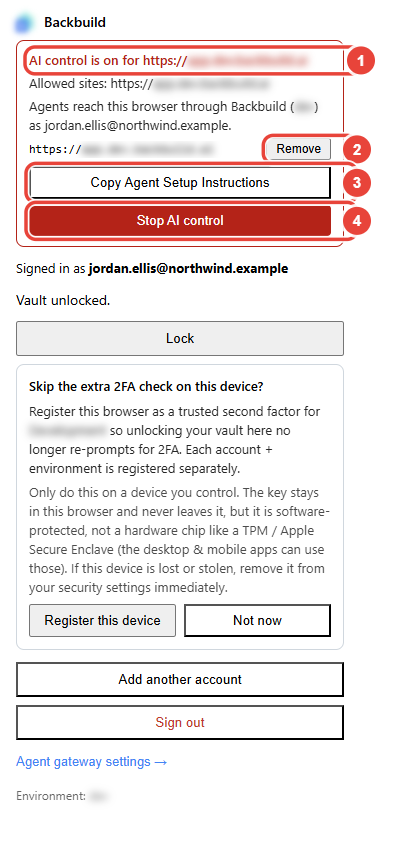
You can let an AI agent work in your own browser, but nothing is drivable until you allow it for a specific site. Open the popup on a tab and choose Allow AI control on that site. Your browser asks you once to let the extension reach the site, and then it is allowed. Only secure (https) websites can be allowed; browser and extension pages never can. An agent can never add a site: allowing one is always your click in the popup.
The first site you allow starts one AI-control session for this browser. Allowing more sites adds them to the same session, up to 50, and the card lists each with Remove. The session has hard limits: it ends 60 minutes after it started, after 15 minutes with no AI action, or after 500 actions, whichever comes first, and allowing another site never extends it. After it ends, allowing a site starts a new session.
Letting an agent reach this browser
When you allow your first site with an account connected, the extension
also connects this browser to Backbuild, so an agent working through
Backbuild's MCP server can drive the
sites you allowed. The card says so, naming the account. For that connection
the extension uses a key of its own for this browser that it never shows or
hands out; it is listed under Settings, API Keys as
Extension AI control (armed) while AI control is on, and it is
revoked when you stop. Because it is an API key, allowing a site needs a role
that may create API keys; otherwise the popup says Backbuild did not issue a
key for this browser, and nothing is allowed. With no account connected in that environment, only a
local agent you paired through the
agent gateway can use the
sites you allowed.
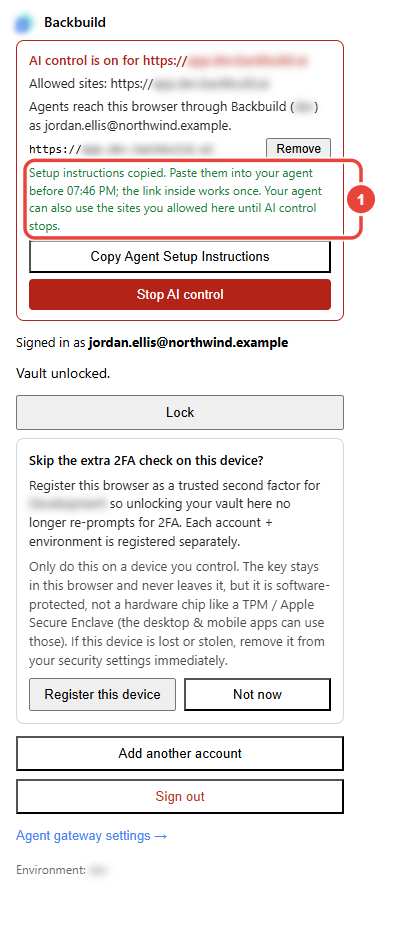
To connect your own agent, choose Copy Agent Setup Instructions in the same card and paste what it copies into your agent (see Connect your own agent from the browser extension). The popup confirms the copy and the time the one-time link inside expires. When you copy the instructions while AI control is on, the key your agent gets may also drive the sites you allowed in this browser until you stop AI control. A later session is a new one that earlier keys cannot reach, so copy new instructions to give your agent this browser again.
What an agent can and cannot do there
- See only the allowed tabs. Listing tabs returns only the tabs on sites you allowed, each with its environment; every other tab is invisible to the agent.
- Stay on allowed sites. It can navigate only when both the tab's current site and the destination are allowed. If a link takes the tab to a site you did not allow, every command on that tab is refused until you allow that site.
- Read the page, not your values. It can read the page's interactive elements: each one's position, label, and role, and its state, such as whether a checkbox is checked, a tab or option is selected, a toggle is pressed, a section is expanded, or an item is marked as the current one. It never reads what was typed into a text field, and a credential field's value is never returned. It can also ask for a screenshot, though in this release your own browser may refuse to let the extension capture the tab; in a container it can.
- Act like a person would. It can move the mouse, click, type, press keys, scroll, and wait for something to appear, and each result reports how the input was produced.
- Never touch a credential field or a secret. A password, one-time-code, or other credential field, every control in Backbuild that reveals or copies a secret (such as Show and Copy on a recovery kit or on a vault field), and every browser or extension page, the extension's own included, are off limits. Screenshots and page reads are refused while a credential field has focus or shows its value, such as a password a site has shown as text, and while Backbuild is showing a secret on the page.
- Never approve for you. In Backbuild, an agent cannot press a control that grants access or signs something off, such as approving an app or device sign-in, authorizing a machine, a host, or an integration, granting a worker access to a vault, or approving a worker's request, a payout run, or a release. Those stay your clicks.
- Respect an open dialog. While a dialog is open, a click, a key press, or typing aimed at anything behind it is refused, just as a person can only reach the dialog; typing with nothing focused is refused too.
Allow AI control on the Backbuild app's own site only when you want an agent to work in the app as you. It still cannot reveal, copy, or capture a secret there, but it sees what the app shows without a reveal, such as the names in your vault, so lock your vault first if the agent should not see those.
While AI control is on, the toolbar icon shows a red AI badge on every tab. Stop AI control ends the session at once: every command, including one already running, is refused, the connection to Backbuild is closed, and the browser's own key is revoked. Removing the last allowed site does the same. A key your agent got from setup instructions keeps its other MCP access until it expires or you delete it, but it no longer reaches this browser.
Inside a Backbuild container, the browser belongs to the container, so AI control is on for every site from the start; browser and extension pages, credential fields, and Backbuild's secret and approval controls stay off limits to the page tools. There, Stop AI control stops it until you choose Allow AI control again (every site) in the popup. An agent that also uses desktop control works on the container's whole screen by position, and these limits do not apply to it there.
I can watch the AI act, but can I stop it?
Yes. The red AI badge shows on every tab whenever an agent can act, and
Stop AI control ends the session at once. The session also ends on its own
after 60 minutes, after 15 minutes with no AI action, or after 500 actions.
Can the AI reach my passwords or widen what I allowed?
It can act only on the sites you allowed and can never allow another. It
can never type into or read a password or one-time-code field, never press a
control in Backbuild that reveals or copies a secret, and never approve a
sign-in, an access grant, or a sign-off there for you; screenshots and page
reads are refused while a credential field has focus or shows its value, or
a secret is shown.
If you allow the Backbuild app's own site, it works in the app as you and
sees what the app shows without a reveal, such as the names in your vault,
so lock your vault first if it should not see those.
What happens to my agent's key when I stop AI control?
It keeps its other MCP access until it expires, 90 days after it was
created, or until you delete it under Settings, API Keys. It no longer
reaches this browser; copy new setup instructions while AI control is on
to give it this browser again.
A device factor for two-step verification
You can register the browser as a second factor, so that unlocking your vault in this browser stops asking for a fresh two-step check. The popup offers it once (Skip the extra 2FA check on this device?) and keeps a Register this device as a 2FA factor button if you choose Not now. Registering asks for a fresh check when you turn it on, and creates a real two-step method that you can see and remove in your security settings. Each account and environment is registered separately, so a factor registered in one environment is never presented in another.
The device key stays in this browser and cannot be exported, but in the extension it is a software-protected key, not one held in a hardware chip such as a TPM or Apple's Secure Enclave, and the popup says so before you register. Register it only on a device you control, and remove it from your security settings at once if the device is lost or stolen. Once registered, the popup confirms that the browser is a registered factor for that environment and offers to test or remove it.
Rolling the extension out to a team
For an administrator, the extension is designed to be low-friction to deploy and easy to keep clean. It is one cross-browser install with one published identity, so you are pinning a single, recognizable extension rather than a different build per environment. Because people connect the account they are already signed in to in the web app, they do not fight a second login, and single sign-on works exactly as it does in the web app.
Offboarding is clean. Every request the extension makes is authorized against the person's current membership and role, so removing someone from your organization ends what the extension can reach there; signing out of the web app signs the account out of the extension; and each account, on each environment, is a separate session. The vault locks after ten minutes without use.
AI control does not create standing access you have to worry about. It is off until a person allows a specific site, it runs for at most an hour on a key of its own for that browser rather than the vault or the account session, it is stoppable at any time, and it can never type into or read a credential field. Every key involved is visible under Settings, API Keys: the browser's own key while AI control is on, and each agent's key by the name it was given. Because the extension's own interface is isolated from page scripts, a hostile web page cannot read, restyle, cover, or drive it.
How do I revoke a user's or a device's access?
Remove the person from your organization, and every request the extension
makes for them there is refused, because each one is authorized against
their current membership. A person signing out of the web app signs that
account out of the extension. Agent keys are deleted under Settings, API
Keys, and a registered device factor is removed from security settings or
from the popup.
Can a malicious web page tamper with the extension's interface?
No. The popup and the AI-control card are the extension's own pages, which
no web page can open, read, or click, and no organization's branding can
reskin them.
Does adding AI control create an unmanaged risk?
No. AI control is off until a person allows a site, runs for at most an
hour on a key of its own rather than the vault or account session, stops
at once, and can never type into or read a credential field. Allow the
Backbuild app's own site only when an agent should work in the app as you.
Security posture at a glance
This section is for the reviewer who has to sign off. The extension is built to keep apart the two things it does, holding vault access and driving the browser:
- Separate credentials. An account session serves the vault and account surfaces. Only while AI control is on does the browser hold a separate key for its AI-control connection, used only for that connection and never handed out, revoked when AI control stops, and expiring within a day even if a revoke cannot reach Backbuild; an agent gets its own key from one-time setup instructions.
- Containment the AI cannot widen. A session covers only the sites a person allowed, at most 50, for at most 60 minutes, 15 idle minutes, or 500 actions, with a one-click stop and a red AI badge on every tab.
- Credential fields stay out of reach. An agent can never type into or read a credential field or act behind an open dialog, and screenshots and page reads are refused while a credential field has focus. On the Backbuild app's own site it works in the app as the person who allowed it, so that site is allowed only deliberately.
- Isolation and identity. The extension's own pages are isolated from page scripts, no organization's branding can reskin them, and every account and environment is kept separate, with each session presented only to its own environment.
- Everything traces to a person. The keys AI control and setup instructions create are listed by name in the account's API keys, and every request the extension makes is made as a connected account and authorized against that person's current access.
Connect a local AI agent
The extension can also let an AI agent you run on your own machine (a command-line coding assistant, a desktop assistant, or an IDE helper) work across Backbuild as you, inside a default-deny permission gate you control. See Connect a Local AI Agent for how pairing works, which identity the agent acts as, exactly what it can and cannot reach, and how to revoke any agent instantly.