

Connect a Local AI Agent
The Backbuild browser extension can connect an AI agent you run on your own machine (a command-line coding assistant, a desktop assistant, or an IDE helper) to your Backbuild account. The agent works as you, through the extension, but only within a permission gate you set and only as an identity you have actually connected. Every platform call is re-authorized on the server, and you can revoke an agent at any moment.
After reading this page you will be able to: pair a local agent with a one-time code, without minting a long-lived key or hand-rolling an authorization flow; choose which of your connected identities and environments it acts as; explain to a security reviewer exactly what it can and cannot reach and why; compose many tool calls into one small program; and revoke a single agent without disturbing anything else.
Availability
The local agent gateway ships with the Backbuild browser extension, so it
becomes generally available as the extension reaches your browser's store.
It also needs a small gateway program on your machine, which your agent talks
to and which relays each request to the extension. This release of the
Backbuild CLI can register such a program with your browsers
(backbuild gateway), but does
not include the program itself.
Backbuild is in Early Adopter Alpha, and the browser extension (and this gateway with it) is coming soon, marked Coming Soon on the download page. Today, an agent can already connect to your organization over the cloud MCP endpoint described on the MCP and Agent Integration page, and the quickest way to set one up is Copy Agent Setup Instructions in the extension. The local gateway adds the option to run that connection point on your own machine, through the extension. If you need early access, ask through the contact page.
How it works
The gateway program speaks the Model Context Protocol (MCP), so your agent talks to it the way it talks to any local tool server. Each platform request goes from your agent to the gateway program, on to the extension, and from the extension to Backbuild under a short-lived token the extension mints for exactly the identity the agent is acting as. The agent never holds your password or any account credential, and it can never assert an identity of its own.
Every platform request is re-authorized on the server at the moment it runs, against the identity's current permissions, not just checked once at connect time. Nothing is trusted from the agent's side of the connection, and anything the agent changes is recorded in your organization's audit trail as a change made by you. Browser commands are the exception: they never leave your machine, and the extension checks each one against what you allowed (see below).
Pairing an agent
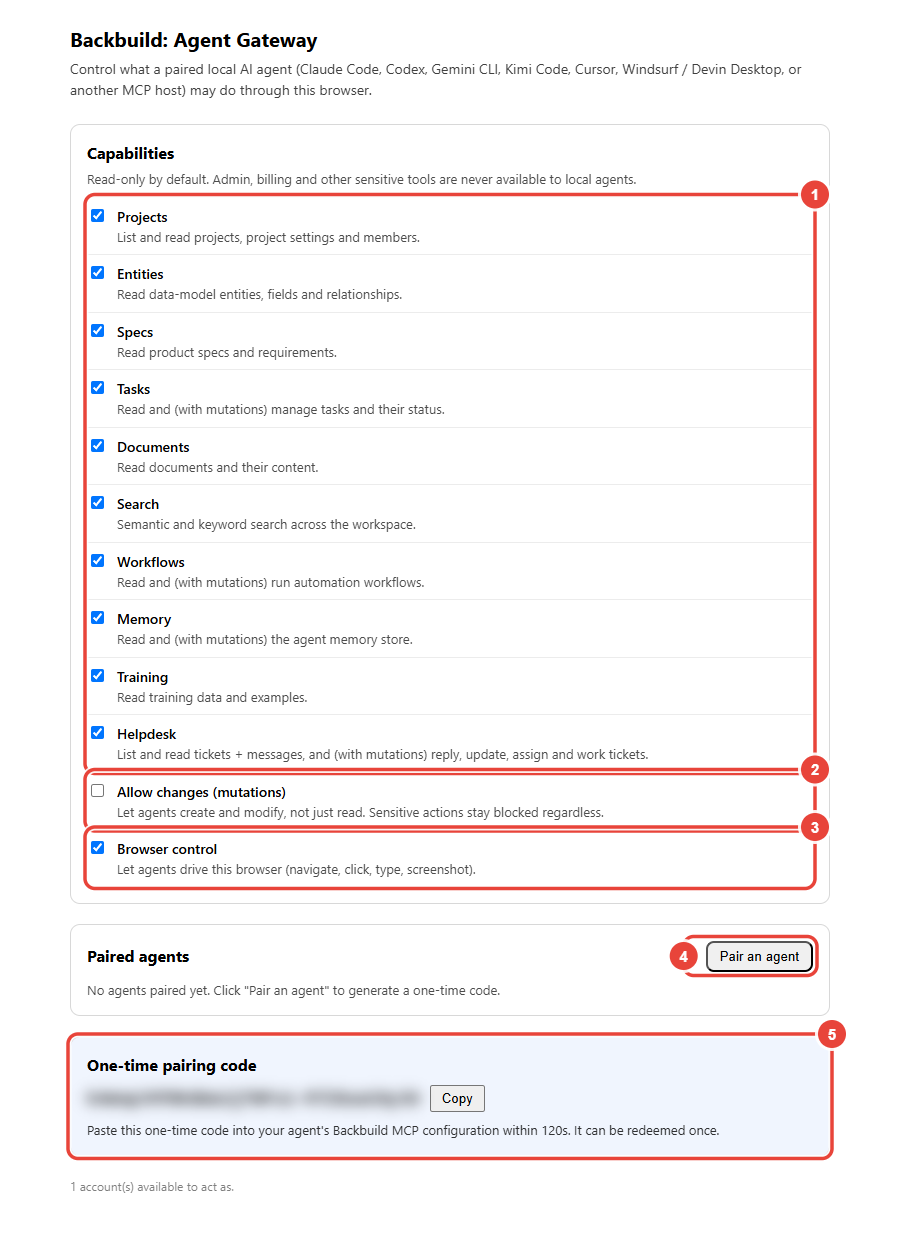
Open the extension's popup and choose Agent gateway settings. On the Agent Gateway page, choose Pair an agent: the extension shows a one-time pairing code with a Copy button. Paste the code into your agent's Backbuild MCP configuration within two minutes; it can be redeemed once. You do not register an application, run an authorization flow by hand, or mint a long-lived key yourself.
The one-time code is the only secret you handle. Where it goes depends on the transport your tool uses: a tool that launches local servers (stdio) gets a command to launch, and a tool that prefers a network transport gets a local web address. Either way the tool redeems the code once on first connect, and from then on each paired agent has its own credential for the gateway. Treat the code as sensitive and paste it promptly; copying it puts it on the clipboard only briefly, because the extension clears it again.
Each paired agent is listed on the Agent Gateway page with its client, its connection, and when it was last seen, and with its own Revoke button; you can pair up to 32. A program on your machine that you have not paired cannot use the gateway. Revoking an agent stops its access immediately and does not affect any other agent or your own session.
How do I authenticate without a long-lived key or a manual flow?
Pairing is one paste of a one-time code. Each agent then gets its own
credential for the gateway, and the extension mints short-lived tokens for
the identity it acts as; you never register an app or hand-roll an
authorization flow, and you never paste an account secret into the tool.
stdio or a network transport, and where does the code go?
Whichever your tool uses. You paste the one-time pairing code into your
tool's Backbuild MCP entry: a local (stdio) launch command, or a local web
address for a network transport. The code is redeemed once on first
connect, after which the agent has its own credential.
How do I revoke one agent?
Each agent is listed by name on the Agent Gateway page. Revoke it there and
its access stops at once, with no effect on your other agents or your
session.
Choosing which identity and environment the agent acts as
Because you can connect several accounts and organizations, the agent asks the extension which identities it may act as and picks one. Each identity is a user, an organization, and an environment you have connected in the extension. The agent can switch between them and select which project to work in, but it can never supply a user, organization, or environment of its own: it can only choose from the identities you actually connected, so every action traces back to you.
One gateway serves every environment the extension offers at once. The agent can list those environments, with the identities in each and how many Backbuild tabs are open there, and a single call can name another identity to run under just that once, without changing the agent's selection. A name that is not one of your connected identities is refused before anything runs.
Whose identity does the agent act as, and can it choose its own?
It acts as one of the identities you connected (a specific user,
organization, and environment), chosen from that set. It can never supply
or elevate an identity of its own, so every action it takes is
attributable to you.
What an agent can and cannot reach
The gateway is default-deny. Out of the box an agent can read your projects, entities, specs, tasks, documents, search, workflows, memory, training, and help desk, read-only, and nothing more; you can turn any of those off. Changes are a single, explicit opt-in (Allow changes) that you control.
Administrative areas are never reachable through the gateway's platform tools: billing, organization and user management, roles and permissions, integrations, secrets, containers, feature flags, and settings are simply not exposed. Destructive actions are refused on the server regardless of any client-side toggle. And whatever you do allow stays bounded by your own permissions: the gate can only narrow what you are able to do, never widen it, and the server re-checks every platform call against your current access.
Browser control lets a paired agent drive your browser, but only on the sites you allowed in the popup's AI-control card, under the same limits, checks, and one-click stop as any AI control (see Supervised AI browser control). These commands run in the extension itself, so its AI-control checks, not a server, decide each one. Nothing the agent sends can allow a site, and when it lists tabs it sees only the allowed ones, each with its environment. Browser control is separate from the categories above: on a site you allowed, the agent can do what that page lets you do, so allow the Backbuild app's own site only when an agent should work in the app as you.
Two consequences matter for a reviewer. First, the tools an agent sees come from one published, controlled surface, not from arbitrary third-party servers, and there are no hidden administrative or destructive verbs to reach, so instructions smuggled into a tool description cannot unlock something that is not there. Second, because the gate narrows rather than grants, connecting an agent can never turn into a way around your access controls.
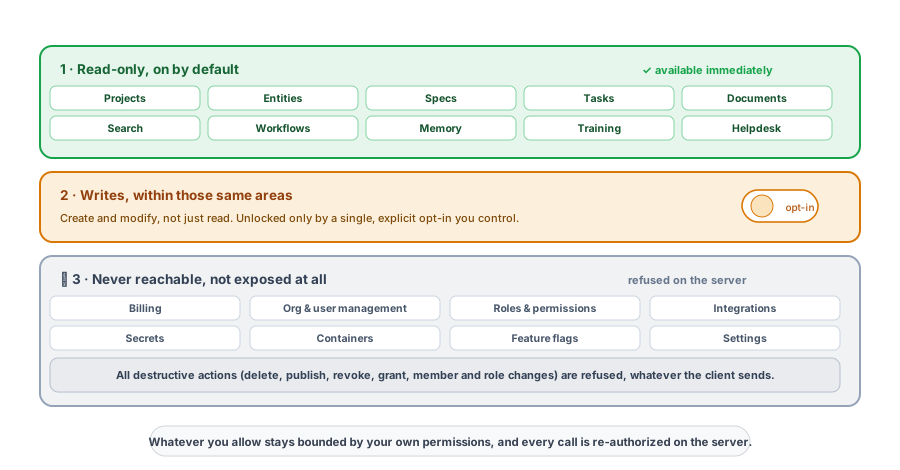
In a virtual worker's container, the extension offers the worker only what its role grants: a category appears only when the worker holds a permission in it, and reading the browser, navigating, and clicking or typing each need their own permission. Until the worker's permissions have been read, nothing is offered, and the toggles on the Agent Gateway page can only narrow that further.
What can my agent do by default, and can it delete things?
By default it is read-only across projects, entities, specs, tasks,
documents, search, workflows, memory, training, and help desk. Changes take
a single explicit opt-in, and destructive actions are refused on the server
no matter what the client sends.
Is every call re-checked, or only the handshake?
Every platform call is re-authorized on the server at the moment it runs,
against your current permissions, and every browser command is checked by
the extension against the sites you allowed. Nothing is trusted from the
client, and there is no elevated agent context.
How is tool poisoning prevented?
The tools an agent can see come from one published, controlled surface, not
arbitrary servers, and administrative and destructive verbs are absent from
the exposed set, so injected instructions have nothing hidden to reach.
Writing one program that chains many calls
For work that would otherwise take many round trips, the gateway offers a code mode: your agent writes one small local program that calls several Backbuild tools and returns only the result. Those calls run under the same identity and the same permission gate as any other call, and each is re-authorized on the server, so code mode is faster without ever escaping the gate.
Can I compose many calls into one program instead of chattering call by call?
Yes. In code mode the agent writes one small local program that composes
several tool calls and returns only the result, under the same identity,
the same gate, and the same per-call re-authorization as any other call.
If you do not run the gateway
When the gateway program is not running, the local gateway is simply unavailable: the extension never hands an agent a token to use instead. To connect an agent without it, choose Copy Agent Setup Instructions in the extension's AI-control card. The agent redeems a one-time link for its own key, named after it, and uses Backbuild's cloud MCP endpoint directly. That key is bounded by your own permissions, but not by the gateway's read-only gate: it reaches every MCP tool you may use, so give it only to an agent you trust, and delete it under Settings, API Keys when you are done. If you copied the instructions while AI control was on, it can also drive the sites you allowed in your browser until you stop AI control. See Connect your own agent from the browser extension.
Seeing what an agent did
The Agent Gateway page lists each paired agent with its client, its connection, and when it was last seen, so you can spot an agent you no longer use and revoke it on the spot. Everything an agent changes is recorded in your organization's audit trail as a change made by you, the same as a change you make in the app.