

Messages, Mentions, and Files
A good message is easy to read, reaches the right person, and carries what they need. This guide teaches you to write and format messages, mention people, react and reply in threads, attach files, and read the delivered and seen marks on your messages. After this page you will work a conversation the way a practiced team does, and know exactly what the people you write to can see.
Write and Format a Message
After this section you will write messages that are easy to read. Type in the message box at the bottom of the conversation. Your message appears at once, marked as sending, and settles when the server has it. Formatting is typed as you write:
*bold*,_italic_,~strikethrough~, and`code`inside a line.- A line starting with
>is a quote; lines starting with-or1.make a bulleted or numbered list. - Three backticks (
```) on their own line open and close a code block. - Web addresses become links, and
:shortcode:names, such as:tada:, become emoji.
Enter sends and Shift+Enter starts a new line, unless you chose another send key (Shift+Enter or Ctrl+Enter) in Settings, Personalization. The microphone button dictates into the message box when your browser supports speech recognition and your organization has universal usage credits. A message holds up to 40,000 characters.
Mention People
After this section you will get the right person's attention. Type
@ and the first letters of a name, then pick the person from the list:
press Enter or Tab to take the first name and keep typing, or select a name and
then select the message box again to go on. The mention is shown as their name and
counts toward their unread badge. Three mentions reach more people:
- @here and @channel address the members of the conversation.
- @everyone addresses the whole organization. It works only in the general channel and only for people whose role includes Chat @everyone, which the built-in Admin and Owner roles do.
React, Reply in a Thread, Edit, and Delete
After this section you will keep a busy conversation readable. Point at a message to show its actions:
- React: pick an emoji from the quick palette. Reactions show as chips with a count under the message; select a chip to add or remove your own.
- Reply in thread: opens the thread beside the conversation, so a side discussion does not interrupt everyone else. The message shows how many replies its thread has; select that count to open it.
- Edit and Delete: offered on your own messages only. Deleting removes the message for everyone and cannot be undone, so Chat asks you to confirm; This message was deleted stays in its place.
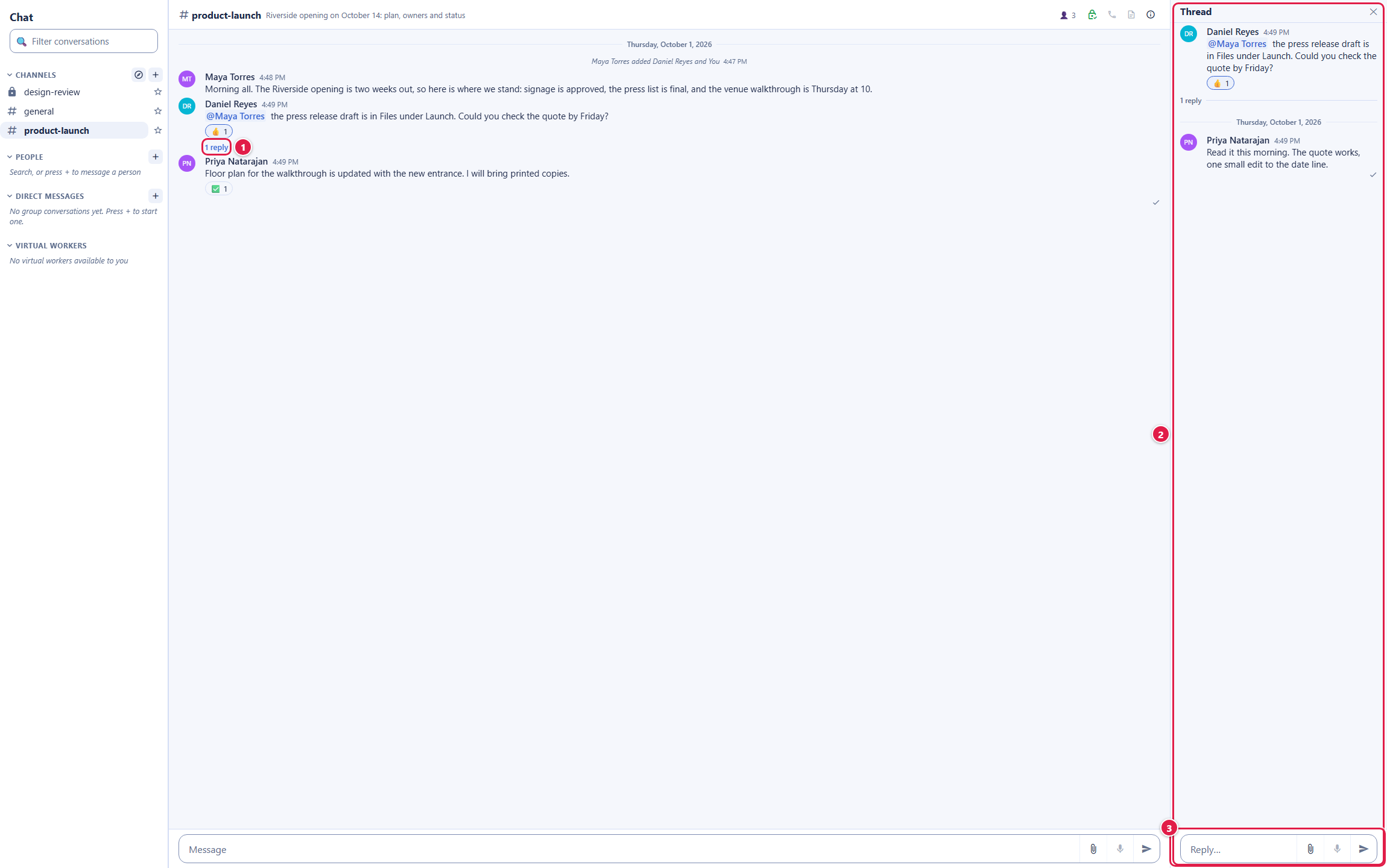
A New line marks where your unread messages start when you open a conversation, a day line separates days, and the bottom of the conversation shows who is typing.
What if a message does not send? It stays in the conversation marked Not sent, with the reason, and offers Retry and Delete. Retry never sends it twice, even if the first try reached the server. A message that has not finished sending stays put while you move between conversations, but it is never written to your device, so it is gone if you reload the page, switch organizations, or sign out before it is sent. Right after you open Chat it can take several seconds, sometimes longer, before your messages go out, while Chat gets ready on your device. Until then they show Sending, so wait for the tick before you close or reload the page.
Attach Files
After this section you will share files in a conversation. Select the paperclip in the message box:
- Upload from computer adds files to your own library in Backbuild Files, in a folder named Chat uploads, private to you, and attaches them.
- Attach from Files opens your Files, with its libraries, folders, and search, to pick files you already have. Backbuild Docs, Sheets, and Slides documents are shared from their own editors rather than attached.
A message carries up to 20 files, and a file you upload from your computer can be up to 25 MB. An upload is refused, with the reason, when it is empty, when your organization is out of storage, when your organization's upload policy blocks it, or when it is a PDF with active content. Each file appears as a chip the conversation's members can open. Every open is checked again, so a person who leaves the conversation can no longer open it, and the sender can select Remove access on a chip to withdraw it. A file of a type that can harm a computer asks for confirmation before it downloads. If you remove an upload before sending, or the send fails and you delete it, the uploaded copy is removed from your Files.
Delivered and Seen
After this section you will know whether your message was read. A mark at the corner of each of your messages shows how far it has got. Every conversation shows the first two; direct and group conversations show all four:
- Sending (a clock): it has not reached the server yet.
- Sent (one tick): the server has it.
- Delivered (two ticks): every other person's app has received it.
- Seen (two green ticks): every other person has viewed it.
Channels never show delivered or seen, and replies in a thread stop at sent. Someone who joins a group later never holds back the marks on messages from before they joined.
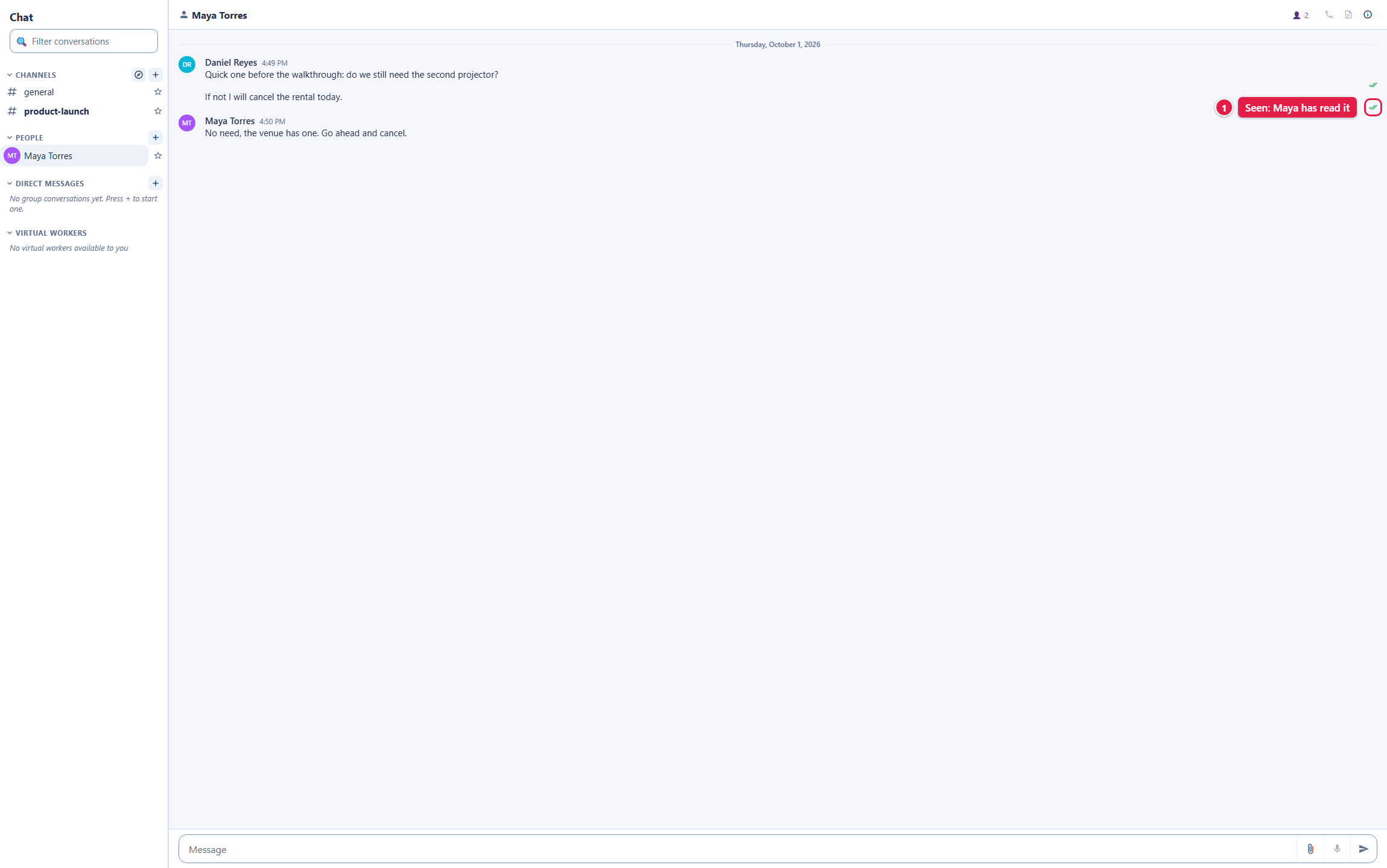
Whether others see when you have read their messages is your choice. In Settings, Personalization, Chat, turn off Share read receipts in this organization. While it is off, no one sees Seen for messages you read, and you see no Seen on your own messages; delivered still shows, because it says only that your app received the message.
Can others tell that I turned read receipts off? They can sometimes infer it, for example when your replies arrive while their messages to you still show only Delivered. That is the trade-off of showing delivery to everyone.