

Working Your Backbuild Miles Trips List
The Trips tab is where a driving day becomes a mileage record. It has two parts, stacked in the order you actually work them: the drives Backbuild Miles captured that still need an answer from you, and underneath them the history of every drive you have already answered for. After this page you will be able to clear a day's captures in under a minute, read any trip card at a glance, find the drives that would fail an audit, correct or remove a trip, and reach every drive you have ever recorded.
Part One: Unclassified, Needs Review
After this section you will be able to turn a captured drive into a classified trip, and to dismiss one that was never a real journey.
Backbuild Miles records a drive on its own, from movement, without you pressing anything. A recorded drive is not yet a mileage record: it has a route, a distance and a time, but nobody has said which car it was or what kind of journey it was. Those drives wait here, newest first, with a count beside the heading so you always know how much is outstanding.
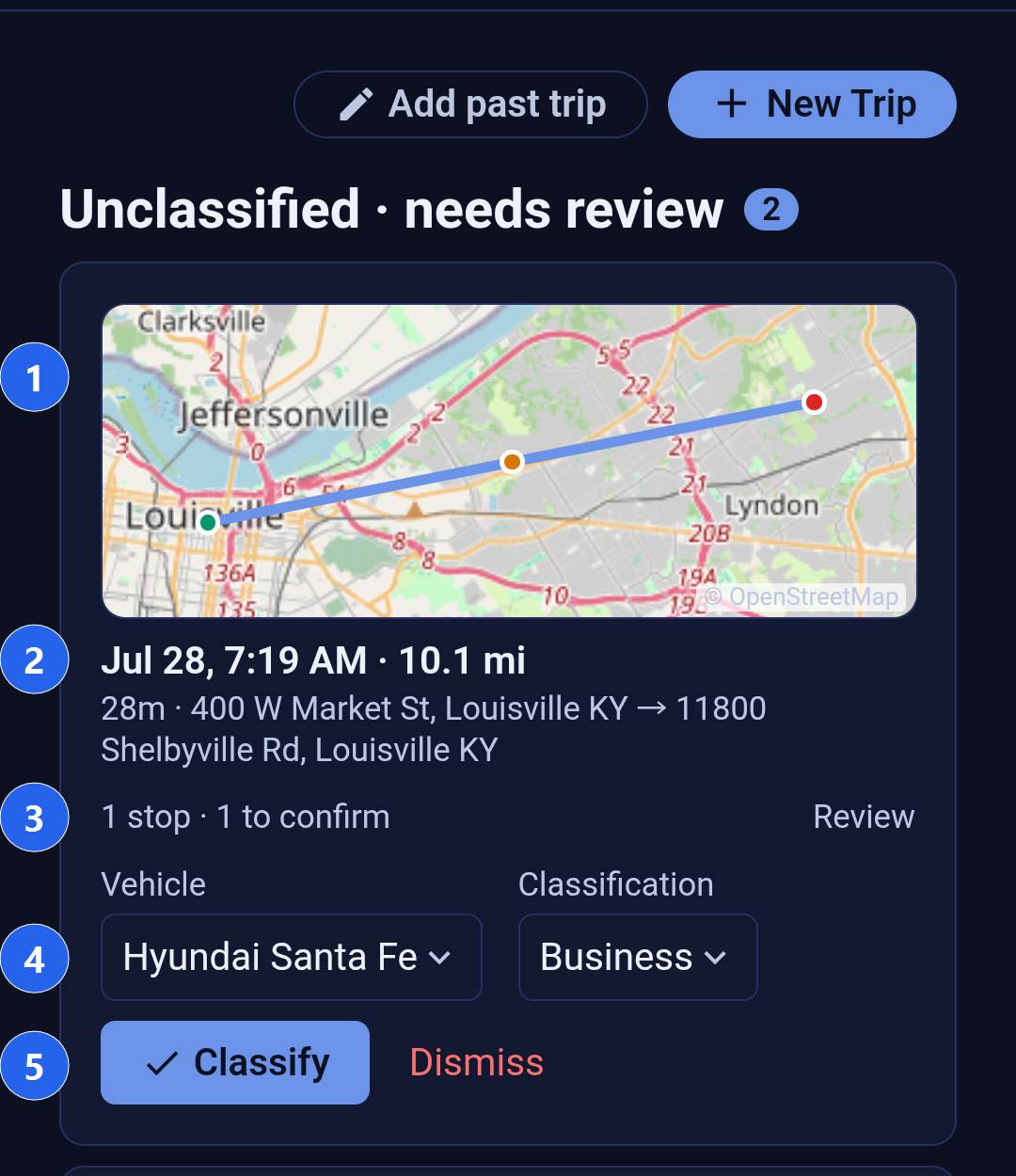
1. The route
The drive drawn on a map: a green dot where it began, a red dot where it ended, and an amber dot at each place the drive paused long enough to count as a stop. Tap the map to open the drive in full, where each leg has its own map and figures. A drive whose location points were never recorded says "No route recorded" rather than showing an empty grey box, so you can tell a missing route from a broken map.
2. When it was and how far
The date and clock time the drive started, the distance, the time it took, and the start and end addresses. The date and time are the ones where you were driving, not where your phone happens to be now. That matters at a year boundary: a drive that began late on 31 December stays on 31 December even if you read the list a time zone or two east of where you drove it.
3. The stops it detected
Backbuild Miles notices where a drive paused and how long for, and tells you how many stops it found and how many you have not confirmed yet. Tap Review to open the list, see each stop with its address and how long you were there, and label it: a pickup, a drop-off, both, a traffic stop, personal, or not a stop at all. Labelling stops is what turns a single long drive into an accurate record of a multi-stop working day, and it teaches the app what your regular places are.
4. The vehicle and the classification
Two pickers, one decision each. Vehicle is which car you were in; it arrives already filled with the vehicle you are currently driving, which Backbuild Miles knows either because you chose it in the header or because your car connected over Bluetooth. Change it only when the drive was in a different car. Classification is what kind of journey it was:
- Business: a journey made for work. These are the miles a standard mileage deduction is calculated from.
- Commuting: travel between home and a regular place of work. Kept as its own category on purpose, because commuting is generally not deductible and folding it into business is one of the most common ways a mileage claim gets disallowed.
- Personal: everything else.
5. Classify, or dismiss
Classify files the drive into your history with the vehicle and classification you chose. The button stays inactive until a vehicle is chosen, because a trip with no vehicle cannot be priced or reported. Dismiss removes the capture without filing it, for the times the app recorded something that was not your journey at all: a ride as a passenger, a car on a ferry, a delivery driver moving your vehicle.
Both actions tell you if they did not work. If a classification or a dismissal fails, the reason appears above the list rather than the row silently staying where it was.
Part Two: Your Trip History
After this section you will be able to read any trip card at a glance and know which drives still need attention before they are reportable.
Below the review section is every drive you have classified, newest first. Each one is a card, and every card carries the same six things.
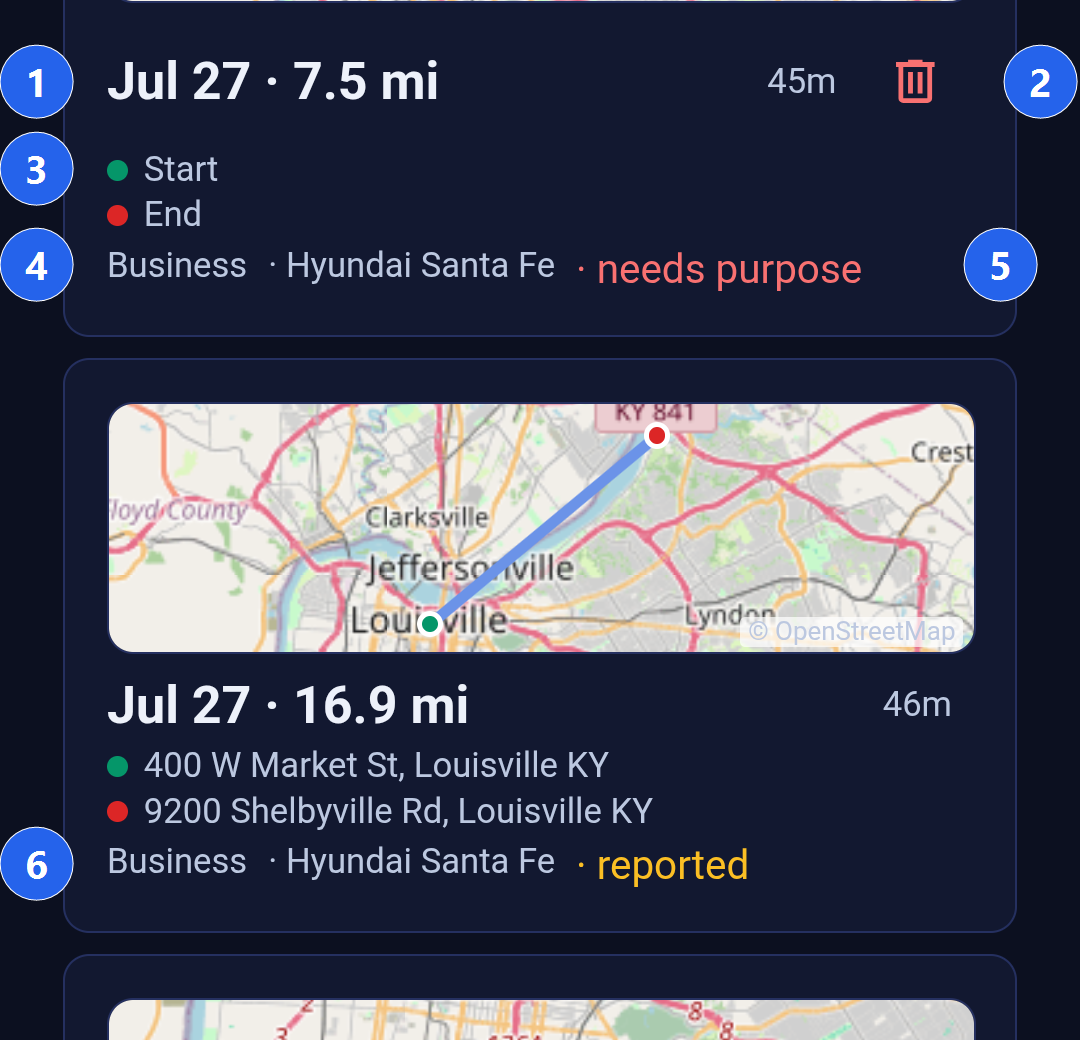
1. Date, distance and duration
The date the drive started (in the time zone you drove it), how far it went, and how long it took. A drive shorter than a minute reads "less than 1m" rather than "0m", so a very short hop never looks like a recording fault.
2. Delete
The bin icon removes a trip. It asks first; see "Removing a trip" below.
3. Where it began and ended
The start address against a green dot and the end address against a red one. If an address has not been resolved yet the card says "Start" and "End" instead of inventing one, and the map above still shows you exactly where the drive ran.
4. Classification and vehicle
What you filed the drive as, and which car it was in. A drive that came from splitting one long journey into legs also shows which leg it is, for example "segment 2", so a leg can always be matched back to the drive it came from.
5. Needs purpose
A red flag on any business trip with no stated purpose. This is the single most useful thing on the card. A business mileage claim is substantiated by recording what the journey was for, and a business trip with a blank purpose is the one that fails an audit. The flag appears in the list, not just inside the trip, so you can see the whole year's gaps by scrolling rather than by opening every drive. Tap the card, add the purpose, and the flag goes.
6. Reported
An amber marker on a trip you have locked because it has been filed or reported. A locked trip cannot be edited or deleted, which is why its card has no bin icon: once a figure has gone onto a return, quietly changing the record behind it is exactly what you do not want to be able to do. Unlock it from inside the trip if you genuinely need to correct it.
Putting split legs back together
If you divided one drive into legs and later decide it should have stayed whole, a control appears above the first leg offering to merge them back. It only offers the legs that can legitimately be recombined: they must be neighbouring pieces of the same original drive, share one classification and one vehicle, and none of them may be locked or already posted to your accounts. When one of them cannot be merged, the control tells you which rule stopped it, so you know whether to unlock a leg or to reconcile an entry first.
Opening a Trip
Tapping anywhere on a card opens that trip in full. That is where you add the purpose, change the classification or vehicle after the fact, add tags and notes, see the route leg by leg, and lock or unlock it. The list is for scanning and triage; the trip view is for editing.
Removing a Trip
After this section you will know exactly what deleting a trip does and what it cannot undo.
Tap the bin icon on a trip and the card asks before it does anything.
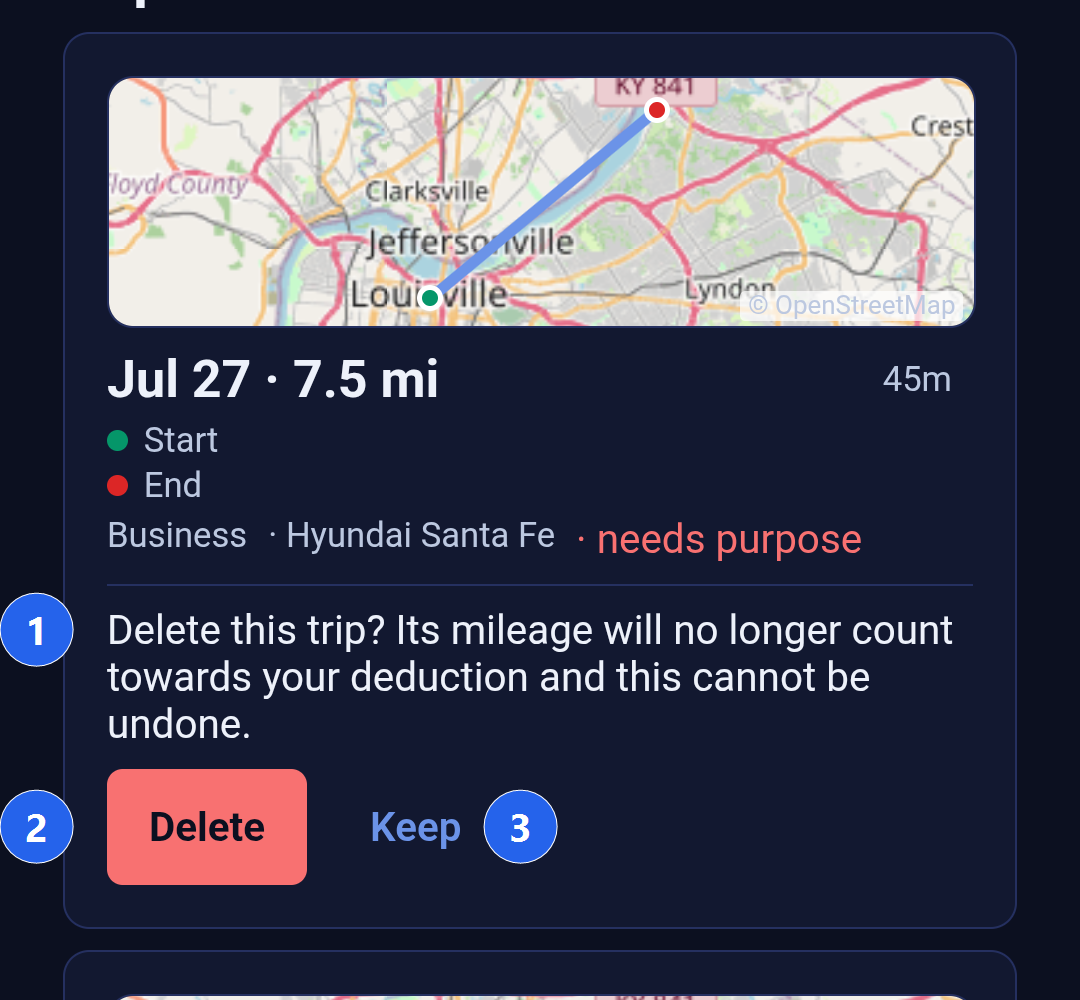
A trip is evidence behind a mileage figure, so removing one is deliberate rather than a single tap. Delete removes the drive from your history and from every total that counts it. Keep closes the question and changes nothing. There is no undo, so use Delete for drives that should never have been recorded and the trip view for drives that are simply filed wrongly.
If a deletion cannot go through, the list says so and gives the reason. The common one is a trip you have marked as reported: locked trips are protected from deletion, and the message tells you that rather than leaving you tapping.
Reaching Your Whole History
The list loads your most recent drives first and keeps the rest one tap away. At the end of the history, a Show older trips control loads the next stretch, and it disappears once you have reached your earliest recorded drive. Nothing is hidden: keep tapping and you will reach the first drive Backbuild Miles ever recorded for you.
Your place in the list is remembered. If you scroll a long way down, open a trip and come back, you return to the drive you were looking at rather than to the top.
Starting and Adding Trips
Two controls sit above the list, and they do different things. New Trip opens the live drive view, which shows a recording as it happens: speed, heading, altitude and the route building behind you. It does not start a recording; Backbuild Miles begins recording by itself once the vehicle actually moves. Add past trip is for a drive the app never saw, because tracking was off or the phone was flat. It records the drive after the fact from what you enter.
When Something Cannot Be Loaded
After this section you will be able to tell "you have nothing to do" apart from "we could not check".
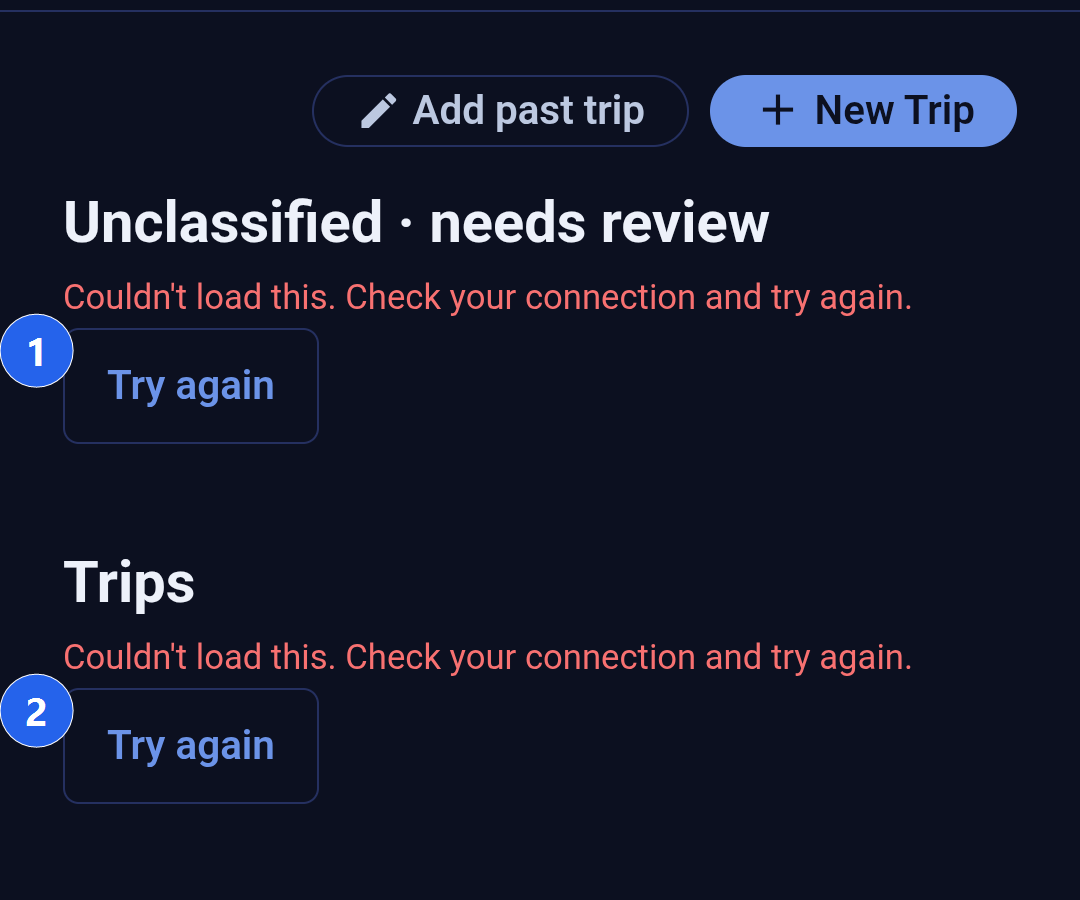
Each of the two sections loads separately and reports separately, so a problem reading one never hides the other. Two details are deliberate. There is no count beside the review heading when the check failed, because a zero would be a claim about your driving that the app is in no position to make. And there is a Try again control on each section, so recovering does not mean guessing.
"You are all caught up" is shown only when Backbuild Miles genuinely looked and found nothing outstanding.
Common Questions
The app recorded a drive I did not make. What do I do?
Dismiss it from the review section. Dismissing removes the capture without filing it, so it never reaches your history or any total.
Can I change a classification after I have filed it?
Yes. Open the trip from the history and change it there, unless the trip is locked as reported, in which case unlock it first.
Why does one of my trips say it needs a purpose?
Because it is classified as business and has no stated purpose. Recording what a business journey was for is what substantiates it. Open the trip and write a short, specific purpose, for example the client and the reason, and the flag clears.
Why can I not delete one of my trips?
It is locked. A trip you have marked as reported has no bin icon, and a deletion attempted while it is locked is refused with that reason. Unlock it from inside the trip if it genuinely needs correcting.
Does the list show everything, or only recent drives?
Everything, on request. It loads the most recent drives immediately and offers Show older trips at the end until there is nothing older left to load.
Can I work the list without a signal?
Recording never needs a signal: capture runs on the phone and uploads when it can. Reviewing and classifying do need a connection, and when there is none the screen tells you so and offers a retry rather than showing an empty list.
What happens to a trip I classify for the wrong entity?
Open the trip and move it. Backbuild Miles keeps drives per entity, and the trip view is where a drive is moved from one to another.
Where to Go Next
- Reading your dashboard: what your classified miles are worth and how they split.
- Navigating the app: the menu, the tabs, the vehicle and entity pickers.