

AI Connection and Budgets
Two decisions govern what a worker costs: what AI it runs on, and how much it may spend. Backbuild keeps both explicit. A worker in In-app assistant mode runs on your universal usage credits with nothing to configure, and a worker that runs coding agents in a container runs them on provider accounts you link, so an engineering team's own subscription and model quality carry over. The usage throttle keeps each linked account inside its provider's limits, a weekly token target stops a worker from claiming new work once the usage it counts reaches your threshold, and the worker's page shows each account's usage. After this page you will be able to choose a worker's AI connection source, link its own provider account, and set its limits knowing exactly which work each one covers.
The AI turns Backbuild runs for a worker, and any container the worker runs, are metered on universal usage credits, the same pool that covers the AI assistant, containers, and audio. Those turns are metered as the worker takes them, and a worker's container draws credits while it is up. The coding agents in a container worker's slots run on the accounts you link instead, within those accounts' own provider limits. There is no separate per-worker subscription and no per-task surcharge.
Choosing an AI Connection Source
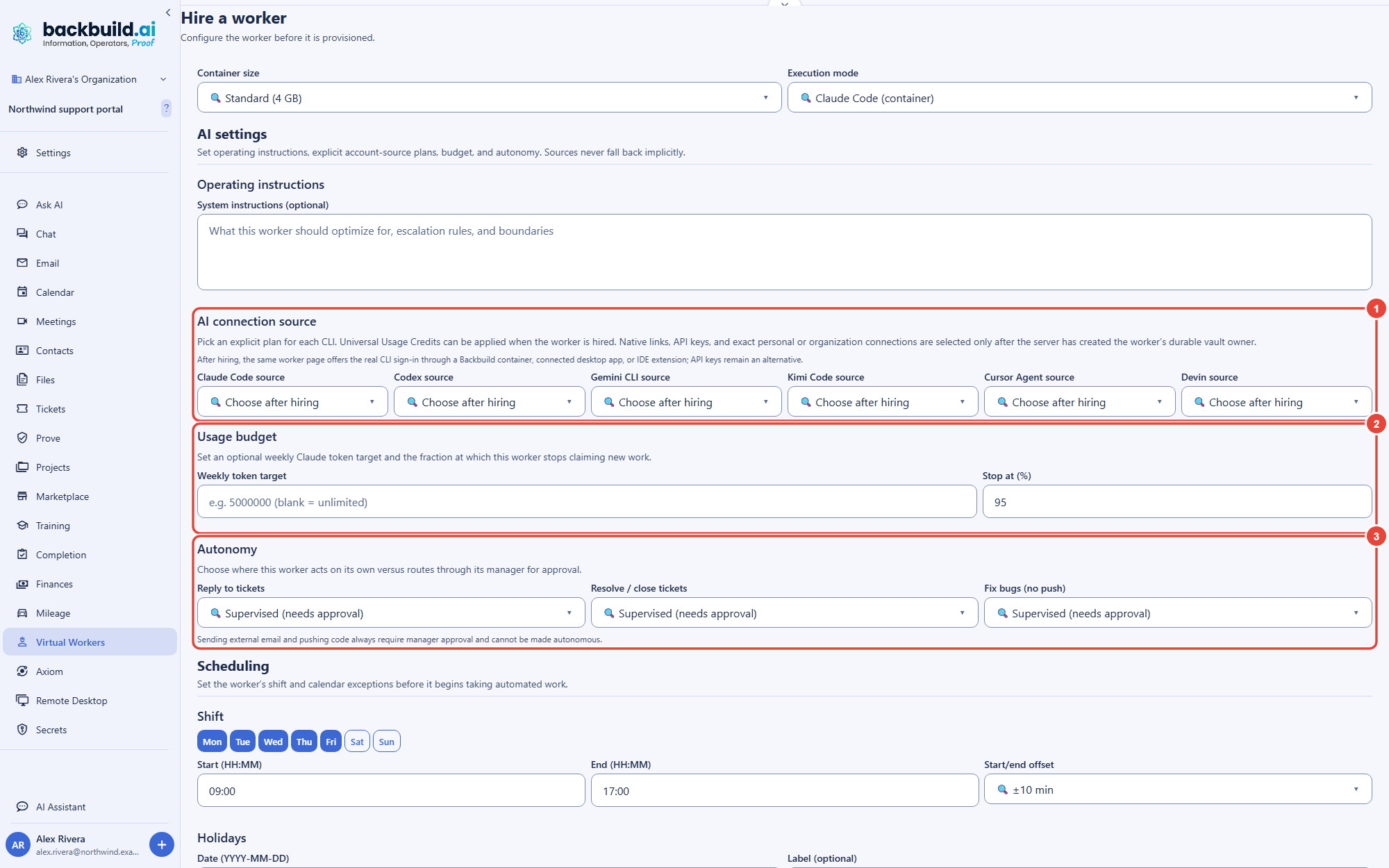
After this section you will be able to pick exactly where a worker's thinking comes from. On the Hire a worker form, under AI settings, the AI connection source is chosen explicitly for each coding tool. These sources are for the coding tools that run in a worker's container slots; a worker in In-app assistant mode runs on the platform's AI over your usage credits without them. There is no silent default: you decide, and until you do, a tool's source stays unset rather than falling back to something you did not choose. Two choices take effect when you hire:
- Universal Usage Credits. The tool's source is your organization's credit pool, with nothing to link, and the worker's container is allowed to start. In this release, though, a coding tool in a container slot does not run on credits: the slot stays idle. For Claude Code, Codex, and Gemini CLI its terminal says it has no usable account and is waiting for one to be linked; Kimi Code, Cursor Agent, and Devin get no account to work with either. Link an account for every tool a container worker's slots run. A worker meant to run on credits alone belongs in In-app assistant mode.
- Choose after hiring. The tool has no source yet. You give it one afterward by linking the worker's own account in its Configure wizard, as described next.
The list also names linked-account plans (the worker's own account, your personal account, or an organization account). Only Universal Usage Credits is applied at hire time; a linked account is connected after the worker exists. A worker with a tool that has neither a linked account nor credits cannot start until one is added, and its Overview says so.
Bringing Your Own Provider: Linking a Worker's Own Account
After this section you will be able to give a worker its own coding-agent account so your subscription and model quality are preserved. The coding agents in a worker's container run on accounts you link, so a Developer worker uses the exact model and quota your team already pays for. In the worker's Configure wizard, step 5, AI accounts & pool, you link the worker's own provider-native account for a supported coding-agent tool, as many accounts per tool as you like. See The Configure Wizard. You link it by completing the provider's real sign-in in a temporary Backbuild container terminal, or through a connected Backbuild desktop app or editor extension where one is available; an API key is an alternative where you prefer one.
The coding tools a worker's slots can run are Claude Code, Codex, Gemini CLI, Kimi Code, Cursor Agent, and Devin. Each linked account is a separate connection, and pairing one never authorizes another. Editor products such as the Cursor editor and Windsurf (Devin Desktop) are separate products, not the same connections as those terminal tools.
A credential you link through the provider's sign-in is held in your organization's zero-knowledge, post-quantum secrets vault, in a vault item of its own, not in the worker's prompt. An API key you enter instead is encrypted by Backbuild before it is stored, outside that vault. When the worker's container starts, the account is restored into the container for the coding tool in its slot, readable only by that slot and not saved in the home folder. Because the work in that slot runs alongside the coding tool, link an account dedicated to the worker rather than a person's own. You can unlink an account at any time. Credential handling is covered further in Security and Governance.
During a provider sign-in, the pairing window gives you a quick-copy control for a one-time code and a button that opens the authorization page. If the provider returns a code, paste it into the same window so it reaches the live terminal. The finished native credential is written to the chosen vault. A later container relaunch restores every paired agent from its own vault item, ready to use, while leaving unpaired agents unset.
Whose AI account and quota does a worker use? An In-app assistant worker draws on your plan's usage credits. A container worker's coding agents use the provider accounts you link, with that subscription's model and quota; in this release they do not run on credits. A worker never picks a source you did not choose.
Can a worker use my own coding-agent CLI account? It can, but link an account dedicated to the worker instead, because the work in the worker's slot can reach the account its coding tool signs in with. Link it in Configure step 5 by signing in to the provider in a temporary Backbuild container terminal or with an API key, and your subscription's model quality and quota carry over.
The Weekly Token Target: What It Counts
After this section you will know what the weekly token target limits, and what it does not. When you hire a worker that runs Claude Code in a container, or in hybrid mode, the Usage budget section of the hire form sets two numbers:
- Weekly token target. The number of counted tokens the worker may use in a week. Leave it blank for unlimited, or set a number.
- Stop at. A percentage of the target, defaulting to ninety-five, at which the worker stops claiming new work.
Before it hands the worker new work, Backbuild compares the tokens counted against the worker this week with the target. Once they reach the stop-at percentage, the worker waits instead of starting more, and the count starts over when a new week begins. In this release the count covers the AI turns Backbuild itself runs for the worker on your usage credits. It does not yet include the coding agents that work in the worker's container, so the target does not stop a container worker's coding-agent work. The fear behind a budget is an agent that takes five to twenty inferences on a task you thought was cheap; for a container worker, the controls that hold it in check today are the usage throttle below, the worker's shift, and Pause, Drain, and Stop on its page. The weekly target is set when you hire the worker.
Staying Inside Provider Limits: The Usage Throttle
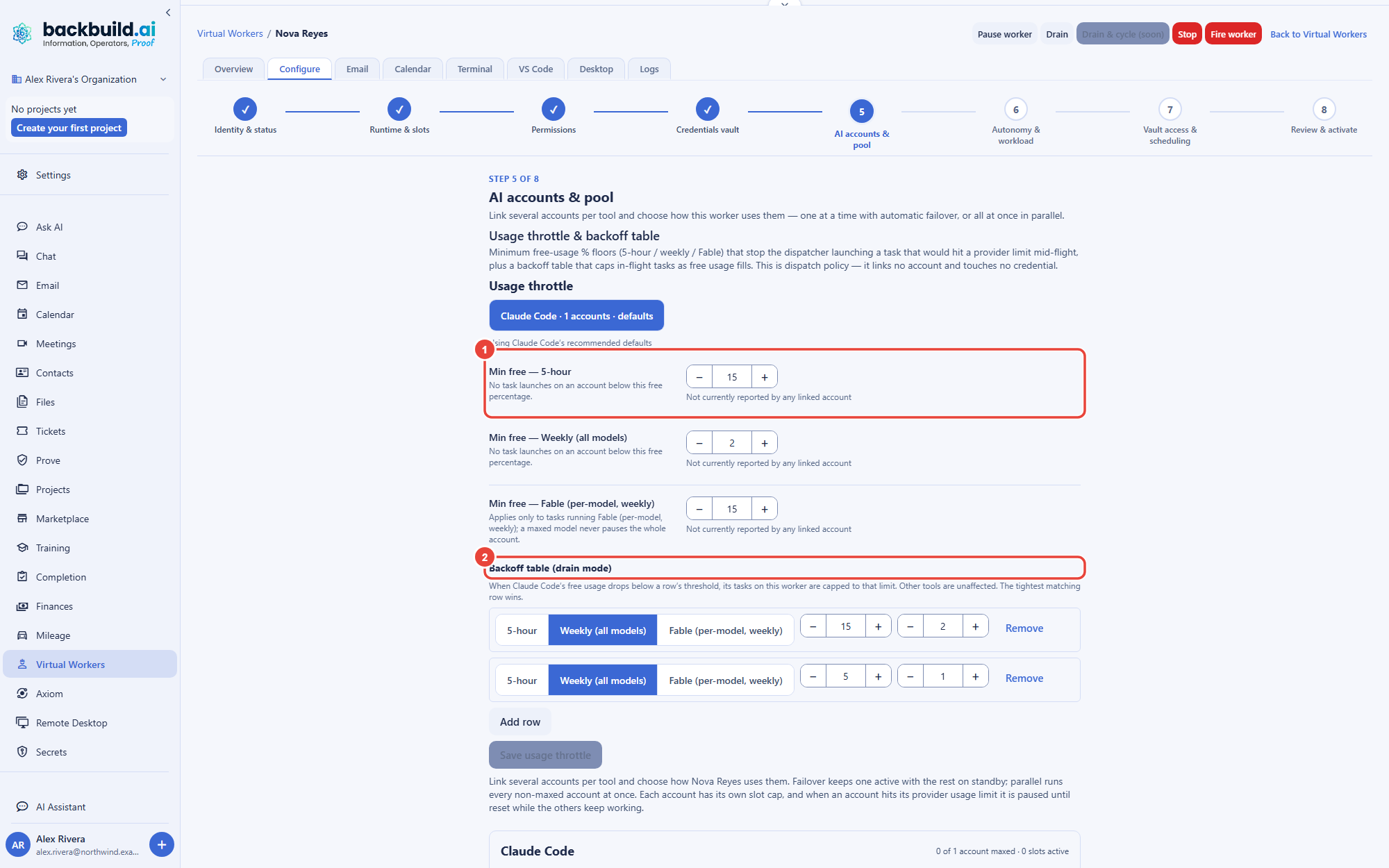
After this section you will be able to keep a worker from starting work its AI accounts cannot finish. A worker that runs on provider accounts you link is bound by those providers' own limits: a rolling 5-hour window, a weekly window, and sometimes a weekly limit for one model. The Usage throttle at the top of Configure step 5 sets, per tool, a minimum free percentage for each window below which no new task launches on an account, plus a backoff table that caps how many of the tool's tasks run at once as free usage runs low. It is dispatch policy only; it links no account and touches no credential. The recommended defaults apply until you change them.
Watching Usage and Spend
After this section you will know where to see what a worker is using. Three places answer it:
- Each account's provider usage. The worker's Overview, and the account pool in Configure step 5, show every linked account's 5h and Week meters with the percentage used, the reset time, and how long ago they were measured. A window never measured says so rather than showing zero, and an account whose sign-in was revoked shows Sign-in expired · re-link instead of a usage figure. See The Worker Page.
- The worker's container. The Overview charts CPU, memory, and disk over time and counts the jobs the worker took, completed, and failed.
- Credits. Because the same credits meter the rest of the platform, a worker's spend shows up on your billing and usage screen alongside everything else.
What happens when a worker reaches its weekly token target? It stops claiming new work at your stop-at threshold until the week resets. The target counts the AI turns Backbuild runs for the worker on usage credits, not yet the coding agents in its container, so bound those with the usage throttle, the shift, and the controls on the worker's page.
What happens when one of its accounts hits a provider limit? That account sits out until its window resets and then returns on its own; the worker keeps going on its other accounts. The usage throttle stops new tasks from starting on an account that is close to its limit.
Do I pay a separate fee per worker or per task? No. Workers draw on the same universal usage credits as the rest of the platform: the AI turns Backbuild runs for them as they happen, and a worker's container for as long as it is up. A container worker's coding agents use the accounts you link. There is no per-worker subscription and no per-task surcharge.
Where to Next
- Hiring and Configuring a Worker: the rest of a worker's setup, from persona to schedule.
- Security and Governance: where a linked credential is stored, and who can reach it.
- Universal Usage Credits: how the credit pool works across the platform.
- The Billing and Usage Screen: where a worker's spend appears alongside the rest of your usage.