

Terminal, VS Code, and Desktop
A running container gives you three ways to work with it, in one panel: a terminal, VS Code, and a graphical desktop. They are tabs over the same machine, so switching between them never disturbs your work. One attached header carries the surface switcher, menus, and viewer controls wherever you move the panel. This guide teaches what each surface is best at, who controls a terminal, how to arrange several terminals, how scrolling and recovery behave, how to take and release control of the desktop, and how to inspect connection protection. After this page you will be able to move fluidly between all three.
One Attached Viewer, Three Surfaces
After this section you will understand how the surfaces relate. The terminal, VS Code, and desktop are three views of the same running container, presented as tabs in one resizable viewer. The header is physically attached to the viewer panel. It contains the surface tabs, the menus for the active surface, and the controls for moving or expanding the viewer. The terminal, editor, and desktop remain mounted while you switch, so returning to a surface reveals the same live session without reconnecting it.
| Surface | Best for | Available |
|---|---|---|
| Terminal | Running commands, scripts, build tools, and command-line programs, including the in-container AI assistant. | Always. |
| VS Code | Reading and editing code and files with a full graphical editor. | When the container is running. |
| Desktop | Graphical applications, a full browser including its chrome, and anything that is not a page or a terminal. | When the container is running. |
Move the complete viewer
- Float it over the page. Select the floating-window control to move the complete viewer, including its header, into a resizable window over the page. The control changes to Return viewer to the page. Select it again, or select the close control on the floating window, to put the viewer back in its original place.
- Open it in another browser window. Select the new-window control to open the active viewer in a separate browser window. The surface switcher and viewer header go with it, so the new window is not a headerless terminal, editor, or desktop.
- Pop out one terminal. A terminal pane can open in its own browser window with its terminal header and surface switcher. Closing that window automatically returns the terminal to the original workspace. You can also use Bring back from the original viewer.
These controls move the view, not the container. Commands, editor state, and desktop applications continue inside the same running machine.
Open the viewer from a chat
In the web app, when a conversation has a container attached, three buttons in the chat open the same viewer over the conversation: Terminals, VS Code, and Desktop. Select a button to show that surface, and select it again to hide the viewer; it stays connected while hidden, so showing it again does not reconnect. A button the container cannot serve is disabled, and its tooltip says why. The viewer can also pop out into its own browser window or tab.
The Terminal
After this section you will trust the terminal to hold your session. The terminal is the primary surface and the one that is always available. It is a real shell running inside the container, and it is built around two properties that matter to anyone who has lost work to a flaky connection.
- It reconnects to the same shell. Every viewer authorized on the container attaches to the one running session, never a second one. If your network drops or you reload the tab, you reattach to that same shell with its history and running processes intact. You do not start over.
- Full-screen programs render correctly. The container keeps an authoritative picture of the screen, its characters, colors, cursor, and scrollback, so text-based full-screen programs like an editor, a system monitor, or a language shell display faithfully rather than as a stream of garbled control codes.
A status bar along the bottom of the terminal shows a running estimate of the credits the session has used so far and how long the container has been up, so the cost of the session is always in view while you work. The in-container AI coding assistant runs here too, on the account you chose at launch (see Launching a Container).
Who controls a terminal
When you switch to a terminal you are allowed to drive, you control it straight away: what you type goes to the shell. If you would rather watch first, turn on Connect in read-only mode by default. Open Settings, then Personalization, select the Terminal tab, find Terminal control, turn the setting on, and select Save Changes. With it on, a terminal opens marked read-only, and you select Take control when you want to type.
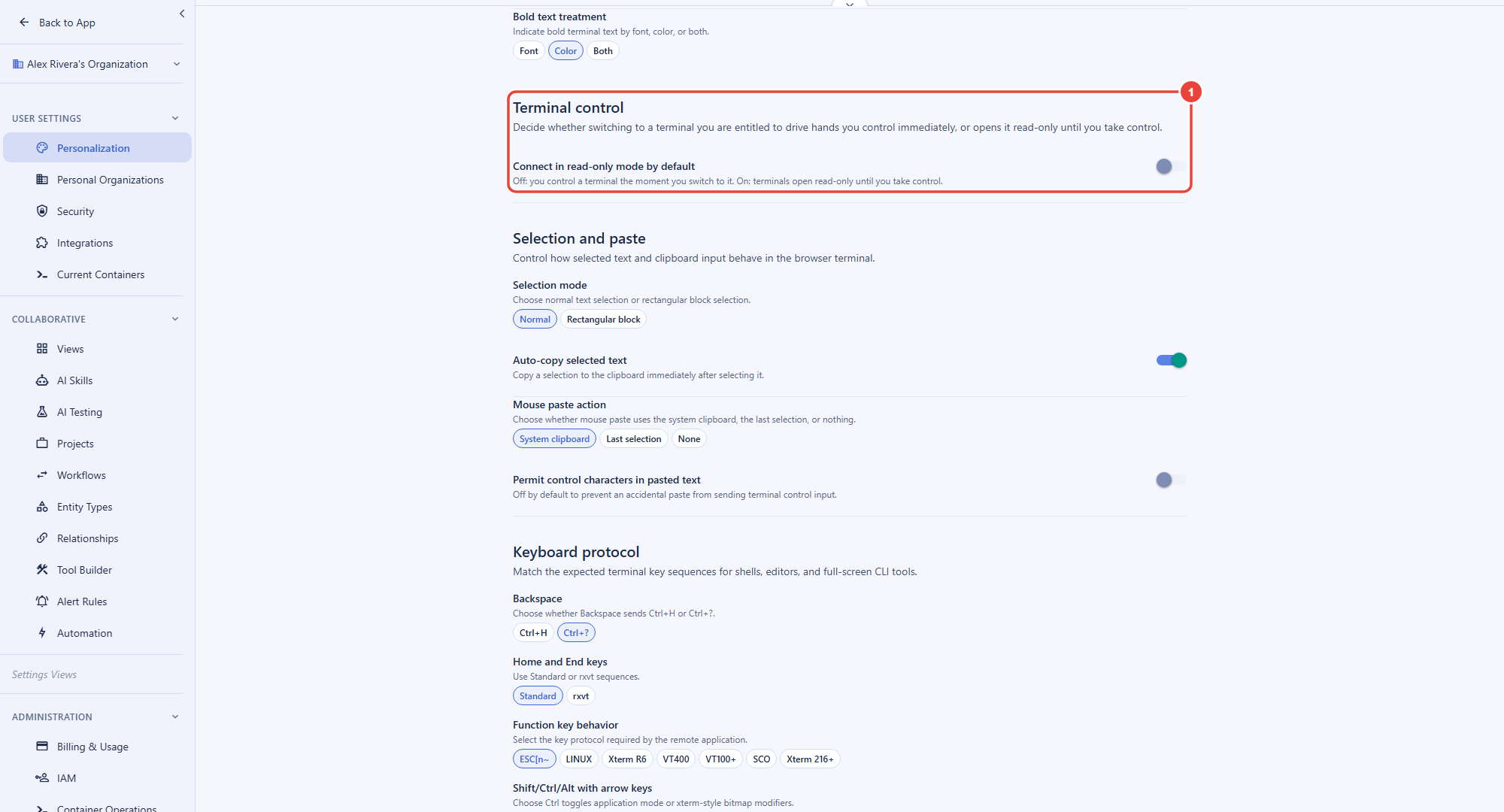
The setting covers the containers you launch yourself. A Virtual Worker's container follows the worker's own Connect in read-only mode by default switch, on the Runtime & slots step of its Configure wizard. Either way, the setting only decides how a terminal opens. Whether you may control a terminal at all is still decided by your access, and taking control is recorded like any other action.
Arrange up to 32 terminals
Select New terminal to add another shell as a tab. To work with several shells at once, select the grid control. Its flyout contains 32 cells in an 8 by 4 rectangle. Press and drag across the cells to select the number of columns and rows you want.
- Existing terminals fill the selected rectangle from left to right, then top to bottom, in their current tab order.
- If the rectangle contains more slots than existing terminals, Backbuild opens new terminals to fill the empty slots.
- The tab bar disappears in grid view, leaving the available height for the terminal panes.
- Select the grid control again to return every terminal to tabs in the same order.
Every pane is measured against its own share of the viewer, between the attached header and the terminal status bar. When you resize the viewer or change the grid, the rows and columns in each shell resize to fit. No pane is allowed to extend underneath either bar.
Scroll each terminal independently
Each terminal keeps its own scrollback. Use a mouse wheel, trackpad, or touch gesture over a pane to move through that pane's history without moving another terminal. The scrollbar stays hidden until the pointer reaches its edge. On a touch screen, drag within the pane you want to scroll.
In Options, then Terminal settings, Auto-scroll on activity has three choices:
- While not scrolling back follows new input and output only while you are at the bottom. This is the default.
- On follows input and output even after you have scrolled away, except while you are holding the mouse button down over scrolled-back history.
- Off leaves the viewport where you put it.
The SCRL control in the status bar pauses following across the workspace. Turn it off to jump back to the bottom and resume following.
Recover when the last shell exits
If the final running shell exits, Backbuild does not discard its pane or begin an endless reconnect loop. The terminal screen and scrollback remain visible and selectable while you choose what to do. Select Start a new shell to create a new terminal on the existing connection. The exited terminal remains as a scrollback tab, so you can still copy from it. If a new shell cannot be opened, the prompt and retained scrollback stay in place and an error explains what failed.
The same prompt also offers Disconnect and leave running, which closes your viewer but leaves the container running in the background, and Yes, shut down, which stops the container at once. When you asked to close the last terminal yourself, Stay connected keeps everything as it was. See Managing Sessions, Persistence, and Credits for the billing and persistence effects.
Inspect the protected connection
The bottom status bar gives connection state and RTT separate cells. Connected reports only the state. RTT and its recent history remain in the dedicated RTT cell. Select Connected to open live connection details.
The details distinguish WSS transport protection from the terminal's verified application-channel negotiation. Until negotiation is verified, the cryptographic fields remain n/a rather than treating WSS alone as proof of post-quantum protection. After verification, the terminal reports the suite it negotiated:
- Handshake protocol: BB-TERMINAL/PQ-HANDSHAKE/v1
- Key establishment: hybrid X25519 and ML-KEM-768, with classical-only mode disabled
- Data encryption: ChaCha20-Poly1305
- Integrity and derivation: SHA-256 and HKDF-SHA-256
The channel rotates to fresh application keys on a schedule, by elapsed time and by data volume, with a new hybrid handshake over the same connection. A rotation that cannot complete ends the connection rather than carrying on with the old keys.
This hybrid channel protects captured terminal application traffic against later decryption by a quantum-capable attacker. It guards against traffic being recorded, not against an attacker actively sitting in the relay path: WSS provides the authenticated transport to the relay, and the modal reports those two layers separately. Other surfaces show only the values they can verify. They never upgrade a transport-only WSS connection into a post-quantum claim.
If my connection drops, do I lose my terminal session? No. You reattach to the exact same shell, with its scrollback and any running programs still there. The session lives in the container, not in your browser tab.
Will vim, htop, and REPLs display properly? Yes. The container maintains the true terminal screen, so full-screen and interactive programs render correctly, not as scrambled output.
Does closing a popped-out terminal close its shell? No. Closing the separate browser window returns the terminal to the original workspace. It does not terminate the shell.
Why does a connection detail show n/a? The active surface has not supplied verified evidence for that value. Backbuild leaves it unknown instead of inferring a cipher or post-quantum status from WSS.
VS Code
After this section you will be able to edit your container's files in a full graphical editor. The VS Code tab is the VS Code editor, running inside the container and rendered in your browser. It opens on your container's home folder as its workspace, so the files you edit are the same files your terminal sees. It becomes available once the container is running.
Because the editor and its extensions run in the container rather than on your device, you get the same editing experience from a powerful workstation or a thin laptop, a Chromebook, or a tablet. There is nothing to install locally. Work you save in the editor lands in the home folder that persists across shutdown, so it is there when you relaunch. For how persistence works in detail, see Managing Sessions, Persistence, and Credits.
Is it really VS Code, or a lookalike? It is VS Code built from the same open-source code as Microsoft's Visual Studio Code, running as a server inside the container and opened in your browser. It opens on your files and behaves like the editor you know. Extensions come from the open extension registry (Open VSX) rather than Microsoft's Marketplace, so a Microsoft-only extension may not be available.
Can I use it on a Chromebook? Yes. The editor runs in the cloud and renders in the browser, so any device with a modern browser can drive it at full capability.
The Graphical Desktop
After this section you will be able to see and control a container's desktop. The Desktop tab shows a live graphical Linux desktop that you view and control in the browser. It is the surface for the things a terminal and an editor cannot reach: a graphical application, a full web browser including its address bar and tabs, or any native window. If you chose Windsurf (Devin Desktop) as the desktop editor at launch, the desktop opens the Windsurf editor.
The desktop streams to your browser over an encrypted connection through Backbuild, and the viewer connects to it on its own once the container is running. While the Desktop tab is open, the header shows the connection state; select it to open the connection details, which report the transport protection and the stream's codec, resolution, and frame rate. The details report the transport as TLS and leave every post-quantum field n/a, because the desktop stream does not carry the terminal's post-quantum channel. Force reconnect in the header re-dials the stream if it stalls.
The desktop opens for watching. Select Take control to drive it with your mouse and keyboard. While you hold control, a banner across the top of the desktop reads Control captured and shows how to give it back: press Esc or Ctrl+Alt, or select Release control. Releasing hands your keyboard and mouse back to the page without closing the desktop.
The Desktop tab, like the VS Code tab, stays greyed out until the container is running, and it stays greyed out on a container that was launched without a desktop. Your running containers are also listed under Remote Desktop in the app's sidebar, where Connect opens the same desktop.
Why is the Desktop tab greyed out? Either the container is not running yet, and the tab becomes available when its status reaches Running, or the container has no desktop. Every container you launch from a project has one, so launch a new container there if you need it.
My keyboard stopped working in the page. Why? You are probably still holding control of the desktop, which sends your keystrokes to the container. Press Esc or Ctrl+Alt to release it.
On the Desktop and Mobile Apps
After this section you will know what to expect off the web. In the Backbuild native desktop and mobile apps, the in-browser editor and desktop frames are not embedded the same way. Instead you are offered a direct way to open VS Code in your browser and the connection details you need, so you still reach the container's surfaces from the native app.
Where to Next
- Managing Sessions, Persistence, and Credits: what your work costs, exactly what survives a shutdown, and how to close a container cleanly.
- Remote Desktop: your signed-in devices and running containers in one list, and what each connection protects.
- Agents, Automation, and the API: letting an AI agent drive the same surfaces.