

Composing and Sending
The compose window is where you write: formatted or plain text, attachments, and a draft that saves itself as you type. This guide teaches you to write and send a message, reply to one, and work within the send limits. After this page you will be able to send with confidence and know exactly what each limit is and why it is there.
Write and Send a Message
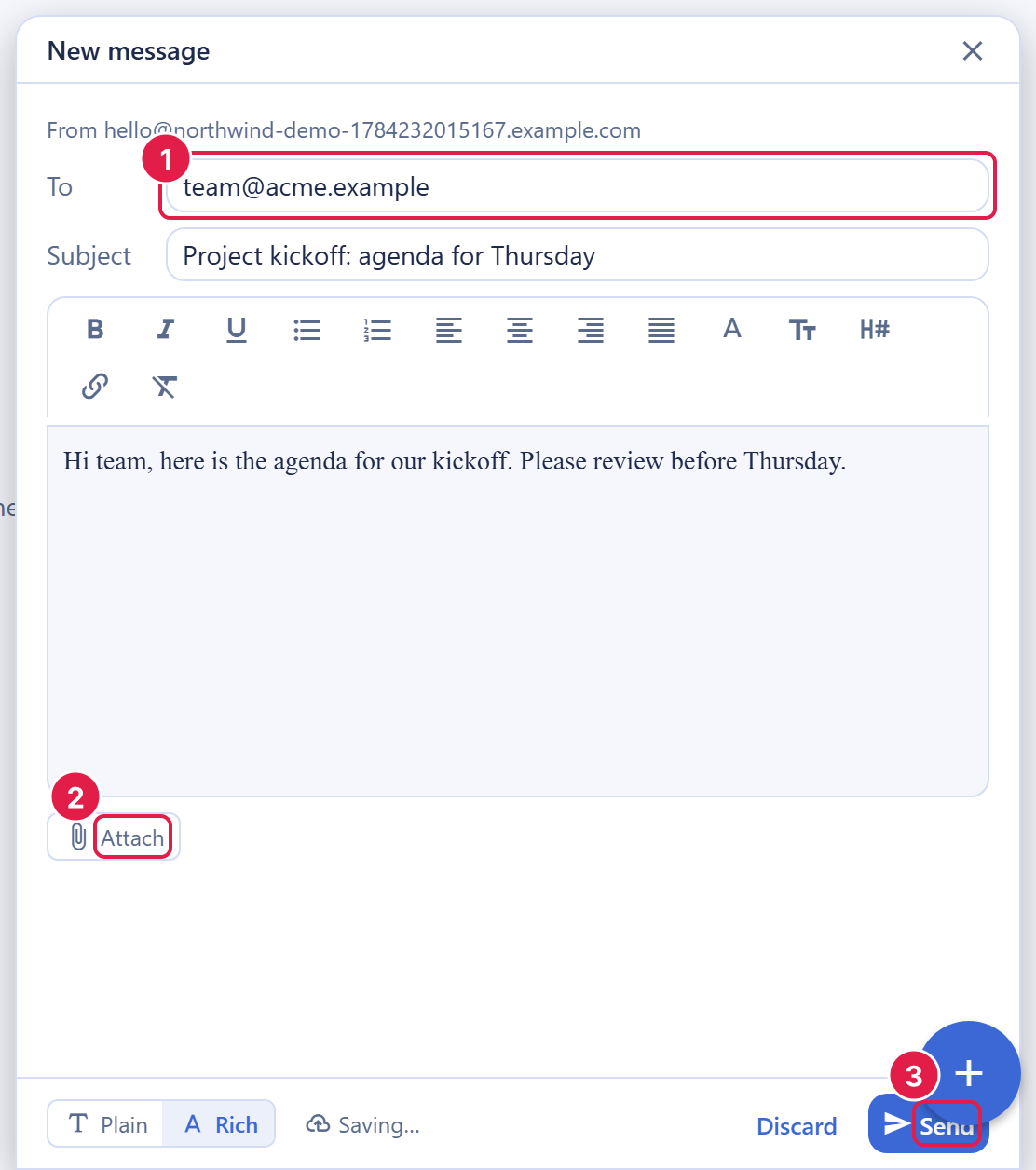
After this section you will be able to compose and send. Select Compose at the top of the folder rail. The New message window opens with the mailbox you are working in as the sender.
- To: type one or more addresses, separated by commas, semicolons, or spaces.
- Subject: required, and up to 998 characters.
- Body: write in Rich mode, with a toolbar for bold, italic, underline, bulleted and numbered lists, alignment, text color, font size, headings, links, and clearing formatting; or switch to Plain for text-only mail. Formatted mail is sent so it renders for recipients whose clients show HTML, with a plain-text alternative for those that do not.
- Send delivers the message through your organization's connected Resend account (until one is connected, mail is not sent; see Outbound Routing); Discard closes the window and deletes its draft.
- Reply: open a message and select Reply in the reading pane, or press r. The reply is addressed to the sender and kept in the same conversation.
- Copy and blind copy: the compose window addresses mail in To. A send through the REST API can also carry Cc and Bcc recipients and a reply-to address.
Attachments
After this section you will know what you can attach. Add files to a message and they are uploaded first, then sent with the message.
- Up to 32 attachments per message.
- Up to 25 MiB per file when you attach it. Attachments are de-duplicated within a mailbox, so attaching the same file again does not cost extra storage.
- Up to 5 MiB per message: the whole message must stay within 5 MiB to send, and attachments count at their encoded size, about a third larger than the files themselves, so attachments that add up to more than roughly 3.7 MiB will not send. Share a larger file as a link.
- Safe downloads: when you download an attachment, known file types are served with the right content type, and anything unrecognized is served as a plain download rather than opened in place, so a file cannot masquerade as something it is not.
Drafts
After this section you will trust that your writing is safe. Drafts save continuously as you write, and the compose window shows when the latest change is saved, so a closed tab or a dropped connection does not lose your work. Reopen a draft from the Drafts folder and the compose window picks up exactly where you left off. Every message you send is also kept as a copy in your Sent folder.
The compose window does not offer undo send, scheduled send, or snooze. Read a message before you select Send: once it is sent, it is on its way.
Open Tracking
After this section you will know what your recipients' mail apps report back. A message you send in Rich mode carries a small, invisible tracking image. When a recipient's mail app loads it, Backbuild records the open, and your Sent folder marks the message with an eye icon: filled, with the time and the number of opens, when an open was detected, or an outline reading No opens detected. Tracking is best-effort: many mail apps block or proxy remote images, so a message that was read can show no opens, and the real number of opens may be higher than the count. A message you send in Plain mode carries no tracking image, and there is no setting to turn tracking off for Rich messages. If your policies, or the laws that apply to your recipients, require consent before tracking email opens, send those messages in Plain mode.
The Send Limits, and Why They Exist
After this section you will understand the limits on each message. The limits keep each message deliverable and keep your sending reputation clean.
- 32 attachments, 5 MiB per message in total.
- 998-character subject.
- Suppression pre-flight: recipients who previously bounced or complained are removed before a send, and a send through the REST API reports which recipients were removed, so you do not keep mailing an address that will not accept it and hurt your reputation.
- Cost: mail you send through your Resend account carries no Backbuild allowance and no Backbuild charge; Resend bills it under your Resend plan. See Outbound Routing and Allowances.
What are the send limits (attachments, size, subject)? Up to 32 attachments, with the whole message within 5 MiB; subjects up to 998 characters. Known-bad recipients (past bounces or complaints) are dropped before send.
Your Sending Identity Is Protected
After this section you will understand why you cannot accidentally, or maliciously, send as someone else. The From address and the technical headers that identify a message are set by the server based on the mailbox you are sending from. You can send only from a mailbox you are allowed to send from, never as an arbitrary address. A reply-to address is allowed only when it is your mailbox address or another address your organization has verified on its own domain. This is what keeps the domain's reputation clean and stops spoofing. How outbound mail is routed, and how send categories are decided, is covered in Outbound Routing and Allowances.
Related Guides
- Labels, Filters, and Search: sort what you send and receive, and the keyboard shortcuts.
- Outbound Routing and Allowances: how mail is sent through your Resend account, and what Backbuild charges for it.
- Mailboxes, Inbox, and Reading: the inbox, the reading pane, and sending from another mailbox you can write to.