

Hosting: Create, Schedule, and Invite
This guide teaches how a host runs the front of a meeting: what a meeting costs, creating a meeting for now or for later, inviting the right people by name and by email, letting your calendar carry the meeting, and the housekeeping of renaming, ending, and deleting. After this page you will set up a meeting in seconds and get everyone to it cleanly.
The Meetings Hub
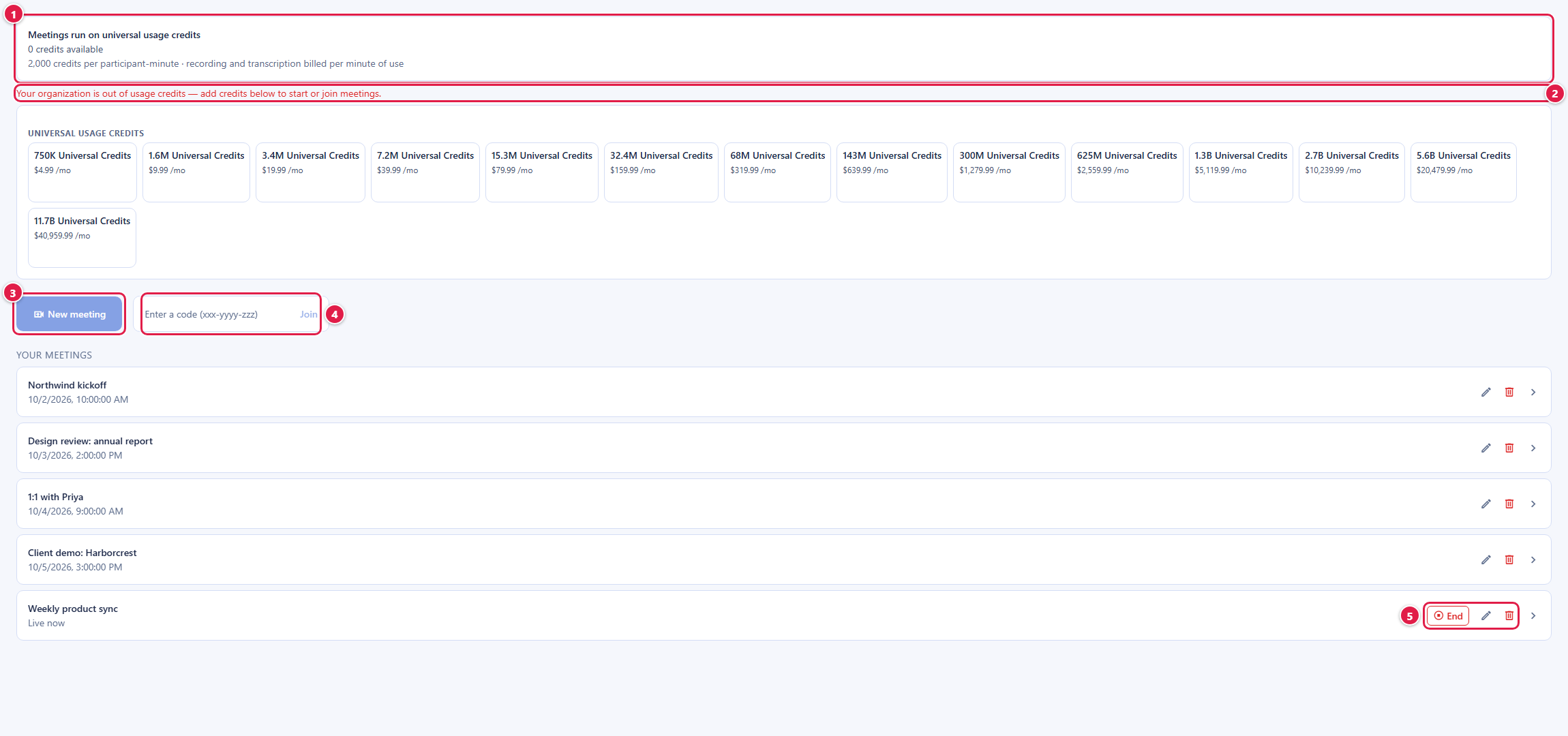
After this section you will find your way around the hub. Open Backbuild Meetings from the workspace sidebar, below Backbuild Calendar. The hub is where you create a meeting, join one with a code, and see your meetings.
- The credits notice sits at the top: meetings run on universal usage credits, with your organization's balance and the current price per participant-minute.
- New meeting opens a short dialog to name the meeting, invite people, and optionally schedule it.
- Join takes a meeting code someone gave you and opens that meeting's lobby.
- Your meetings lists the meetings you host or have taken part in, each with its date and time or Live now. On meetings you host, the row offers Rename and Delete, and a live meeting also offers End.
What Hosting Costs
After this section you will know what a meeting draws and what to do when the balance is empty. Meetings run on universal usage credits on every plan, including Free, and there is no free meetings allowance. Your organization, as the host, covers the whole meeting; the people you invite never pay.
- The rate is per participant-minute. Each person in the room draws credits for each minute they are connected, at the rate in the credits notice: currently 2,000 credits per participant-minute. A one-hour meeting with four people is 480,000 credits, about $3.20 at entry credit package rates. The pricing page is the authoritative source for rates.
- Minutes are charged per billing period. Meeting minutes are totaled for each monthly billing period and charged against your credits when the period closes, so the balance does not drop while a meeting runs. The charges appear in your credit history as Meetings usage on the Billing & Usage screen.
- Out of credits, bought in place. When the balance is zero, the hub says the organization is out of usage credits, turns New meeting off, and lists the credit packages right there. Once a purchase lands, New meeting turns back on without a reload.
- A meeting in progress is never cut off. Credits gate entry, not the room. If the balance runs out mid-meeting, everyone connected stays connected; only new entries are refused until credits are added.
The hub's price line also mentions recording and transcription billing. Those are not available yet, so no recording or transcription minutes are charged.
Start Now or Schedule for Later
After this section you will create a meeting either way. New meeting gives you both from one dialog.
- Start now. Give the meeting a title and press Start meeting. You go straight to its lobby, and any invitations you added are sent in the background so a slow send never holds you up.
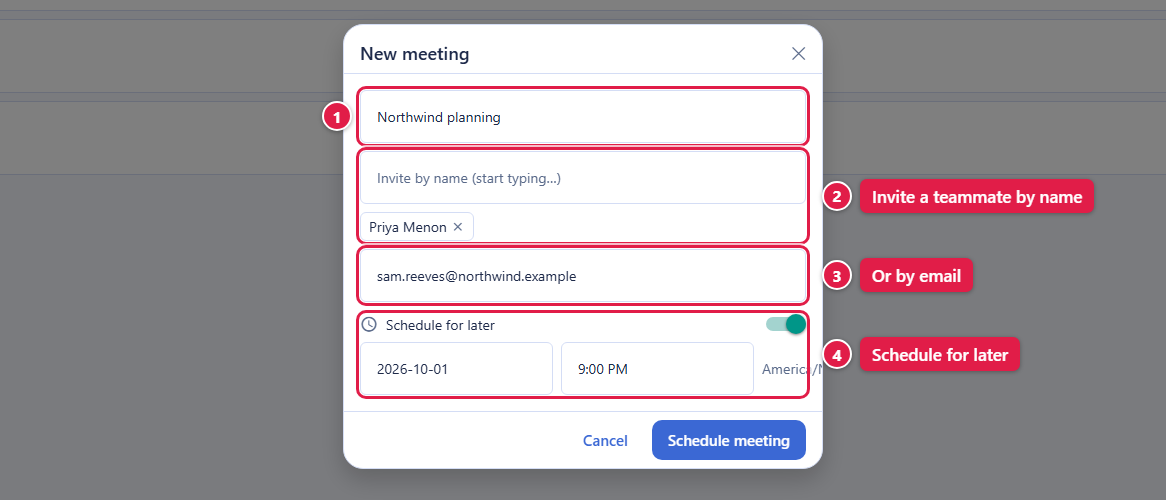
- Schedule for later. Turn on Schedule for later, set a date and a start time in your time zone, and press Schedule meeting. The meeting waits in Your meetings until you start it.
Inviting People: by Name and by Email
After this section you will invite the right people without copying a link. The dialog takes invitations two ways, and you can mix them.
- By name. Start typing a teammate's name in Invite by name and pick them from your organization's directory. Each pick becomes a chip, and Backbuild sends the invitation to that person's address, so you never look up a colleague's email.
- By email. Type or paste addresses, separated by commas, spaces, or semicolons. Duplicates are removed and obviously invalid addresses are caught.
Each person receives an email with a Join with Backbuild Meet button and the meeting code. Joining needs a Backbuild sign-in as a member of your organization, so invite teammates; to meet with someone outside your organization, add them to the organization as a member first, with a role that grants only what they need. There is no guest link for people outside it yet.
What if there is no mailbox to send from? Invitations are sent with Backbuild Mail. If your organization has no sending mailbox yet, the meeting is still created but the invitations are not sent; for a scheduled meeting the hub tells you so. Invitations then leave like any other outbound mail, through your organization's connected Resend account, so set up both first: see Sending Domains and DNS and Outbound Routing and Allowances.
Does an invited teammate skip the waiting room? No. Everyone except the host waits until the host admits them, invited or not. Admitting is one click; see The Waiting Room and Moderation.
Letting Your Calendar Carry the Meeting
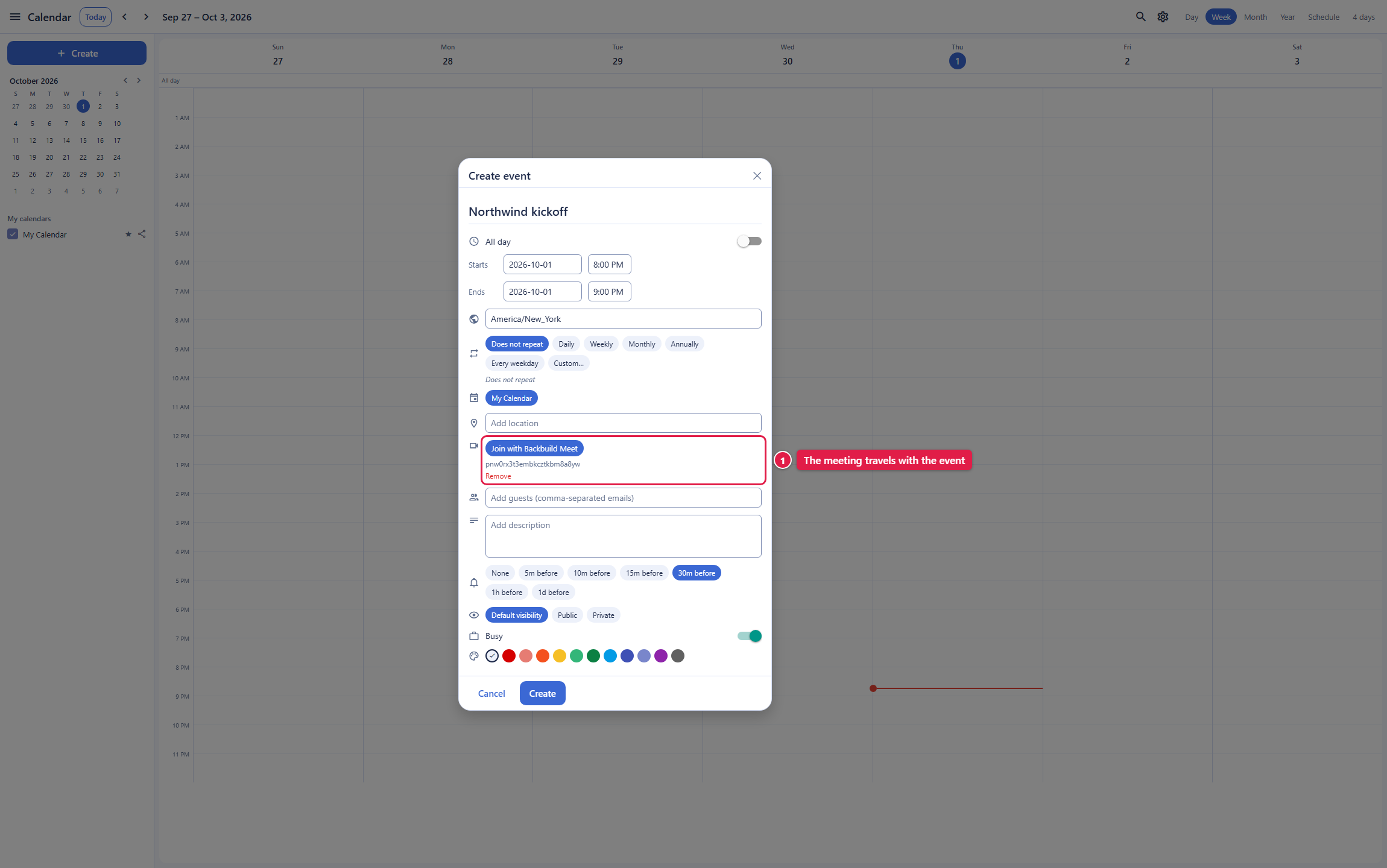
After this section you will put a meeting where people already look. In Backbuild Calendar, create or edit an event and press Add Backbuild Meet. A meeting is created for the event, and the event shows a Join with Backbuild Meet button, the meeting code, and Remove. When you send the event to its guests, the join button and the code travel with the invitation. The calendar side is taught in Views, Events, and Invitations.
Renaming, Ending, and Deleting a Meeting
After this section you will keep your list tidy and close a meeting cleanly. On a meeting you host, the row in Your meetings gives you the housekeeping controls.
- Rename (the pencil) changes the title in place.
- End closes a live meeting for everyone.
- Delete (the bin) removes a meeting after you confirm. For a live meeting the confirmation reads End & delete, and the meeting is ended for everyone first.
- Leave, in the room, takes only you out; the others carry on.
A meeting whose whiteboard was used cannot be deleted from the hub yet; the hub says so when you try, and the meeting stays in your list. If you may want to delete a meeting later, keep its notes in the meeting chat or a Backbuild Docs document rather than on the whiteboard.
How Big Can a Meeting Be?
After this section you will set the right expectation. Backbuild Meetings is built for small working groups. Each person's video travels directly to every other person, so a meeting works best with a handful of people. It is not a webinar or broadcast tool, and there are no breakout rooms or phone dial-in.
Frequently Asked Questions
Can I rename or delete a meeting after I create it? Yes, from its row in Your meetings, as long as you host it. A meeting whose whiteboard was used cannot be deleted yet.
Can someone else run the meeting with me? Not yet. The person who creates a meeting hosts it, and the app has no co-host control.
Does inviting a big list cost anything? Not in credits. Invitations are sent as email, and Backbuild sets no email allowance or charge for them. See the outbound routing guide for how your organization's mail is sent.
Do invitees pay anything to attend? No. Your organization covers the whole meeting on its usage credits, and attendees are never asked for billing details.