

Reading Your Backbuild Miles Dashboard
The dashboard is the first screen you see when you open Backbuild Miles, and it answers one question: where do I stand this year? It shows how far you have driven, what those miles are worth as a deduction, how your driving splits between business, commuting and personal, what you still need to classify, and which car earned what. After this page you will be able to read every figure on it, know exactly what each one counts, and know which figures are ready for a tax return and which are an estimate.
The Two Numbers at the Top
After this section you will know what your headline mileage and deduction figures include, and what they deliberately leave out.
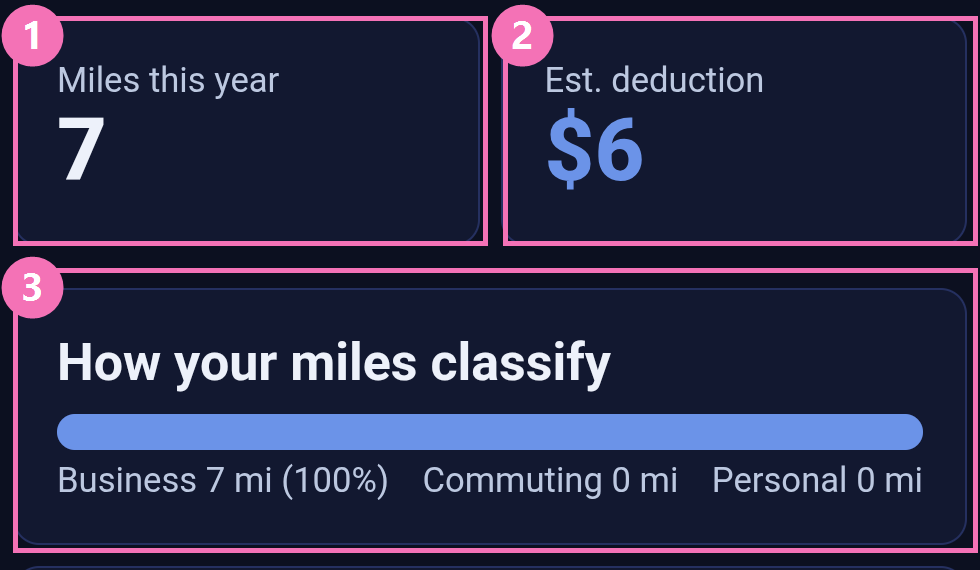
1. Miles this year
Every classified drive with a start date in the current calendar year, added up. All three classifications count toward it, because it answers "how much did I drive", not "how much can I claim". Drives you have not classified yet are not in this number; they are counted separately, in the prompt described below.
2. Estimated deduction
What your business miles are worth at the published standard mileage rate. Commuting and personal miles contribute nothing to it, which is the correct treatment and the reason Backbuild Miles keeps commuting as its own classification rather than folding it into personal.
Each drive is priced at the rate in force on the day you drove it, never at a single rate applied to the whole year. That matters more often than people expect: the standard rate has changed in the middle of a year more than once, and a year with a mid-year change cannot be priced correctly by one number. Adding up each drive at its own rate is the only way the total comes out right.
Two honest signals to look for. If the figure shows a dash rather than an amount, the published rates have not loaded yet, and the app will show a dash instead of a confident zero. If a line appears underneath reading that some miles have no published rate yet, those are business miles on dates no published rate covers; they are excluded from the total and called out rather than quietly valued at nothing.
Treat this as a well-founded estimate for planning, not as a filed figure. The reports screen produces the substantiation record itself.
3. How your miles classify
One bar, three segments, in the order business, commuting, personal, with the mileage for each underneath. It is the fastest way to sanity-check a month: if your business share looks far too high or too low, something has been classified wrongly and you can go and fix it before it reaches a return.
Why commuting is separate: travel between home and a regular place of work is generally not deductible, and mislabelling it as business is one of the most common ways a mileage claim gets disallowed. Keeping it visible as its own number means you can see at a glance whether your commute is being counted where it belongs.
Drives You Have Not Classified Yet
After this section you will know how to find and clear the drives that are waiting on you. Backbuild Miles records a drive automatically, but only you can say what it was for. Until you do, it sits in your trip inbox.
When anything is waiting, a bordered prompt appears at the very top of the dashboard, above every other figure. It tells you how many drives are waiting, how far they are, and what they would be worth if you classified them as business. Tap it to go straight to the list and deal with them.
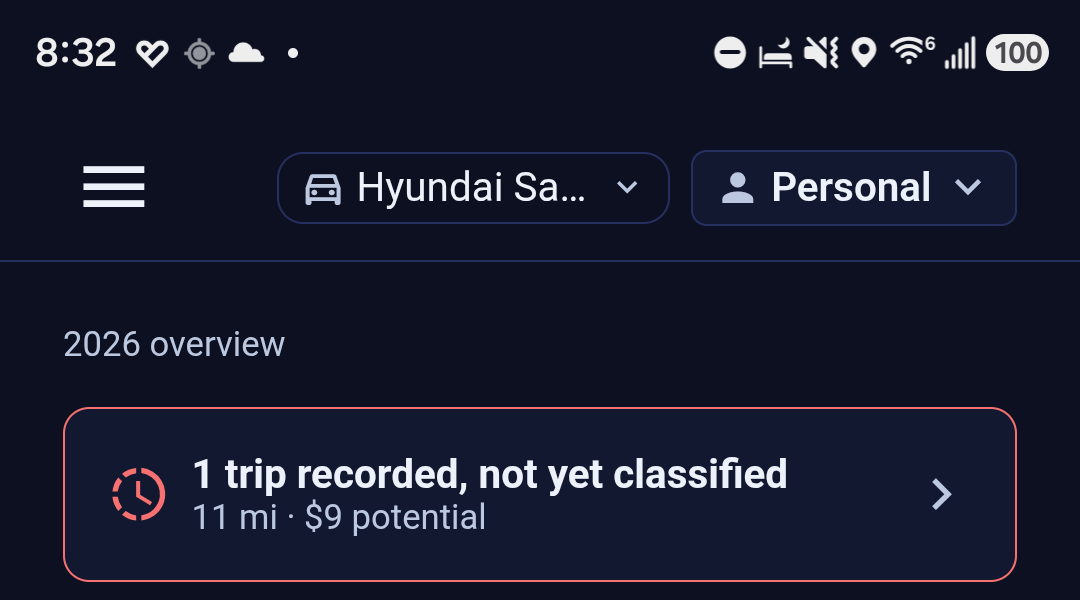
The count is of drives that genuinely still need a decision. If you have split a recorded drive into separate legs, the legs are what need classifying, so those are what you are counted and shown, never the original alongside them. When nothing is waiting, the prompt is not there at all, and its absence is the signal that you are up to date.
The value shown is what those miles would be worth if they were business miles. It is a prompt to act, not a claim: nothing is added to your deduction until you classify it yourself.
The Three Charts
After this section you will be able to spot a missing drive, a quiet week, or a seasonal pattern in seconds. Three charts stack down the screen and zoom out as you scroll: the last fourteen days, the last twelve weeks, and each month of the current year.
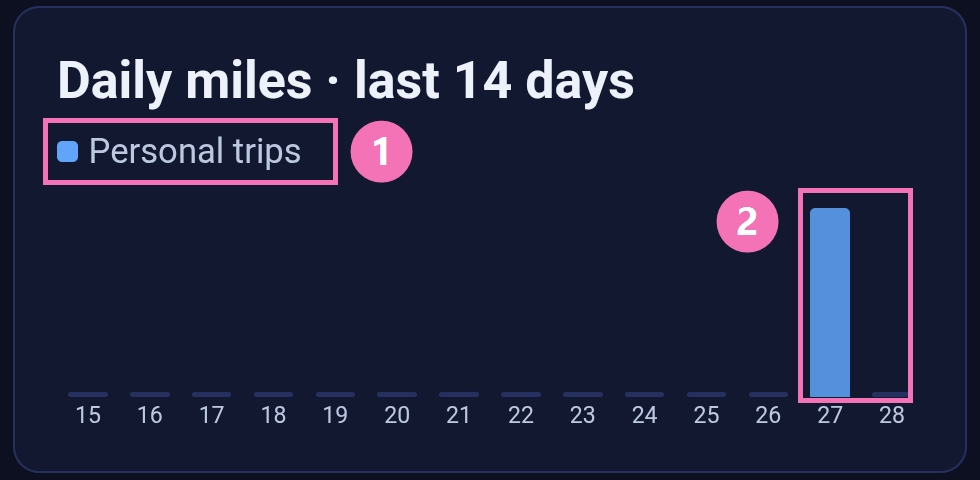
Each bar is one period. A day with no driving shows a thin flat mark on the baseline rather than nothing at all, so you can tell "I did not drive" apart from "the chart is broken". The current day, week or month is drawn slightly brighter than the rest, so you always know which end you are looking at.
The legend tells you what a colour means. Classified miles are coloured by the entity they belong to, and the legend names it. Anything still unclassified is stacked on top in red and labelled Unclassified, so it reads as work still to do rather than disappearing into the total. Only colours that actually appear in the chart are listed.
Read them together and they answer different questions. The daily chart catches a drive that never arrived: if you know you drove on Tuesday and Tuesday is flat, something stopped recording, and the tracking-health banner described in the app-layout guide will usually tell you why. The weekly chart shows your rhythm. The monthly chart shows the shape of the year and is the one to look at before a quarterly estimate.
Which Car Earned What
After this section you will be able to see each vehicle's mileage and the deduction it earned. Every car you have registered gets a row: its name, how it is used, its miles so far this year, and the deduction its business drives earned, labelled so the currency figure is never ambiguous.
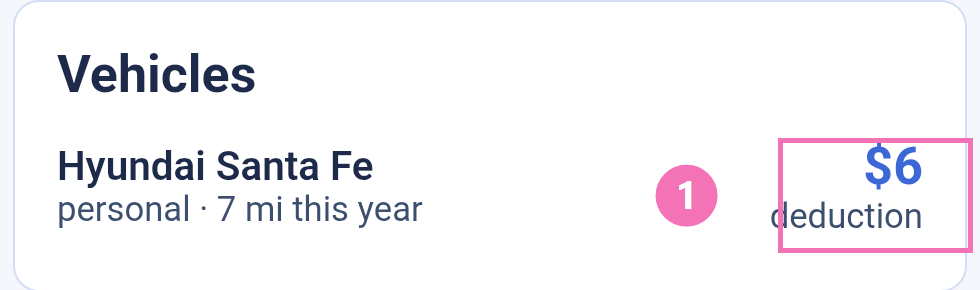
The vehicle rows add up to the headline deduction, because both are worked out the same way: business drives only, each priced at the rate for the day it happened. A car used only for personal driving will correctly show miles and no deduction.
If you have not registered a car yet, the card says so and points you at the round button in the corner to add one. Registering a vehicle is what lets Backbuild Miles attribute a drive to the right car and keep its running costs separately.
Which Set of Books You Are Looking At
After this section you will know which entity the figures on screen belong to. If you drive for more than one business, or for a business and yourself, each one is a separate entity with its own books.
Everything on the dashboard belongs to the entity currently selected in the picker at the top right of the screen. The card at the bottom lists every entity you belong to and marks the one you are looking at as current, so you can always confirm you are reading the right set of books before you act on a number. To change entity, use the picker at the top of the screen.
Keeping more than one entity
An entity is whoever the driving is for. Most people start with one (themselves) and add more as they need them: a limited company, a partnership, a side business, a rental property. Each is a separate legal filer, so each keeps its own set of books, its own vehicles and its own mileage log. Nothing is shared between them, and nothing is totalled across them: a figure on this dashboard is always one entity's figure, never a combined one.
That is why choosing the entity matters before you classify rather than after. A drive filed to the wrong entity is a deduction claimed on the wrong return, and the correction is a journal entry in two sets of books rather than a tap.
Where the numbers actually go
When you classify a drive, Backbuild Miles writes it into that entity's mileage records in Backbuild Finances, the accounting area of the main Backbuild platform. A receipt you photograph and attach to a vehicle expense is filed there too, as a document against that expense. The figures on this dashboard are a read of those records, not a separate tally that has to be reconciled later.
To open them, sign in to Backbuild in a browser with the same account you use here, switch to the entity you want, and go to Finances. Your mileage sits under Expenses, Bills & Mileage; the journal entries it produces are in The Accounting Ledger.
Finances on the platform, and the vehicle view here
The two are the same records seen from different distances, and each is better at a different job.
- Backbuild Finances, on the platform, is the whole business: invoices, bills, banking and reconciliation, payroll, the general ledger, sales tax and year-end reporting. Mileage is one expense category among many. Go there to reconcile against a bank account, correct an entry, or prepare a return.
- Backbuild Miles, on your phone, is the vehicle's point of view: what was driven, in which car, for whom, and what it is worth. It is built for the moment of capture and the minute of review afterwards: classify a drive, photograph a receipt at the pump, check a vehicle's running costs.
So the phone is where mileage is captured and decided, and the platform is where it lives alongside everything else the business does. You never have to enter anything twice, and nothing you record here is stranded in the app.
When There Is Nothing to Show Yet
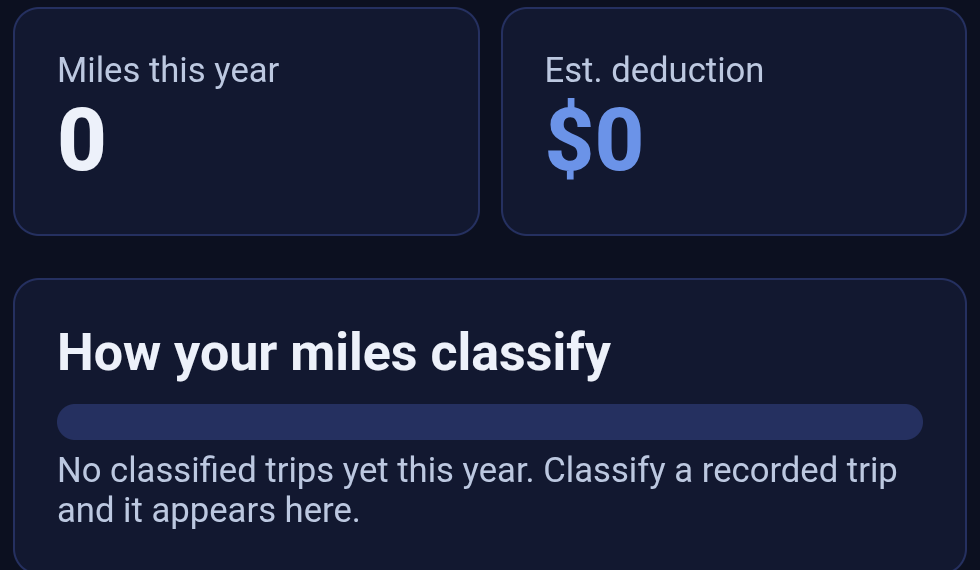
A new entity, or one you have not driven for this year, shows zeroes and says so in words rather than drawing an empty bar you might misread as a real measurement.
When Something Goes Wrong
If the dashboard cannot read your drives, it says so and offers a Try again button. It will not show you zeroes, because a zero you cannot tell apart from "you drove nowhere" is worse than no answer at all. Your recorded drives are safe when this happens: the message means this screen could not read them, not that anything was lost.
Common Questions
Why is my deduction lower than my miles multiplied by the rate?
Only business miles are deductible. Commuting and personal miles are in your mileage total but not in the deduction. Check the classification bar: if the business share is smaller than you expected, some drives are classified as commuting or personal.
Why does the deduction show a dash?
The published rates have not loaded. Backbuild Miles shows a dash rather than a zero so you are never shown a confident figure it cannot stand behind. It resolves as soon as the rates load.
I drove today. Why is today's bar flat?
A drive appears on the charts once it is classified, and as the red unclassified segment before that. If neither is there, the drive was not recorded. Open the trips screen to check, and look for the tracking-health banner, which warns you when your phone's battery settings are about to stop recording.
Can I use the dashboard figure on my tax return?
Use it to plan and to check yourself. The reports screen produces the mileage log and the substantiation record intended for filing, including the drives that are missing a stated purpose, which is what an examiner looks for.
Does the dashboard show all my entities at once?
No. It shows the entity currently selected, which is what keeps each set of books separate. Switch entity with the picker at the top of the screen to see another.
Why do the charts only go back fourteen days and twelve weeks?
Those are the windows that answer "is my recording working" and "what is my current rhythm". For the whole year, read the monthly chart underneath them, and for anything longer or more detailed, use the reports screen.
Where to Go Next
- Getting Around Backbuild Miles covers the menu, the vehicle and entity pickers, the tabs, and the tracking-health banner that warns you before a drive is missed.