

Backbuild Virtual Workers
A Backbuild Virtual Worker is a named AI employee your organization hires to do real operational work. It is not a chat widget that answers questions. It triages an inbox, drafts and posts support replies, runs the skills you assign it, and does project and code work inside a container, and it does all of that under your organization's roles, your budget, and a complete audit trail. It keeps human-style working hours, can report to a manager you choose, and starts supervised: its help desk work comes back as drafts for a person to review. After this page you will understand what a worker is, how to hire your first one, and which guide answers the job in front of you.
Virtual Workers are available on every plan, including Free, and draw on universal usage credits. The AI turns Backbuild runs for a worker are metered as it takes them, and a worker that runs in a container also draws container credits while that container is up. The coding agents in a container worker's slots run on provider accounts you link. There is no separate per-worker subscription and no per-task surcharge. See the pricing page for the credit model.
A Worker, Not a Chatbot
After this section you will be able to tell what a Virtual Worker does that a chatbot cannot. A question-and-answer bot reads a knowledge base and types an answer. A Virtual Worker takes actions: it picks up a support ticket, reads its full conversation, and writes a reply; asked to, it works through an inbox and triages what has arrived; it runs a skill you built; and, given a container, it edits code and prepares a change for a person to review. Each worker is a distinct, named identity in your organization, with a job title, a permission role, a shift, and, if you name one, a manager, so the work it does is attributable to it the way a teammate's work is attributable to them.
- It has a name and a role. You hire a worker, give it a job title, and assign it one of three permission roles: Support Agent, Developer, or Inbox Manager. The role decides what it is allowed to touch.
- It reports to a manager. You name a person or another worker as its manager, so someone is accountable for its output. The manager is chosen on the hire form; a worker hired with No manager keeps none, and an organization administrator decides its approvals.
- It works a shift. A worker has working days, hours, and holidays. Off shift, it takes up no queued or help desk work, which waits for its next shift; it acts then only when a person asks it something directly, such as in Chat, so a worker never acts at 3 a.m. unless someone meant it to.
- It starts supervised. Every autonomy setting starts at Supervised, and the worker's help desk runs come back as internal drafts for a person to review. You loosen the settings per capability as trust grows.
- Every run is recorded. A worker's prompts and its own responses are kept as conversations marked Virtual Worker, and the worker's entries cannot be edited afterward, so anyone with access to a run can read exactly what the worker did.
Where You Find Workers
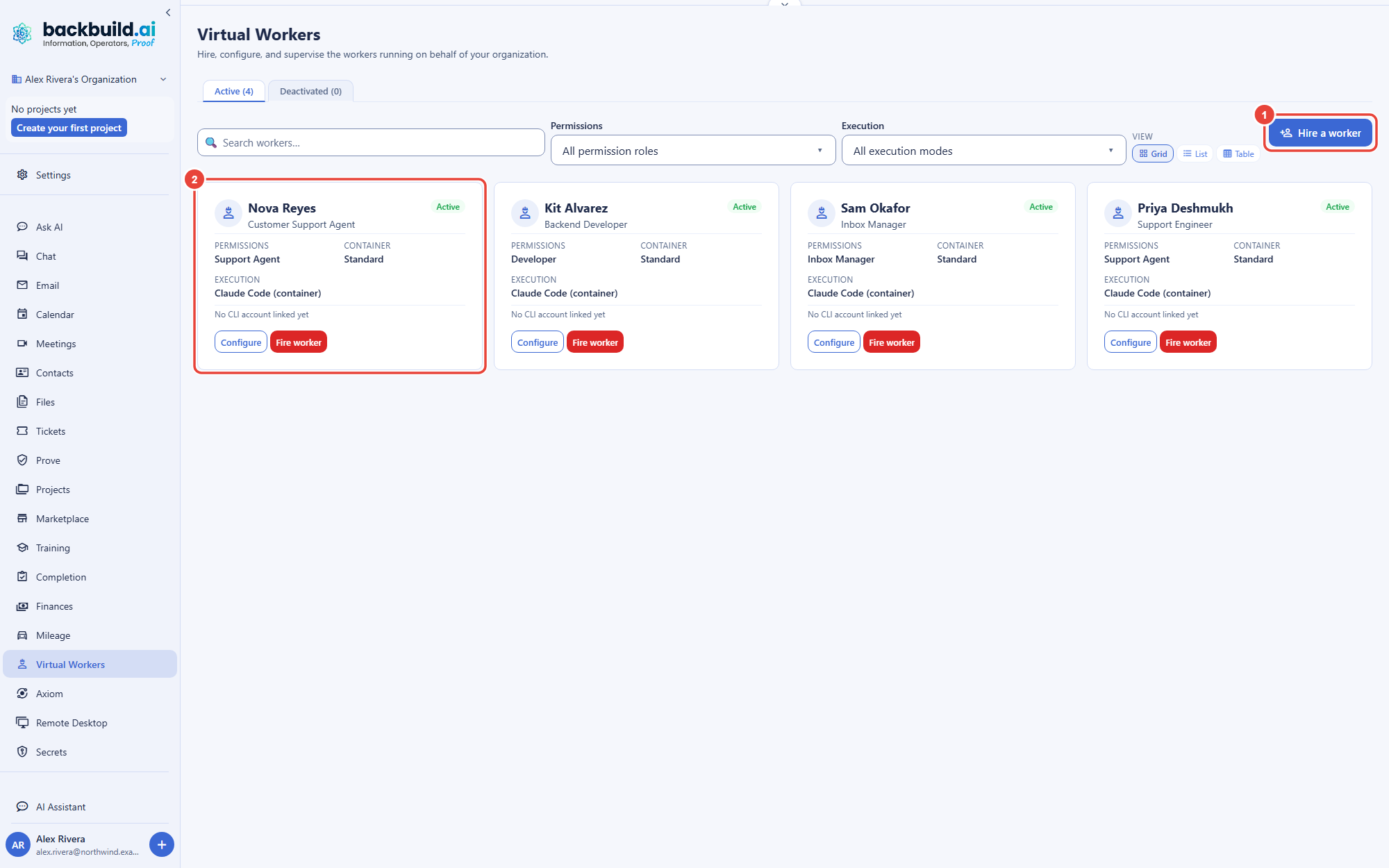
After this section you will know how to reach the roster and where a worker shows up in your work. Open Virtual Workers in the app's sidebar. That is the roster: hire workers there, and configure or fire one from its card. Each worker has its own page, with an Overview of its health and its Pause, Drain, Stop, and Fire controls, its Configure wizard, an Email tab for its inbox, a Calendar tab for its week, and live Terminal, VS Code, and Desktop tabs while its container runs. Other surfaces put workers where the work is:
- In your inbox. Give a worker its own inbox and it appears in your Email screen's mailbox switcher, grouped under Virtual workers. See A Worker's Inbox and Calendar.
- In Chat and Ask AI. The person who hired a worker, and the people it is shared with, find it in Chat unless it is hidden with its Available in Chat switch, which hides it from Chat only, not from Ask AI. An In-app assistant or hybrid worker is always available there; a worker that runs only in a container is available while it is online. The worker itself answers a chat only when the chat's Run on is set to Virtual Worker with that worker chosen, in the worker's Chat conversation and in Ask AI alike; on any other choice it is an ordinary chat run as you. Running a chat as a worker needs the worker active, not paused, and is for the person who hired it and for people it is shared with as Can edit; the chat takes one of the worker's free slots, starting its container if none is running.
- From a project. A project's Virtual Worker action starts an on-demand container session for that project, so a worker can do hands-on project or code work in place.
- From your help desk. In Settings, then Helpdesk, the Worker assignment section assigns workers to the states of a ticket workflow, and with auto-dispatch on, tickets that reach a state are picked up automatically. A worker's own Configure wizard sets the same assignments. See Support Workers.
Your First Worker, Supervised, in Minutes
After this section you will have hired a worker and know what it can and cannot do on its own. The fastest safe path is to hire a Support Agent that runs on usage credits and drafts replies for you to review. You are not signing up for a multi-week configuration project; a first worker is a few fields and a couple of choices.
- Open Virtual Workers and choose Hire a worker.
- Name it and give it a job. A name, a job title, and a permission role. Start with Support Agent.
- Choose how it thinks. Set the execution mode to In-app assistant: it runs on the platform's AI over your plan's usage credits, with nothing else to set up. A worker that does code work in a container runs coding agents there instead, on provider accounts you link. See AI Connection and Budgets.
- Give it an inbox. Optional: create an inbox for the worker on your verified domain, or assign one you own, so its work has an address. See A Worker's Inbox and Calendar.
- Leave autonomy on supervised. The worker's help desk runs come back as drafts for a person to review, and sending external email can never be set to autonomous. See Autonomy and Approvals for exactly what is enforced.
- Set a shift and hire. Pick working days and hours, then hire the worker. It appears on your roster, ready to be given work.
That is the safe way to start: on the help desk the worker drafts and a person reviews and sends. You loosen supervision later, per capability, only on the queues where the worker has proven itself.
What It Costs
After this section you will know how work is metered and which controls limit it. A worker draws on the same universal usage credits that cover the AI assistant, containers, and audio, not a separate bill. The AI turns Backbuild runs for a worker draw credits as it takes them. A worker that runs in a container also draws container credits, at its size's hourly rate, for as long as that container is up, including the time between tasks while it waits for the next one. Off shift, an idle worker container is closed after a short grace period, so a shift is also a cost control; a container you start yourself with Start stays up until you stop it. When you hire a worker that runs Claude Code in a container, or in hybrid mode, you can also set a weekly token target with a stop-at threshold; in this release it counts the AI turns Backbuild runs for the worker on usage credits, not yet the coding agents in its container. A worker's coding agents in a container run on provider accounts you link; a usage throttle keeps each account inside the provider's limits, and the worker's page shows each account's 5-hour and weekly usage. Both are covered in AI Connection and Budgets.
Will this actually do the work, or is it another chatbot? It takes actions. A worker reads a ticket's real conversation and writes a reply, triages an inbox, runs your skills, and, with a container, edits code and prepares a change for a person to review. What it can do is bounded by its role, the workflow states you assign it, and the instructions you give it, not by a fixed script.
How long until it is useful, and will I babysit it? A first supervised worker is running in minutes, not weeks. Supervision is a dial, not a chore: it starts drafting-for-review, and you loosen it per capability only where the worker earns it.
Can a runaway worker burn my budget? You set the limits. On linked provider accounts, the usage throttle stops new tasks before an account hits its limit. A weekly token target stops the worker claiming new work once the AI turns Backbuild runs for it on usage credits reach your threshold; it does not yet count the coding agents in a worker's container. Its container is charged while it is up, so keep its shift to the hours you need, and use Pause, Drain, or Stop on the worker's page to rein it in.
Choose Your Guide
Each guide teaches one job end to end. Start with the one that matches what you need to do.
- Hiring and Configuring a Worker: the Hire a worker form, its persona and permission role, its runtime and execution mode, its mailbox and manager, its shift and holidays, and its operating instructions.
- The Configure Wizard: every step of a hired worker's configuration, from its inbox and slot layout to its AI accounts, autonomy, and shift.
- The Worker Page: the Overview, each account's 5-hour and weekly usage, the Pause, Drain, Stop, and Fire controls, and the live Terminal, VS Code, and Desktop tabs.
- A Worker's Inbox and Calendar: the owner rule, giving a worker an inbox, and its Email and Calendar tabs.
- AI Connection and Budgets: running on usage credits or a provider account you link, connecting a worker's own coding-agent account, the weekly token target, the usage throttle, and where usage shows.
- Autonomy and Approvals: the supervised-first default, the per-capability autonomy settings, the two capabilities locked to Always supervised, the approval queue, and the pause and fire controls.
- Support Workers: for support operations, assigning a worker to the states of a ticket workflow, auto-dispatch, drafts posted as internal notes, resolve versus reply, shift and holiday coverage, and grounding in your own knowledge.
- Developer Workers: for engineering, the Developer role in a container, running on a linked coding-agent account, slots and live surfaces, and the no-push floor.
- Security and Governance: for reviewers, the worker as a managed non-human identity, deny-by-default least privilege, the audit trail and transcript, credential handling, isolation, and resistance to prompt injection.
Related Surfaces
- Backbuild Containers: the on-demand cloud computer a worker operates when it does hands-on project or code work.
- MCP and Agent Integration: the tool protocol a worker is driven through, and why a worker can never exceed the access of the identity behind it.
- Password and Secrets Vault: the zero-knowledge vault a worker's linked sign-ins live in.
- Connect a Local AI Agent: letting an AI agent you run on your own machine work across Backbuild as you, inside a permission gate you control.
- Universal Usage Credits: the single pool that meters model and container work.
What a Virtual Worker Is Not
Choosing well means matching the tool to the requirement. A Virtual Worker is a governed AI employee for operational work: support, inbox, and delegable project or code tasks, always under a role and an audit trail, with a budget you can set. It is not a no-code flow builder with a large gallery of one-click connectors, and it is not a turnkey phone or meeting-notetaker product. Work reaches it from your help desk, including automation rules a help desk event fires, from project assignments, and from what you ask it in Chat or Ask AI; mail arriving in its inbox does not start work on its own. And it starts supervised: sending external email and pushing code can never be set to autonomous, and its help desk runs come back as drafts for review.