

Splitting a Trip Into Several Jobs in Backbuild Miles
Your phone records driving, not jobs. It knows you left at seven and got home at half past ten, and it cannot know that the first two hours were deliveries for one company, the next hour was a fare for another, and the last leg was your own shopping. That is your knowledge, and splitting is how you put it into the record. This page covers picking the points where one job ended and the next began, reading the preview before you commit, what each segment becomes afterwards, and how to undo a split you got wrong. After it you will be able to turn one long capture into a set of clean, separately claimable trips.
When a Drive Needs Splitting
After this section you will know which of your captures should be split and which should be left alone.
A drive is a candidate for splitting whenever one continuous capture covers work for more than one payer. The common shapes are a delivery round that serves two clients, a day that starts on one platform and finishes on another, and a working drive with a personal errand in the middle of it. What these have in common is that a single classification would be wrong for part of the mileage, and a mileage claim that is wrong in part is a claim that has to be defended in whole.
A drive does not need splitting just because it had stops. A courier who makes nine drops for the same company all day has one trip with nine stops, not nine trips, and labelling those stops is the right treatment: Clearing Your Trip Inbox covers that. Split when the money changes hands differently, not when the vehicle stopped moving.
Splitting is available on a drive that is still waiting in your inbox, before you have classified it. Once a drive has been filed it belongs to an organization, and the way to correct it then is to return it to your inbox or move it, both of which Reviewing a Trip covers.
Placing the Split Points
After this section you will be able to open the split panel and choose where the drive divides.
Open your Trip inbox and find the drive. Under its stops line is Split this trip. Tapping it opens the split panel in place, on the same card, so you can still see the route and the times you are dividing.
The panel offers you a row of times, and those times are not arbitrary. Backbuild Miles reads the drive's detected stops and offers the moment each one ended, on the reasoning that a job usually finishes where you stopped. So on a round with three stops you are offered three moments, and the one you want is almost always among them.
When a drive has no detected stops at all, the app cannot make that inference, and it falls back to offering thirds of the drive so that a free cut is still possible. If you see two evenly spaced times rather than times that match your day, that is what has happened: the drive recorded no qualifying stops. That is worth knowing rather than working around, because a drive with no detected stops on a day you know you stopped usually means tracking was interrupted, which Setting Up Automatic Tracking covers.
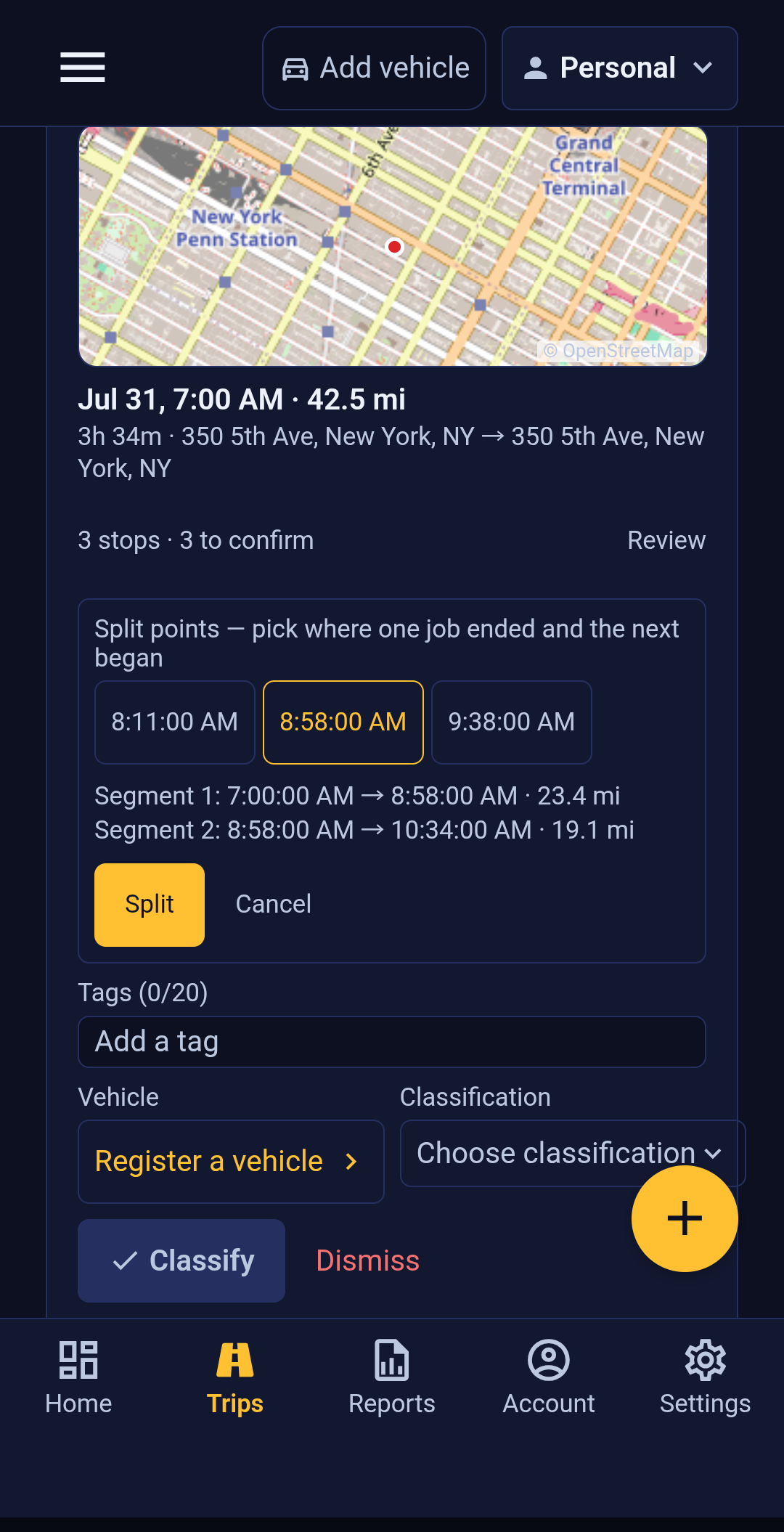
Tap a time to choose it. Tap it again to unchoose it. You can pick several: each point you place adds one more segment, so two points make three segments. Until you have picked at least one, the panel says so and the Split button stays inactive, which is deliberate rather than a fault.
Reading the Preview Before You Commit
After this section you will be able to check a split is right before it happens.
The moment you place a point, the panel replaces its prompt with the segments it would create, one line each, showing the start time, the end time and the distance. This is the part worth a few seconds of attention, because it is the only place you see the split as numbers before it becomes real.
Two things are worth checking on that preview:
- The times match the jobs you remember. If a segment ends an hour after you actually finished, you have picked the wrong stop, and it is one tap to move it.
- The distances add up to the drive. They will: the app divides the recorded distance between the segments and gives the remainder to the last one, so the segments always total the original exactly. A split never loses deductible mileage, and you can confirm that against the figure on the card.
If a choice would produce a segment too short to be a real journey, the panel tells you which segment and why instead of letting you commit it. There is also a ceiling on how many segments one drive can become, which is high enough that a normal working day never reaches it.
When the preview looks right, tap Split. If you change your mind first, Cancel closes the panel and discards the points; nothing has happened to the drive.
What Each Segment Becomes
After this section you will know what you now have in your inbox and what is left to do with it.
The original drive is replaced in your inbox by its segments, and each segment is a full trip in its own right, waiting for its own decisions. That is the whole point of splitting: each one takes its own vehicle, its own classification and its own organization, so the deliveries go to one set of books and the fares to another, with neither organization seeing the rest of your day.
Each segment carries its own piece of the route you actually drove, so a split trip still shows the shape of the driving rather than a straight line between two points. The outer ends keep the addresses the original drive had. The new boundaries in the middle did not exist until you made them, so the app looks up their addresses afterwards and fills them in, which means an interior address may take a moment to appear.
From here each segment is classified exactly like any other waiting drive, which Clearing Your Trip Inbox covers.
Undoing a Split
After this section you will know how to reverse a split and when that stops being possible.
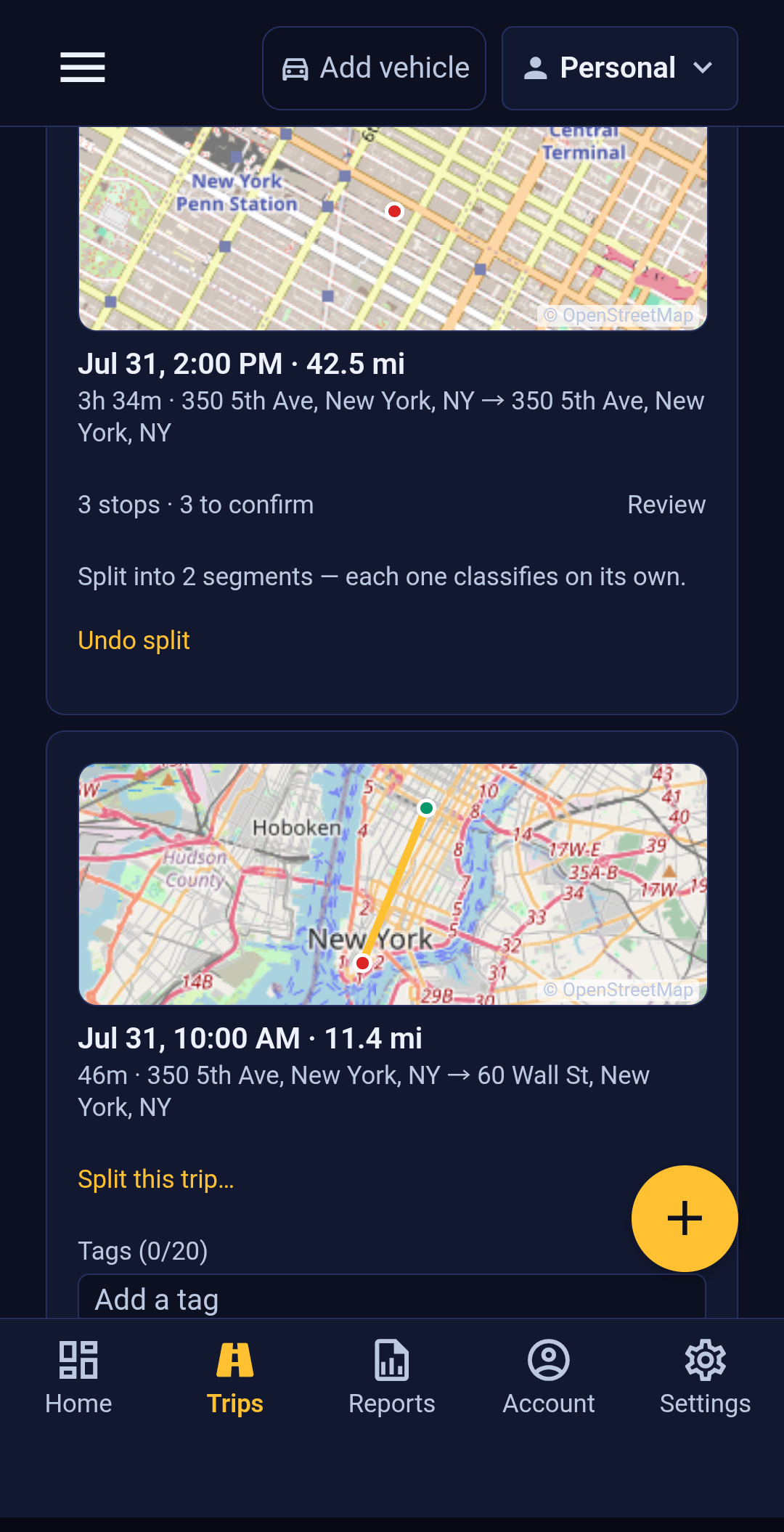
A drive you have split shows how many segments it became and offers Undo split. Undoing puts the segments away and returns the original drive to your inbox, whole, with its distance and its stops as they were. Nothing is lost by trying a split and changing your mind.
Undo is available while every segment is still an unfiled draft. If you deleted one segment because it was spurious, that does not block the undo. What does block it is filing: once you classify any one segment, the split is final, because that segment is now part of an organization's records and silently withdrawing it would change books that have already been written. The app tells you this rather than failing quietly, and the practical advice follows from it: check the preview, then split, then classify, in that order.
If you discover the problem after filing, the segments are ordinary trips and can be corrected as ordinary trips, by returning one to your inbox or moving it to the right organization. Reviewing a Trip covers both.
Common Questions
Does splitting lose any of my mileage?
No. The segments always total the original drive's distance exactly. The app divides the distance between them and gives any rounding remainder to the last segment rather than letting it fall between the cracks.
How is each segment's distance worked out?
By the time each segment took, as a share of the whole drive. It is the honest available answer from what a phone records, and it is why the split points that matter are the ones at your real stops: cut where the driving actually paused and the shares reflect the driving actually done.
Can I split a drive that I already classified?
Not directly. Splitting applies to a drive still waiting in your inbox. Return the trip to your inbox first, then split it.
Why am I offered evenly spaced times rather than my stops?
Because that drive recorded no detected stops, so there was nothing to snap to and the app offered a plain division instead. If you know you stopped on that drive, check that tracking was running for all of it.
Can the organizations I split between see each other's segments?
No. Each segment is filed on its own, and an organization sees only the mileage filed to it. That separation is the reason splitting exists rather than being a convenience on top of it.
What happens to the stop labels I already confirmed?
They belong to the original drive, and undoing a split returns them with it. Work in whichever order suits you: splitting first and labelling the segments afterwards is usually less work, because each segment then has fewer stops to consider.
What To Read Next
- Clearing Your Trip Inbox to classify the segments you have just created.
- Reviewing a Trip to correct a segment after it has been filed.
- Setting Up Automatic Tracking if a drive arrived with no stops on it.
- Reports and Exports for the annual figures your split trips feed.