

Unlocking, Device Factor and Recovery
This guide teaches you how to open your vault quickly and safely every day, and how to make sure you are never permanently locked out. By the end you will be able to unlock with a device gesture instead of retyping your master password, change your master password with confidence, and recover with your recovery kit if you ever forget it.
Unlocking and What Re-Locks the Vault
After this section you will understand the lock model. You open the vault by entering your master password on the Unlock your secrets screen, which decrypts it locally on your device. A wrong password fails on your own device, never on the server, so there is nowhere for an attacker to sit and guess. The vault re-locks when you would want it to: after an idle period, when you choose Lock secrets, when you sign out, when you switch to another organization, and if the session is revoked. Locking is local: a locked vault holds no readable key in memory.
Unlocking can ask for a fresh second-factor confirmation when you have not confirmed one recently, the same check sensitive account changes use. If you use the Backbuild browser extension, the app and the extension stay in step: unlocking the vault in the app unlocks the extension at once, and locking in either one locks both (see The Vault in the Browser Extension).
Unlock Faster with a Device Factor
After this section you will reopen the vault with a fingerprint, face, or PIN instead of your full master password. After your first master-password unlock on a device, you can enroll a device factor, also called instant unlock. It uses your device's built-in platform authenticator, the same kind behind Touch ID, Windows Hello, and hardware security keys, so that later unlocks on that device take a quick verifying gesture rather than the full master password. You enroll a device through the Backbuild desktop app today; the iOS and Android apps will offer the same when they ship.
It is important to understand what this is and is not. It is re-authentication with a cheaper gesture, not the removal of authentication. Your master password stays the primary way to bootstrap a device, a fresh verifying gesture is required every single time you unlock, and nothing that could silently open the vault is stored at rest. On the Backbuild desktop app, your operating system's secure hardware store is the custodian of the device key. If a device has no compatible authenticator, you simply keep using your master password, which stays fast.

Change Your Master Password
After this section you will be able to rotate your master password without disrupting your team. With the vault unlocked, choose the Change master password control in the Secrets header, enter the new password twice, and choose Change password. The new password must meet the same rules as the first one: at least fourteen characters, with an upper-case letter, a lower-case letter, a digit, and a symbol. The app may ask you to confirm your second factor first.
Your keys are re-sealed under the new password on your device, so every vault stays accessible and nothing has to be re-shared: vault keys are wrapped to your public keys, not to the password itself, so your access and everyone else's continues uninterrupted. The recovery kit you saved at setup stays valid after the change; it is not replaced. Keep it as safe as the password itself.
If You Forget Your Master Password
After this section you will know that forgetting is recoverable, and exactly how. Backbuild cannot reset your master password, because it never holds it and cannot read the vault it protects. That is the guarantee that keeps everyone else out too. Recovery therefore comes from something you saved in advance, your recovery kit, and from nothing else.
Save your recovery kit at setup
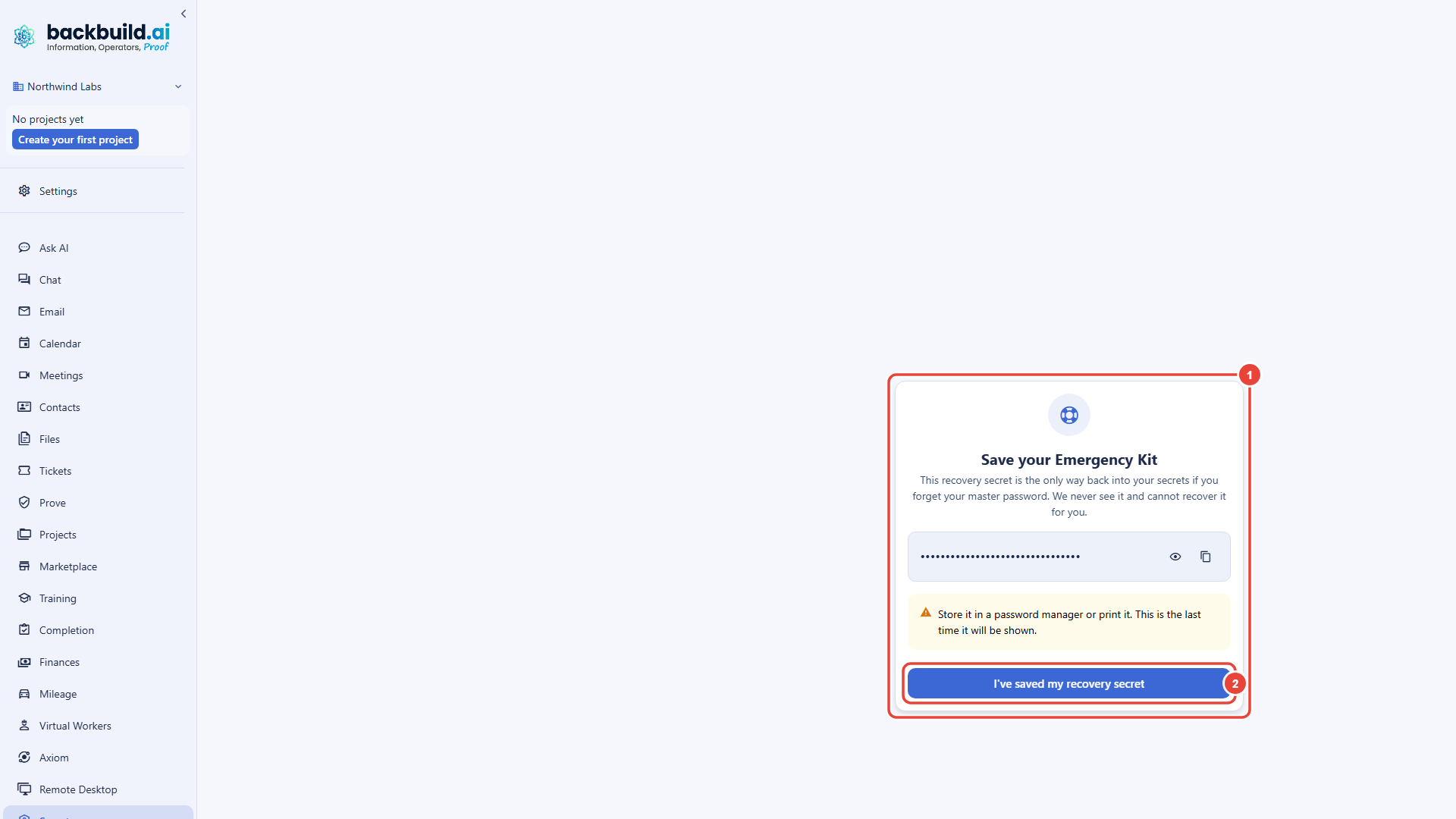
When you first set up the vault, Backbuild generates a strong, machine-made recovery secret and shows it to you exactly once. The setup screen calls it your recovery kit or your Emergency Kit; it is the same thing. The secret starts masked, with controls to reveal it and to copy it. Store it somewhere safe and offline, such as a printout in a locked drawer or an entry in a separate, trusted password manager, then confirm that you saved it. It is never shown again, and no one can show it to you later.
Recover and set a new master password
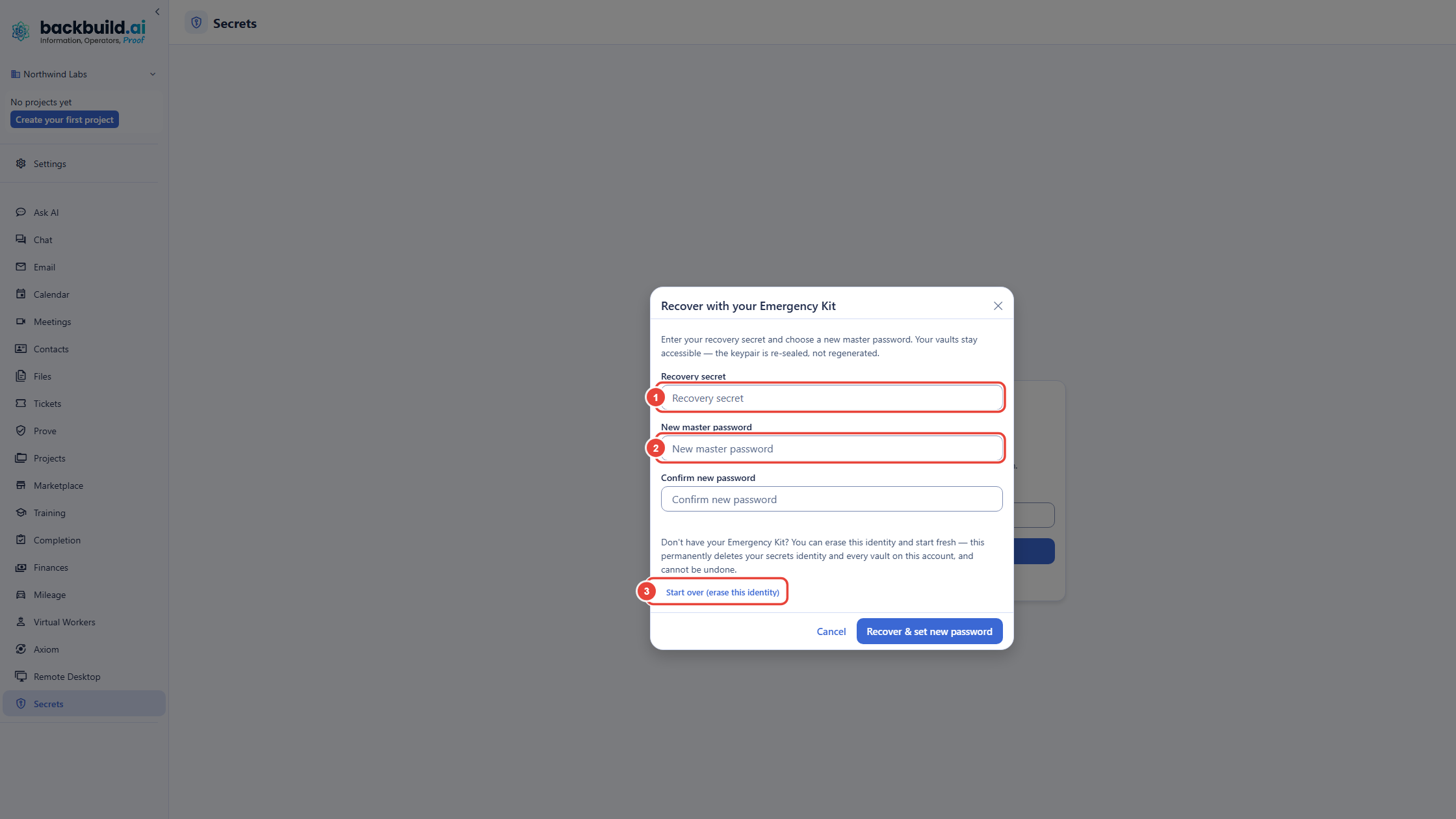
- Open Backbuild Secrets. On the Unlock your secrets screen, choose Forgot your master password?
- Enter your recovery secret in the Recover with your Emergency Kit dialog.
- Choose a new master password and confirm it. It must meet the usual rules.
- Choose Recover & set new password. The app may ask you to confirm your second factor. Your keys are re-sealed under the new password and the vault unlocks; every vault, item, and share is exactly as you left it.
If the recovery kit is lost too
If you have neither your master password nor your recovery kit, the same dialog offers Start over (erase this identity). It permanently deletes your secrets identity and the vaults on your account, and it cannot be undone; the app asks you to confirm before it erases anything. You then set up a fresh vault with a new master password. Vaults that were shared with other people stay available to their other members, who can share them with you again once your new vault is set up. This is why a shared team vault should always have a second owner (see Sharing Vaults with Your Team).
There is no administrator recovery path
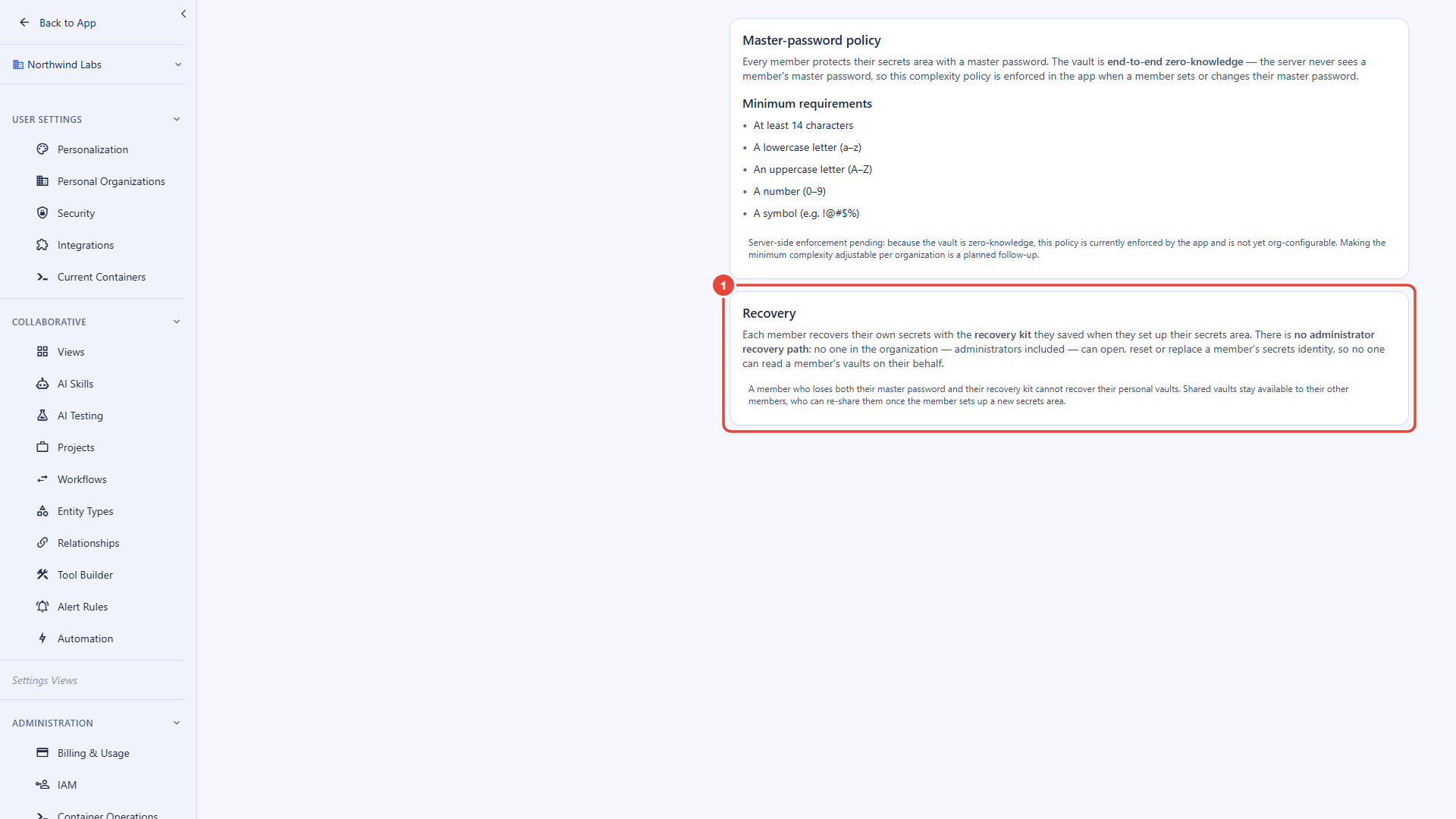
Your recovery kit is the only way back in. No one in your organization, administrators included, can open, reset, or replace your secrets identity, and so no one can read your vaults on your behalf. No one at Backbuild can either. Settings, then Secrets, states this on its Recovery card, so the policy is written down where an organization's secrets settings live.
This is the honest answer to the recovery paradox. A vault an administrator or a provider can reset is a vault they can open: whoever can replace your keys can become you. Backbuild Secrets closes that door entirely, so the responsibility moves to two habits that cost almost nothing: keep your recovery kit somewhere safe and offline, and give every shared vault a second owner so a team is never stranded by one person's lost password.
What happens if I forget my master password? Am I locked out
forever?
No, if you saved your recovery kit. On the unlock screen choose Forgot your
master password?, enter the recovery secret, and set a new master password;
every vault stays as it was. What is impossible is a reset by anyone else,
because that would mean someone else could open your vault.
Can my organization's administrator reset my vault or recover it
for me?
No. There is no administrator recovery path: no one in your organization,
administrators included, can open, reset, or replace your secrets identity,
and no one at Backbuild can either. Your recovery kit is the only way back
in. What an administrator can do is make sure the team is not stranded, by
keeping a second owner on every shared vault.
I lost both my master password and my recovery kit. What now?
Choose Start over (erase this identity) in the recovery dialog. It
permanently deletes your secrets identity and your vaults, then lets you set
up a fresh vault. Vaults shared with other people stay with their other
members, who can share them with you again.
If I change my master password, do I have to re-share all my
vaults, or save a new kit?
Neither. Vault keys are wrapped to your keys, not to your password, so
changing the password leaves all your sharing intact, and the recovery kit you
saved at setup keeps working.
Is instant unlock less secure than my master password?
It is re-authentication with a cheaper gesture, not the absence of it. A
fresh verifying gesture is required every unlock, the master password remains
the bootstrap and fallback, and nothing that could silently open the vault is
stored at rest.
Next Steps
- Administration, Zero-Knowledge and Compliance: enforce multi-factor and device factors across the organization, and read the audit trail.
- Sharing Vaults with Your Team: appoint a second owner so a team is never stranded.
- The Vault in the Browser Extension: unlock and lock together with the app inside the browser.